

Award a Winning Bid and Convert it into a Purchase Order
| PREVIOUS | CURRENT LESSON (23 of 28) | NEXT |
- Navigate to the project's Bidding tool.
- Locate your bid package.
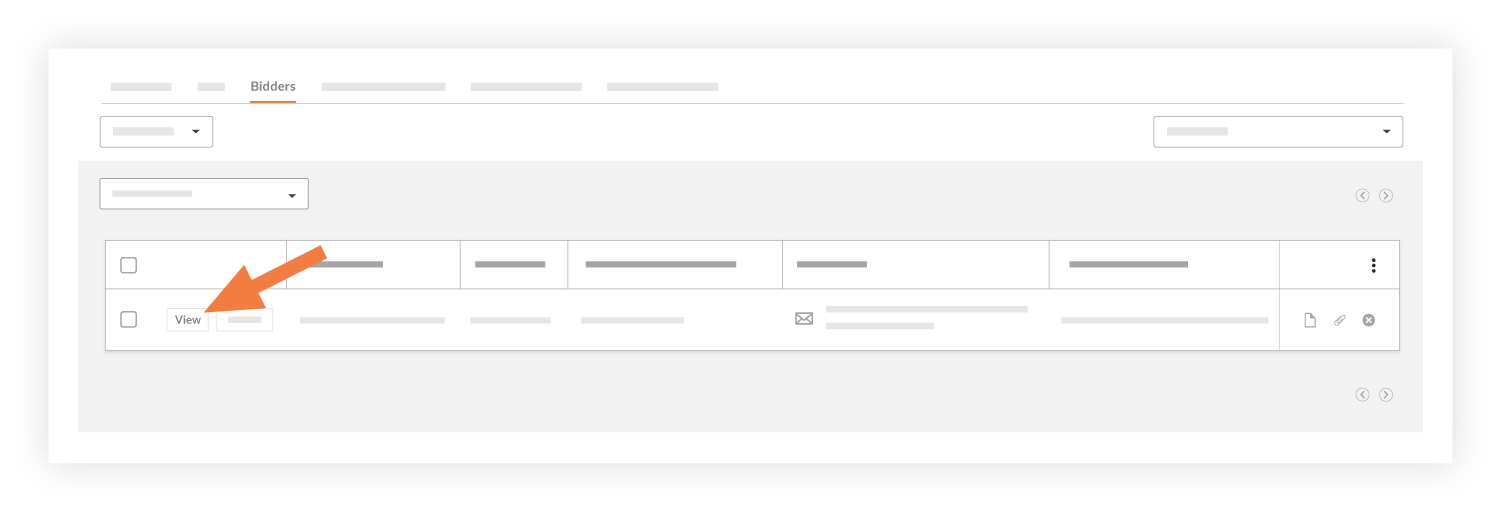
- Click View.
- In the Bidders sub tab, locate the company with the winning bid.
- Click View.
- In the right sidebar, click Convert to Purchase Order.
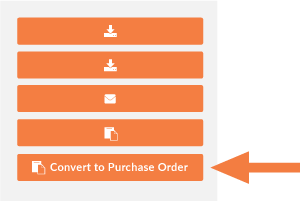
Notes:- The company with the winning bid is automatically added to the Project Directory in your company's Procore account. Individual users associated with the company are NOT automatically added to the Project Directory.
- If the conversion was successful, a yellow banner appears to confirm it.
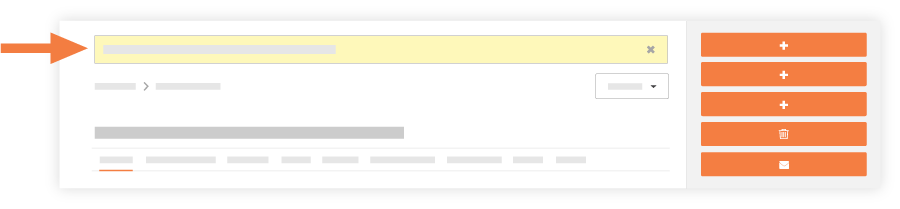
The system automatically redirects you to the project's Commitments tool and opens the new contract General tab in view mode. The contract includes all of the appropriate information that was converted from the winning bid from the project's Bidding tool.
- In the General tab of the purchase order, click the Schedule of Values subtab to see a breakdown of the scope of work.
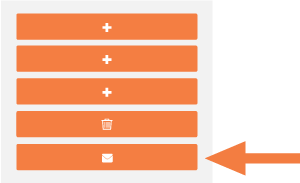
- If you want to notify the company about the winning bid, click Email Contract.
This reveals the commitment's Emails tab.
- In the Emails tab, do the following:
- To. Select the names of the desired recipients.
- CC. Select the names of the people who should be carbon-copied on the email.
- Private. Mark the checkbox if you only want the recipients and users with 'Admin' level permission to the Commitments tool to see the email. This is the default setting.
- Attachments. Add one or more files to the email message. If appropriate to your situation, it is recommended that you always add your company's official contract form as an attachment.
- Message. Type the body of your email message. It is recommended that you always provide clear instructions to your recipients (i.e., vendors/subcontractors) with regards to how contracts and documents must be signed. Your message should also include a reminder to return the signed contract, which can conveniently be added as an attachment in their email response.
Note: The email message will automatically include the contract details.
- Click Send.
The system sends the contract to the designated recipients.