

Share a Custom Submittal Report
| PREVIOUS | CURRENT LESSON (42 of 48) | NEXT |
- Navigate to the project's Submittals tool.
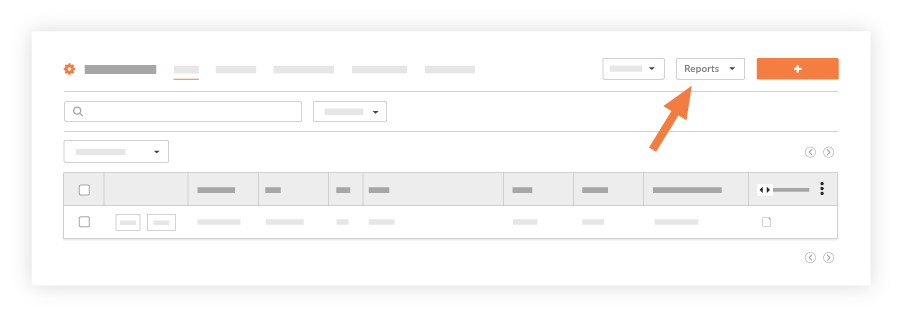
- Click Reports and choose one of the Custom reports from the menu.
Note: The report links in the 'Submittal Reports' menu are created by your company or project team members. See Create a Custom Submittal Report.
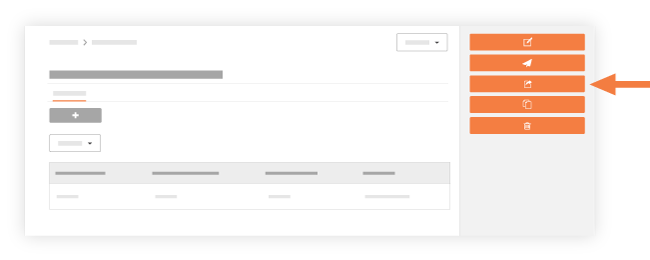
- Click Share Report.
- In the People list, enter the desired names or distribution groups.
- Click Share.
The Share List Updated banner confirms the report has been shared.
- Custom submittal reports can be shared with any users in the Project Directory (see Add a User Account to the Project Directory).
- Recipients of the shared custom submittal report can do the following:
- To download the report, click the hyperlink to the right of the View PDF or View CSV label (Note: The available format is determined by the report creator). Important! When sharing a custom submittal report, keep in mind that recipient does NOT need to be granted access permission to the Submittals or Reports tools in order to download the PDF or CSV attachment.
- To view the report online, click the View Online link. If the recipient is not already logged into Procore, the users will prompted to enter his or her login credentials. To view the report, the user must have access permission to the project's Submittals tool. See Log In to Procore Web.