Generate and Print QR Codes for Locations
| BACK - Lesson 4 | Current Lesson 5 | Lesson 6 - NEXT |
You can generate and print a Quick Response (QR) Code for a location. In Procore, a Location QR Code is two-dimensional, machine-readable barcode that contains information about the Location to which it is attached. This is especially useful when beginning pre-PDI inspections and performing the initial punch-walk.
- Navigate to the project's Admin tool.
- Under 'Project Settings', click Locations.
- Choose from these options:
Bulk print QR codes for multiple locations
- Click the printer
 button next to the Search for a Location box.
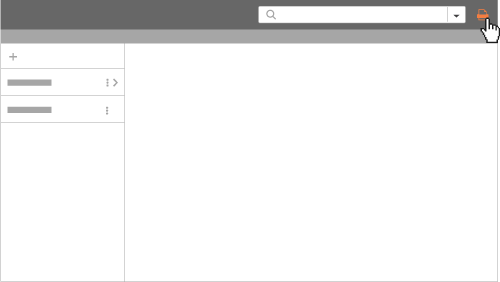
- Search for the locations you want to print.
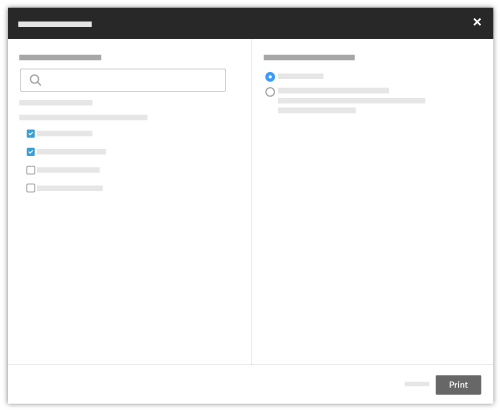
- Mark the checkbox that corresponds to the locations you want to print.
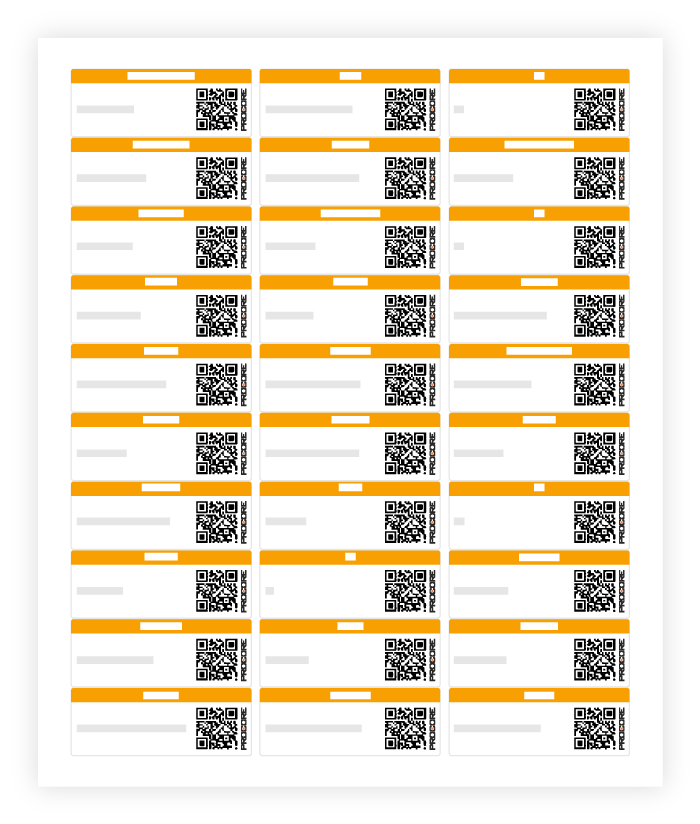
- Choose to print one QR code per page or 30 QR codes per page (compatible with Avery 6460 label sheet).
- Click Print.
Note: This may open the generated PDF in your browser. Go to File > Print to print it from this page.
Print a QR code for a single tier and/or its sublocations
- Find the location path you want to print.
- Click the vertical ellipsis (⋮).
- Select Print QR from the drop-down menu.
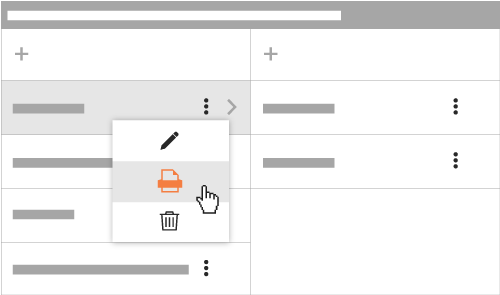
Note: This reveals the Print QR Code window.
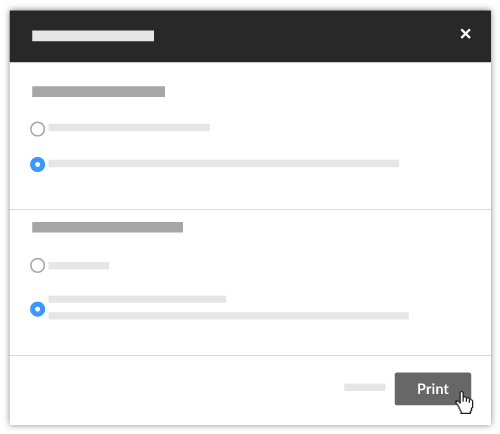
- Under the "What to Print" section, choose from these options:
- Under the "Format Options" section, choose to print one QR code per page or 30 QR codes per page (compatible with Avery 6460 label sheet).
- Click Print.
Note: This opens a copy of the QR code for the location and/or sublocations in a separate browser window. It also launches your browser's print controls so you can send the codes to your local printer.
Example Sheet with 30 QR codes