

Edit Tiered Locations
| BACK - Lesson 3 | Current Lesson 4 | Lesson 5 - NEXT |
Important! Any changes to the locations in your project are updated in every place that references that location. For example, if your project has existing single-tier location called “East Wing Men’s Bathroom” and you want to rename the first tier “East Wing” and create a second tier within the East Wing named, “Men’s Bathroom,” any items in Procore that had been tied to the single-tier location will be automatically set to use the new "East Wing" first tier location. If you want your items to point to the second tier location, you will need to manually edit that information in the appropriate tool.
- Navigate to the project's Admin tool.
- Under 'Project Settings' in the right pane, click Locations.
- Locate the location or tier that you want to edit.
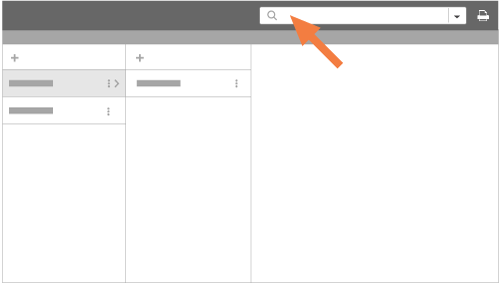
- If you want to use the search feature, highlight the location or tier that you want to search within. Then start typing the location or tier name to find the desired match.
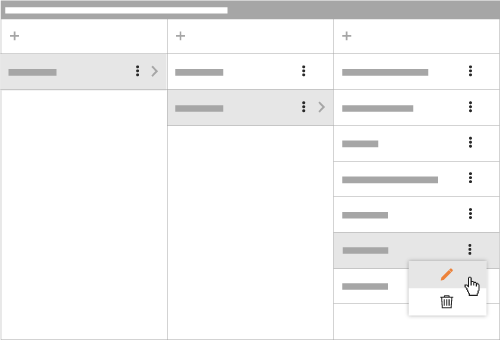
- Click the icon with the vertical dots and then choose Edit from the shortcut menu.
- Type over the existing entry to change the location name.
- Click the green checkmark.
This saves your changes automatically, so you can navigate away from the page when done editing.