

Create a Project Message to Access a Training Center
Objective
To set up a persistent project message for the Project Home page.
Background
This persistent message can be used to spread general awareness of company training material or to promote the Training Center once it has been launched.
Things to Consider
- Required User Permission:
- 'Admin' level permissions on the project's Home tool and 'Editor' on the Training Center to update the message.
- 'Read-Only' level permissions or higher on the project's Home tool to view the message.
Video
Steps
-
Navigate to the project's Home page.
-
Click the Configure Settings
 icon.
icon. -
Update the fields in the Persistent Project Message area as follows:

-
Title. Type the message title that you want to appear on the Project Home page.
-
Persistent Project Message. The body of the message. You can also apply any of the options in the formatting toolbar to the message text.
-
-
Click Update to publish.
In Beta
A new version of the Project Home page is available. See Project Overview.
Company Administrators can enable the Project Overview beta in Procore Explore. (US 2 | UK)
Add or Edit Project Message and Notes
1. Navigate to the Project Overview.
-
Navigate to the project's Home to be redirected to the Project Overview.
-
Click Menu and select Project Overview.
2. Click Edit Message in the Project Message area.
3. Enter the title and message for the project message.
This appears at the top of the project's Home page and is visible to all project users. This message can be used to welcome team members to a project, to publish project announcements, to announce project milestones and more.4. Enter the notes.
These display in the 'Notes' column of the company landing page (Portfolio tool) and are visible to all users at the company level.5. Click Update.
Delete Project Message and Notes
1. Navigate to the Project Overview.
-
Navigate to the project's Home to be redirected to the Project Overview.
-
Click Menu and select Project Overview.
2. Click Edit Message in the Project Message area.
3. Remove all text from the title, message, and notes boxes.
4. Click Update.
-
Training Center Example
For a Training Center message, enter the following in the 'Persistent Project Message' fields:
- Title.
- For example, 'Custom Support Site'.
- Persistent Project Message.
- For example, 'For {Company} Employees: {Insert Link Here}' as seen in the screenshot below.
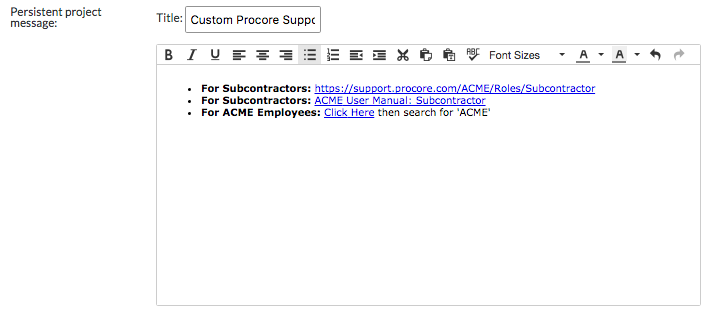
- For example, 'For {Company} Employees: {Insert Link Here}' as seen in the screenshot below.