Add or Remove a User From a Training Center User Group
Objective
To manually add or remove users from the user group associated with your Training Center.
Background
The Training Center utilizes user groups to ensure your company internal information is kept private, as you can control who has access to your pages by manually adding or removing them from this group.
Things to Consider
- Required User Permission:
- 'Editor' permissions on the Training Center.
- To request access to the User Management page, please send an email to training-management@procore.com.
Steps to Add a User
- Navigate to your Training Center landing page and scroll to the User Management link.
If a User Management link is not located on the Training Center home page, refer to the Training Center Site Map, listed as 'Training Center - User Management' or 'User Management'. - Click on the User Management link.
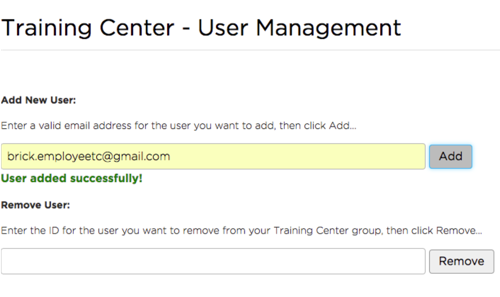
- Under Add New User, type a valid login email address for the Procore user.
- Click Add.
The system will confirm if the user has been added successfully.
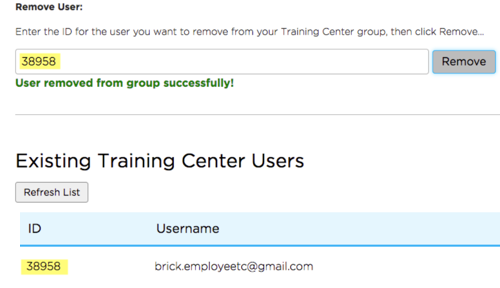
Steps to Remove a User
- Navigate to the Training Center's home page.
- Click the User Management link.
- Scroll to 'Existing Training Center Users' and search for the user you want to remove.
Tip!
Use keyboard shortcut CTRL + F to search for the user by email address. - Select the User ID and right-click to copy.
- Paste the User ID within 'Remove User' field.
- Click Remove.
The system will confirm if the user was removed successfully.