

Assemble Pages in a Book Format
Objective
To organize pages in a book format using the Book Assembly Tool.
Background
The Book Assembly Tool organizes existing Training Center pages within a customizable left-hand panel, which can include titles for chapters, chapter groups, and subchapters on an individual existing Target Page. For more information on getting started with the Book Assembly Tool, please reach out to training-management@procore.com.
Things to Consider
- The Book Assembly Tool must exist in your Site Map before proceeding, for more information reach out to training-management@procore.com.
- The content page(s) to be assembled must already exist within your Training Center Site Map.
- If needed, create one or more source pages for the content that will populate the Book chapters or subchapters.
- A page within your Training Center Site Map must be designated as the Target Page for the Book format.
- The Target Page must remain empty as it will only act as a placeholder. Any content added to the Target Page page will be erased and cannot be retrieved once the Book is created.
- For more information on how to create a new page(s), see Create a New Page.
Steps
- Navigate to your Training Center landing page.
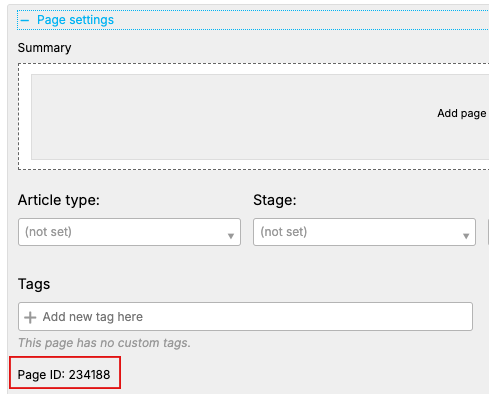
- Navigate to the designated Target Page and click + Page Settings.
- Copy the Page ID number.
- Navigate to Book Assembly Tool within your Site Map.
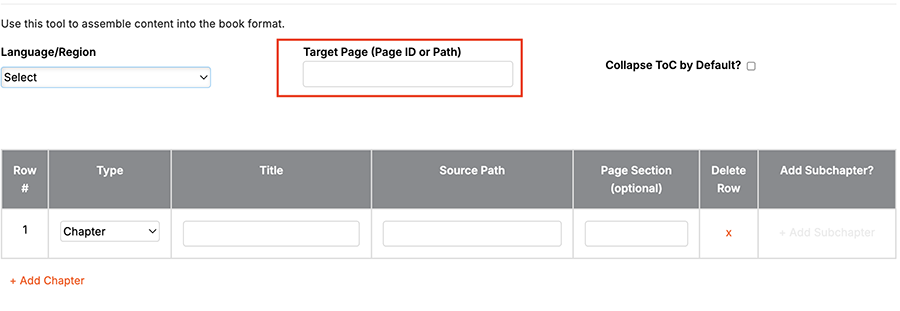
- Paste the Target Page ID in the Target Page field.
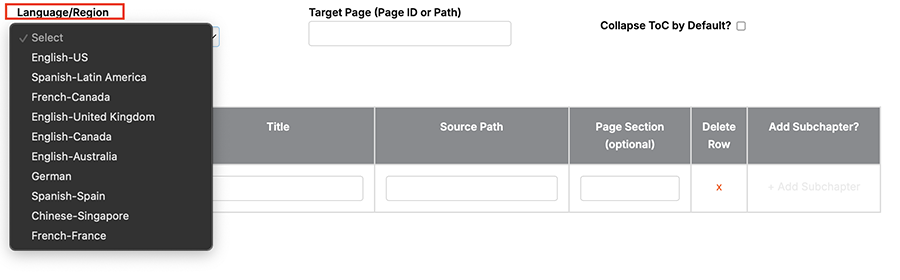
- Select the Language/Region menu.
- Choose the language applicable to your Training Center.
For example, click the English - US option.
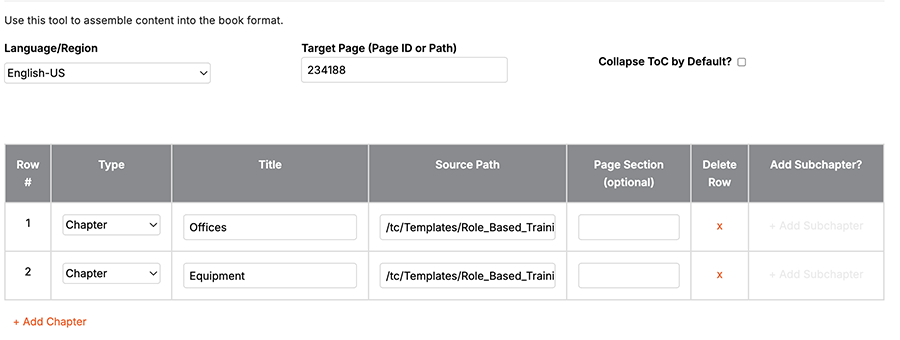
- Fill out the following fields within the Book Assembly table:
- Type: Chapter or Chapter Group.
- Chapter: Content Source page with information on it. See, Steps for Chapters method.
- Chapter Group: A content page does not need to be linked or created, this acts as the parent folder for a subchapter. See, Steps for Chapter Group method.
- Title: Title of the Chapter, Chapter Group, or Subchapter. It is recommended that the Title matches the Source Path content page title.
- Source Path: This is the /tc/ URL from the content page, where the information is pulled from.
Steps for Chapters
- Select the Type, Click Chapter.
- Enter chapter title into Title.
For example: Offices - Paste in the /tc/ URL from your Training Center Site Map into the Source Path.
For example: /tc/Templates/Role_Based_Training_Center/Roles/Offices - Page Section (optional) is not applicable when using Chapters, leave blank.
- Click + Add Chapter to add more chapters and repeat steps 1 to 5 as needed. See, Step 9 below to continue.
Steps for Chapter Groups
- Select the Type, Click Chapter Group.
- Enter Chapter Group title into Title.
- Select the Type, Click SubChapter.
- Enter SubChapter title into Title.
For example: First 30 days - Paste in the /tc/ URL from your Training Center Site Map into the Source Path.
For example: /tc/Templates/Role_Based_Training_Center/Roles/Office_Book_Assembly_Example/first_30_days - Click + Add Subchapter to add more subchapters and repeat steps 1 to 5 as needed. See, Step 9 below to continue.

9. Click Preview Book to preview your chapters or chapter groups and subchapters. Make any changes as desired.

10. Click Create Book.
You will automatically be directed to the Target Page with the content assembled!
1 - Chapter groupOnboarding 2 - SubchaptersFirst 30 Days Contact Support 3 - ChaptersOffices Equipment Extra Equipment |
 |