

Joint Utility Form (JUF) Correspondence
1. THE JOINT UTILITY FORM (JUF) CORRESPONDENCE
1.1. Purpose
A Joint Utility Form (JUF) Correspondence type is created for the Construction Contractors to submit the filled JUF (a template form found in the Forms tool in Procore) to CVM.
1.2. Definition
Joint Utility Form (JUF) - It is filled out by the construction contractors with information on poles that are shared with communication providers and have communication providers’ assets installed. This information is used to remove or relocate existing communication assets. The form provides the list of communication providers with equipment remaining on the poles.
1.3. The Joint Utility Form must be included in the Final Construction Redlines.
Note: If and when the information is ready in advance due to the size of projects, it is recommended to submit the JUF Correspondence in batches during the construction process. This can prevent potential delays and facilitate smoother coordination with communication providers throughout the project’s construction.
2. RESPONDING TO THE JUF CORRESPONDENCE
When a new JUF Correspondence is created and issued, all the members tagged in the Correspondence will be notified via email with all the necessary information, including the attached form. If there is missing information, questions or any need to communicate further, then this can be done using the Response section of the JUF Correspondence.
2.1. Option 1: To respond, click View online in the email and it will open the JUF Correspondence.
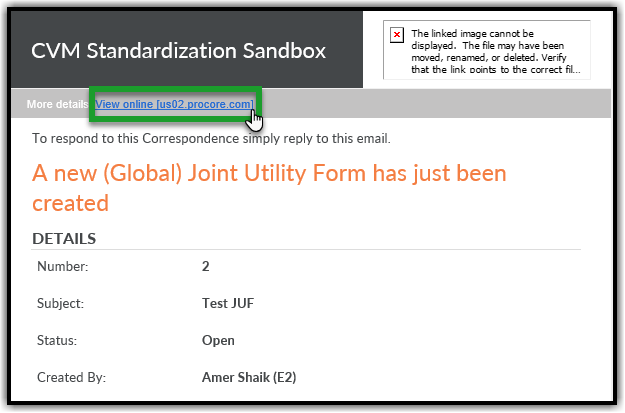
2.2. Option 2: Navigate to Projects Tool menu and select the Correspondence tool.

2.3. You will be on the Correspondence page. Find the JUF Correspondence which needs to be opened using the Number (‘2’ in the screenshot) or Subject (‘Test JUF’ in the screenshot) provided in email. Click either of these two to open.
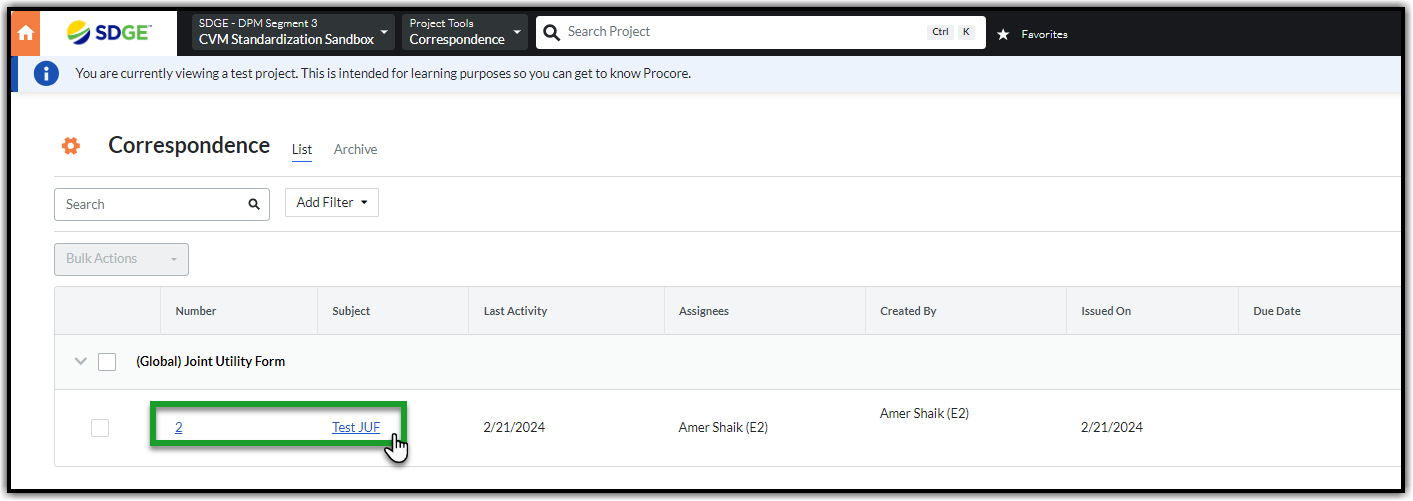
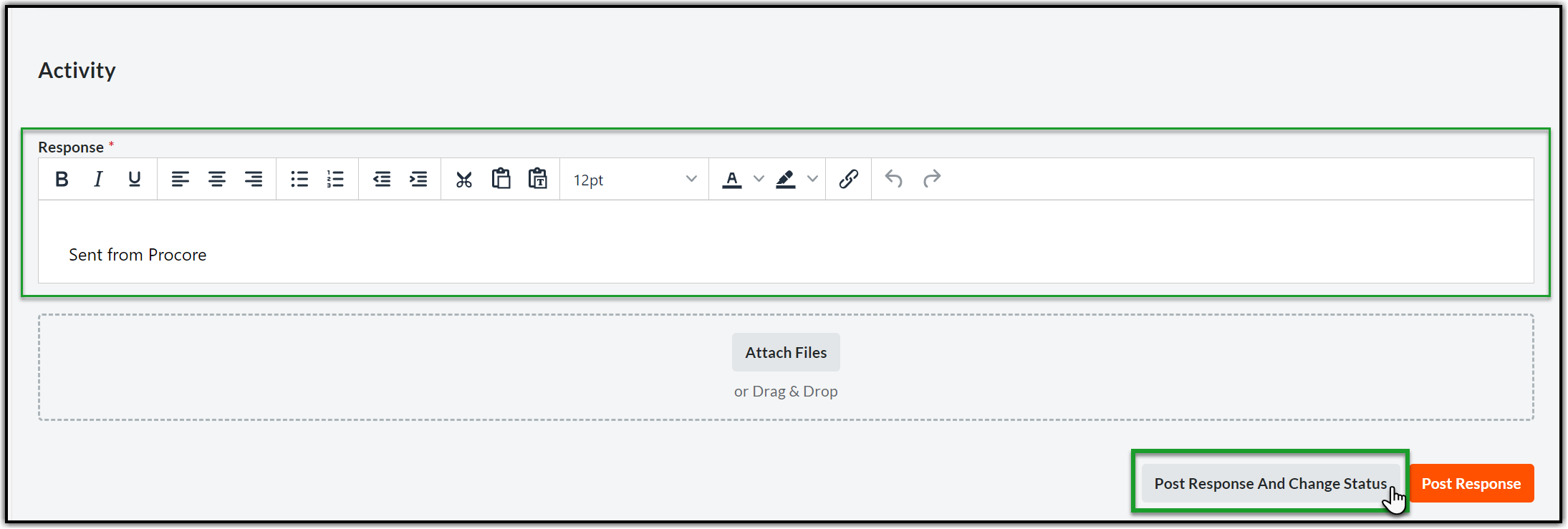
2.4. Go to the Response text area in the Activity section. Type in your response (you may also attach any documents using Attach Files option if necessary) and hit Post Response orange button on the bottom right corner.

3. CLOSING THE JUF CORRESPONDENCE
Once you review and approve the JUF form, you should close this correspondence (by following the below steps).
Subsequently you should reach out to the CIPs (This process is outside of Procore and hence, will not be explained in this guide).
3.1. Open the Correspondence and scroll down to the Activity section. Enter the closing response in the Response section and click Post Response and Change Status at the bottom right corner of the page.
3.2. Click the Status dropdown and select Closed.
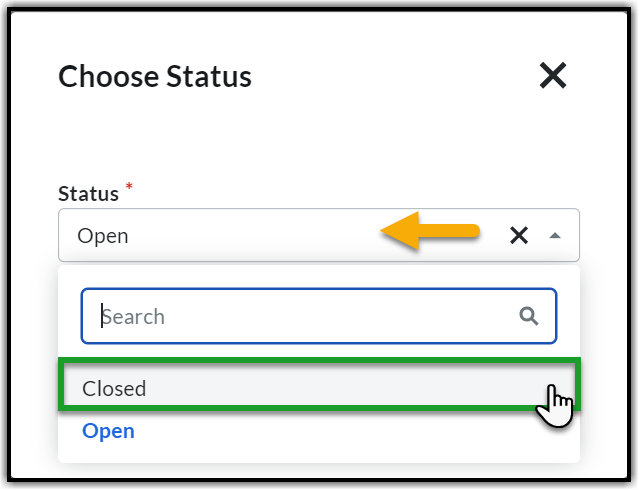
3.3. Click Save and Change Status to post the response and close the Joint Utility Correspondence (JUF).
