

Submittal Markups
Objective
The submittal markup tool is used to markup drawings as they move through the design or construction process so the next approver in the workflow can see required changes or comments.
Steps
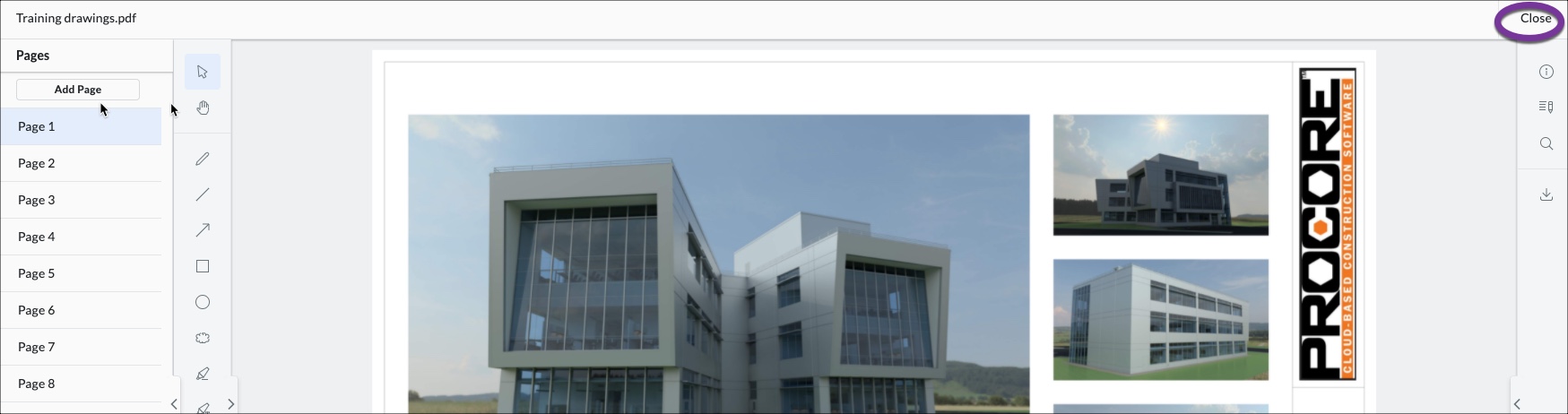
1. In the submittal, open the viewer by clicking Open beside the attached drawings.

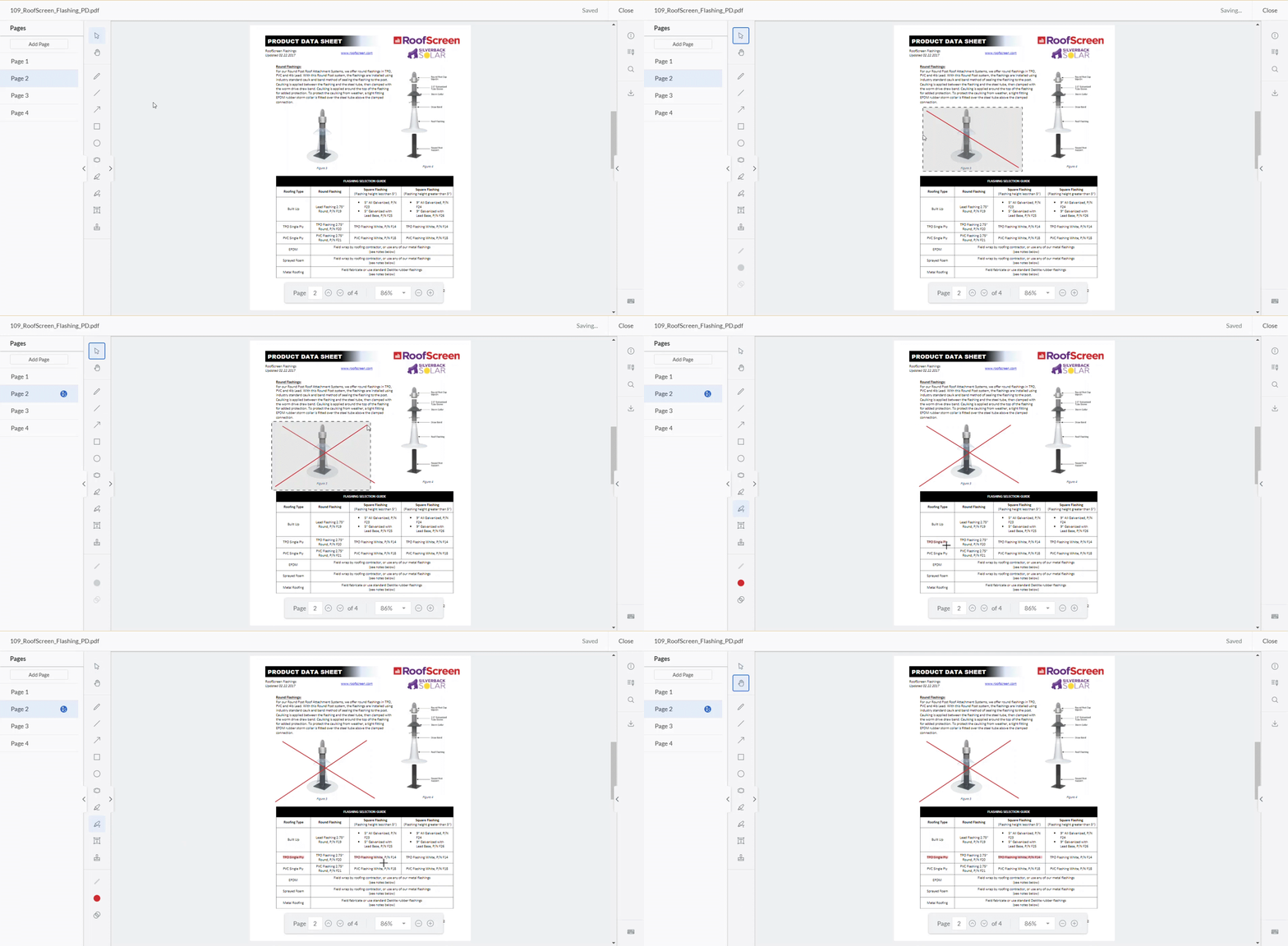
2. Use the tools to the left and make your markups. They will auto save. When you are finished, click the close button in the upper right hand corner. ( See the Demo of Submittal markup below)
Demo of Submittal Markup
Markup Tools List
| Button | Label | Action | Windows Keyboard Shortcut | Apple Keyboard Shortcut |
|---|---|---|---|---|
 |
Hide/Show Page Navigator | Hide or show the Page Navigator menu. | ALT + T | OPTION + T |
 |
Select | Click to select or move a markup on the page. To select multiple markups, hold SHIFT on your keyboard and click on each markup you want to select as part of a group. | Press V | Press V |
| N/A | Scroll Mode | Use your mouse or the arrow keys on your keyboard to scroll on the page and scroll between pages. | Press V | Press V |
 |
Pan | Click and drag your cursor to move across the page. For temporary panning, hold the SPACEBAR. |
SHIFT + V | SHIFT + V |
| N/A | Pan Mode | Click and drag your cursor to move across the page. For temporary panning, hold the SPACEBAR. |
SHIFT + V | SHIFT + V |
 |
Pen | Draw a freehand line or shape. | Press P to select this tool. | Press P to select this tool. |
 |
Line | Draw a line. | Press L to select this tool. | Press L to select this tool. |
 |
Arrow | Draw an arrow. | Press A to select this tool. | Press A to select this tool. |
 |
Rectangle | Draw a rectangle. | Press R to select this tool. | Press R to select this tool. |
 |
Ellipse | Draw a circle or oval. | Press E to select this tool. | Press E to select this tool. |
 |
Cloud | Draw a rectangular cloud. | Press C to select this tool. | Press C to select this tool. |
 |
Freehand Highlight | Highlight with a freehand highlighter. | Press F to select this tool. | Press F to select this tool. |
 |
Highlight | Highlight text on a page. | Press H to select this tool. | Press H to select this tool. |
 |
Text | Add a text box. The text box must be filled to be selectable. The font size can be adjusted by selecting a filled text box and moving the slider above the text box. | Press T to select this tool. | Press T to select this tool. |
 |
Stamp | Open the stamp menu and click the stamp you want to add. See Manage Personal Submittal Markup Stamps. | Press S to open the stamp menu. | Press S to open the stamp menu. |
 |
Stroke | Choose the desired stroke width for a selected markup. Adjusting the stroke width for a text box adds or modifies a border around the text box. | N/A | N/A |
 |
Color | Choose the color for a selected markup. | N/A | N/A |
 |
Opacity | Choose the opacity percentage for the fill color on a selected markup. Note: The opacity cannot be adjusted for Line, Arrow, Cloud, or Stamp markups. |
N/A | N/A |
| N/A | Delete | Delete a selected markup. | DELETE | DELETE Mozilla Firefox Only: SHIFT + DELETE |
| N/A | Copy | Copy a selected markup. | CTRL + C | CMD + C |
| N/A | Paste | Paste a copied markup. | CTRL + V | CMD + V |
 |
Zoom In | Zoom in on the page. | CTRL + Plus Sign (+) | CMD + Plus Sign (+) |
 |
Zoom Out | Zoom out on the page. | CTRL + Minus Sign (-) | CMD + Minus Sign (-) |
| N/A | Zoom to Fit | Fit the full page in the attachment viewer. | CTRL + 9 | CMD + 9 Safari: CTRL + 9 |
| N/A | Zoom to Width | Fill the attachment viewer with the full width of the page. | CTRL + 0 | CMD + 0 or CTRL + 0 |
 |
Previous Page | Move to the previous page. | SHIFT + Up Arrow (↑) | SHIFT + Up Arrow (↑) |
 |
Next Page | Move to the next page. | SHIFT + Down Arrow (↓) | SHIFT + Down Arrow (↓) |
| N/A | Scroll Up | Scroll up the page. 1 | Up Arrow (↑) | Up Arrow (↑) |
| N/A | Scroll Down | Scroll down the page. 1 | Down Arrow (↓) | Down Arrow (↓) |
| N/A | Scroll Left | Scroll left on the page. 1, 2 | Left Arrow (←) | Left Arrow (←) |
| N/A | Scroll Right | Scroll right on the page. 1, 2 | Right Arrow (→) | Right Arrow (→) |