

Request for Engineering Review
Objective
To submit a request for Engineering to review design or field issues. Most often submitted before a project has been created, in which case it is submitted in the hub project titled Programs/RAMP/HP Franchise/Compliance Pre-Project Engineering Communications.
Steps
- Navigate to the hub project titled Programs/RAMP/HP Franchise/Compliance Pre-Project Engineering Communications. From the project home page select Project Tools and choose the Correspondence tool.

- Click the orange +Create box and select Request for Engineering Review from the dropdown.

- The originator of the form completes all fields with an asterisk (General Information and Location sections).
- NOTE: Assignee will be distribution group titled 'Region Engineering' which will populate 2 or more users into the field

- Region Engineering Inbox Manager changes Status, assigns to specific engineer, and give an RER number.
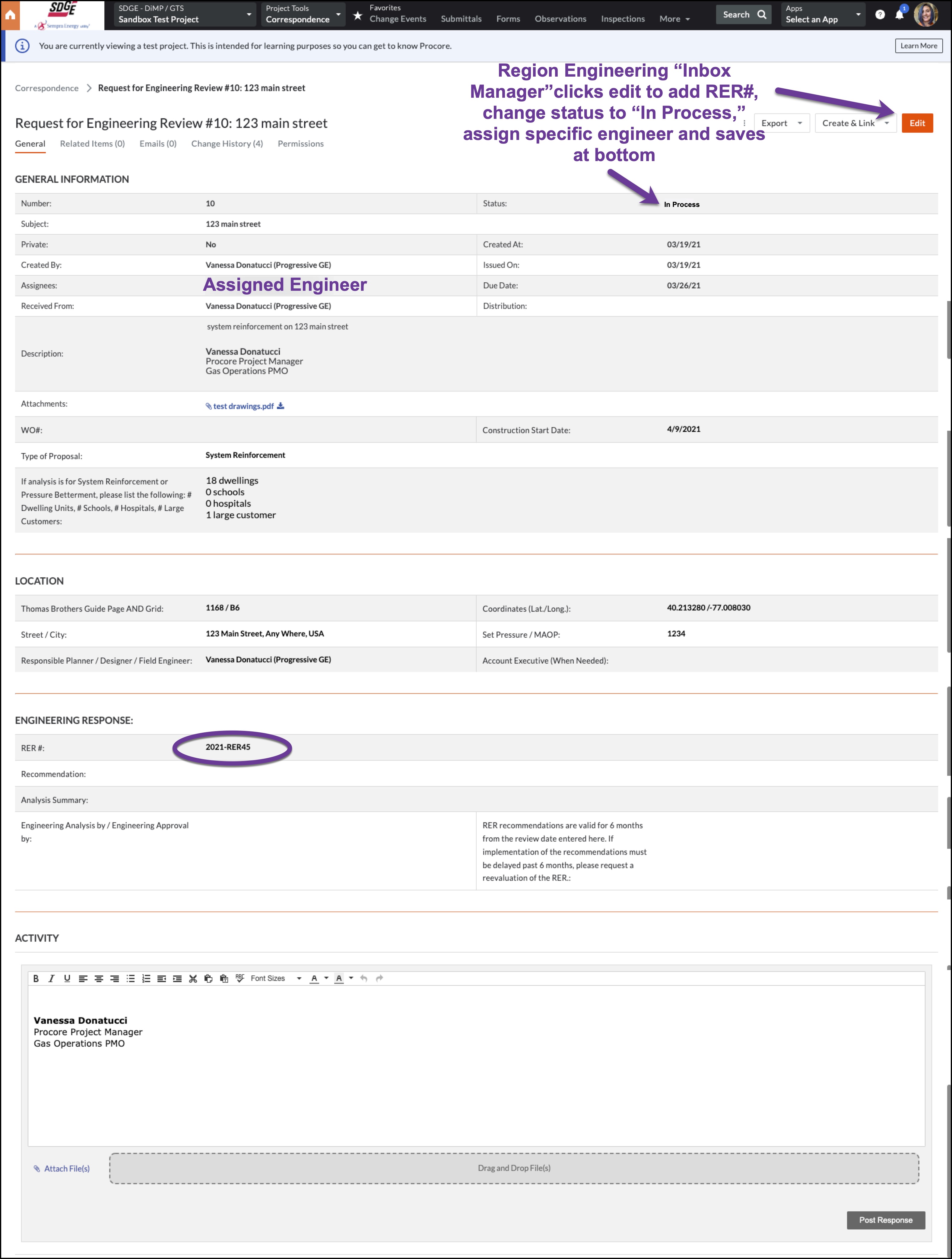
- Specific engineer reviews request and if additional information is needed for the analysis, requests it via the Activity section at the bottom but just scrolling down, typing in the communication, and clicking Post Response.

- The originator received notification of the request and can respond by going into the RER, scrolling to the Activity section, posting a reply and clicking Post Response. All responses are logged in the RER for future reference.

- If the engineer is able to complete the review, he/she hits the Edit button to enter the relevant information into the fields under Engineering Response and Save.

- If the engineer wants to attach documents for the originator to use, it would be completed in the Activity section before or after editing the form.

- The attachment with comments from the engineer should be marked as the Official Response.

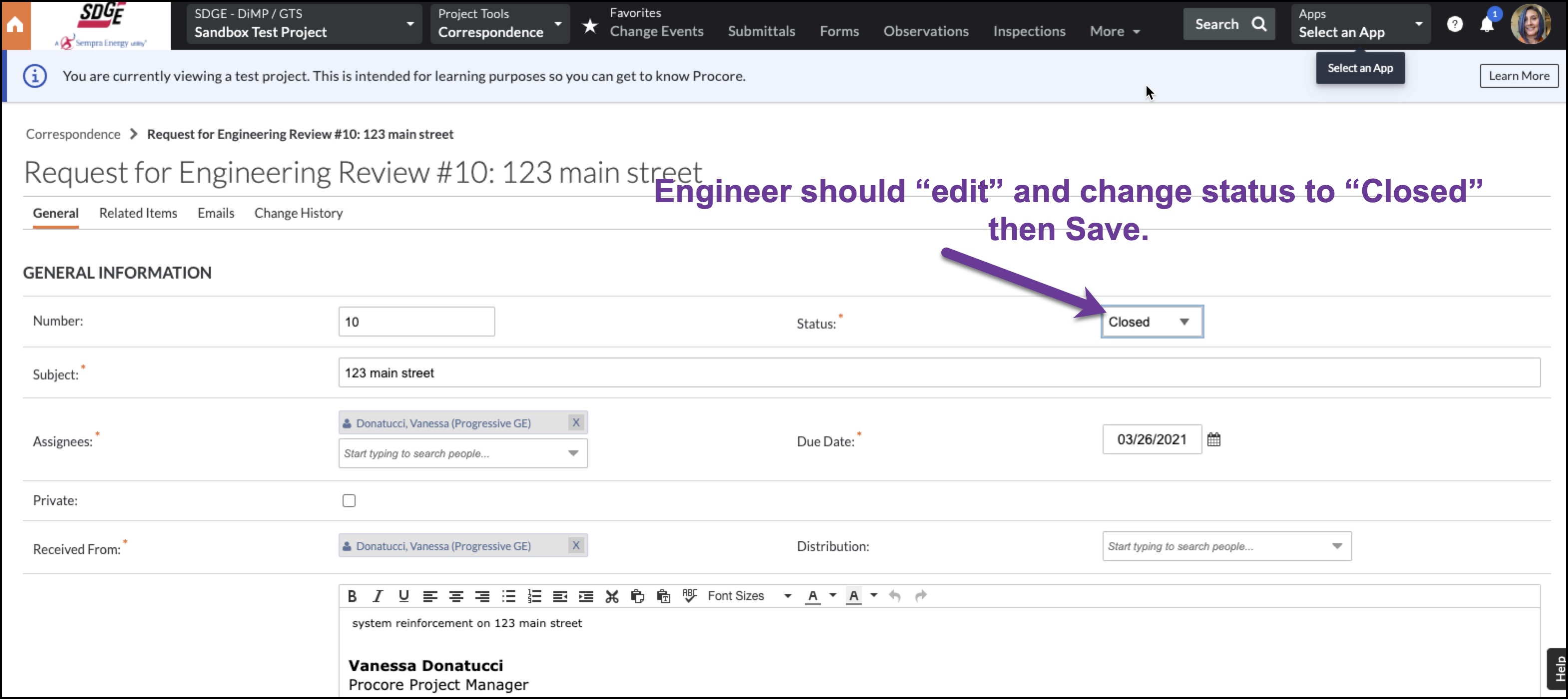
- Once everything is complete, the engineer need to select Edit, change the status to Closed, and Save.
- Future communication on this review can still happen in the Activity section (without the form having to be edited to Open or In process) where it will be logged.

Video Tutorial