

Project Notice Form
1. THE PROJECT NOTICE FORM
1.1. Purpose
A Project Notice Form correspondence type is used by the Contractor and Owner (SDG&E) to send or communicate official project notices. They can be created by either party, and some notices require formal documentation that should be attached to this correspondence item.
Note: This is not a replacement or substitute for the Notice to Proceed. That has its own correspondence type to be used for that purpose.
Note: This is not a replacement for the Smartsheet’s FEWA process. Please continue to use Smartsheet for all FEWAs.
2. NAVIGATION TO CREATE THE PROJECT NOTICE FORM
2.1. Navigate to Project Tools from the top menu and select Correspondence tool.

2.2. Click +Create in the orange box on the top right corner and select (Global) – Project Notice Form.

3. CREATING THE PROJECT NOTICE FORM
3.1. Please fill out the following fields in the General Information section using the below details then click Create & Issue.

- Status: Keep the default status - ‘Open’.
- Subject: Enter the Job Notification title.
- Assignees: Add the direct party with whom you are communicating.
- Received From: This is where you put your name, or the person on behalf of whom you are creating the form on behalf of.
- Distribution Member: Add those who need to be notified by this correspondence – Include those from SDG&E, the Contractor company, and anyone from upstream departments (if applicable).
- Trades: Choose the work based on your job (Civil or Electric or SCADA)
- Description: Enter the purpose of the notice and all the pertinent information that needs to be communicated by this form. For example – if this is a Notice of Delay, then we would want to provide the reason for the delay, and the proposed plan to return to work, along with any schedule impacts.
- Attach Files: First, attach any pertinent documents relating to the Project Notice (if applicable) to the Project Administration subfolder in Stage 5 folder in Documents tool and then use this option to attach the files. Click Attach Files, select the Documents tool from Project Tools, expand the Job Notification then expand the Stage 5 folder followed by Project Administration subfolder.
- SAP Job Notification#: Find this number in the job package or in SAP.
- Work Order#: Find this number in the job package or SAP.
- Type of Notice: Choose the type of Notice from the drop-down menu as applicable.
Following table contains the Notice Types and their most common initiators:
|
Notice Type |
Most Commonly Initiated by |
|---|---|
|
Directive |
SDG&E |
|
Notice - Pre NCR |
SDG&E |
|
Notice of Delay |
SDG&E and Contractor |
|
Notice of Final Completion |
Contractor |
|
Notice of Force Majeure |
SDG&E |
|
Notice of Structural Completion |
SDG&E |
|
Notice of Substantial Completion |
SDG&E |
| Notice of Unforeseen Subsurface Conditions | SDG&E and Contractor |
| Resume Work Notice | SDG&E |
| Stop Work Notice | SDG&E |
| Variance/NPE | SDG&E and Contractor |
4. RESPONDING TO THE PROJECT NOTICE FORM
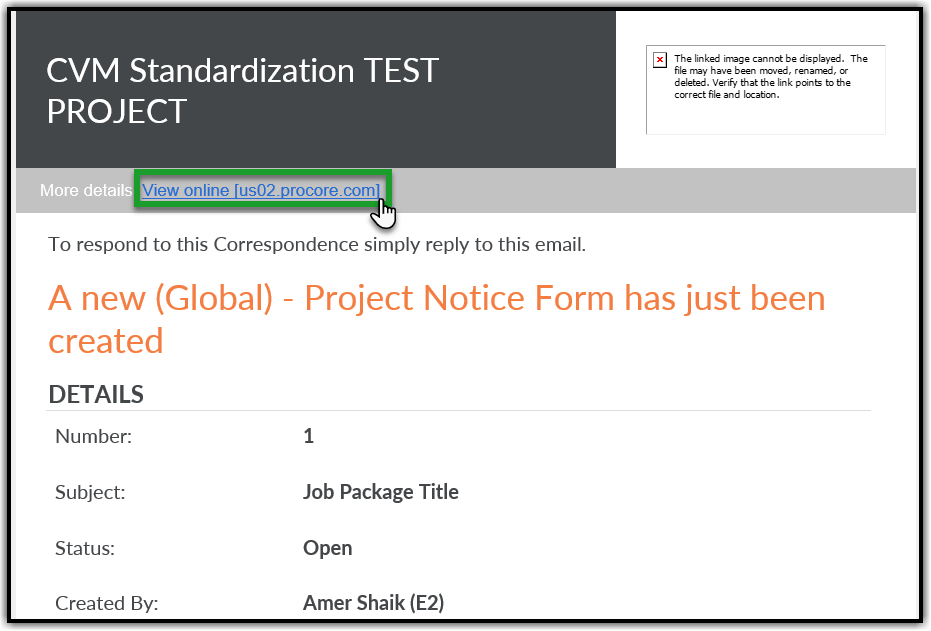
4.1. When a new Project Notice Form is created, you will receive an email prompting you to use a link and respond.
4.2. Option 1: Click View Online in the email to open the Project Notice awaiting your response.
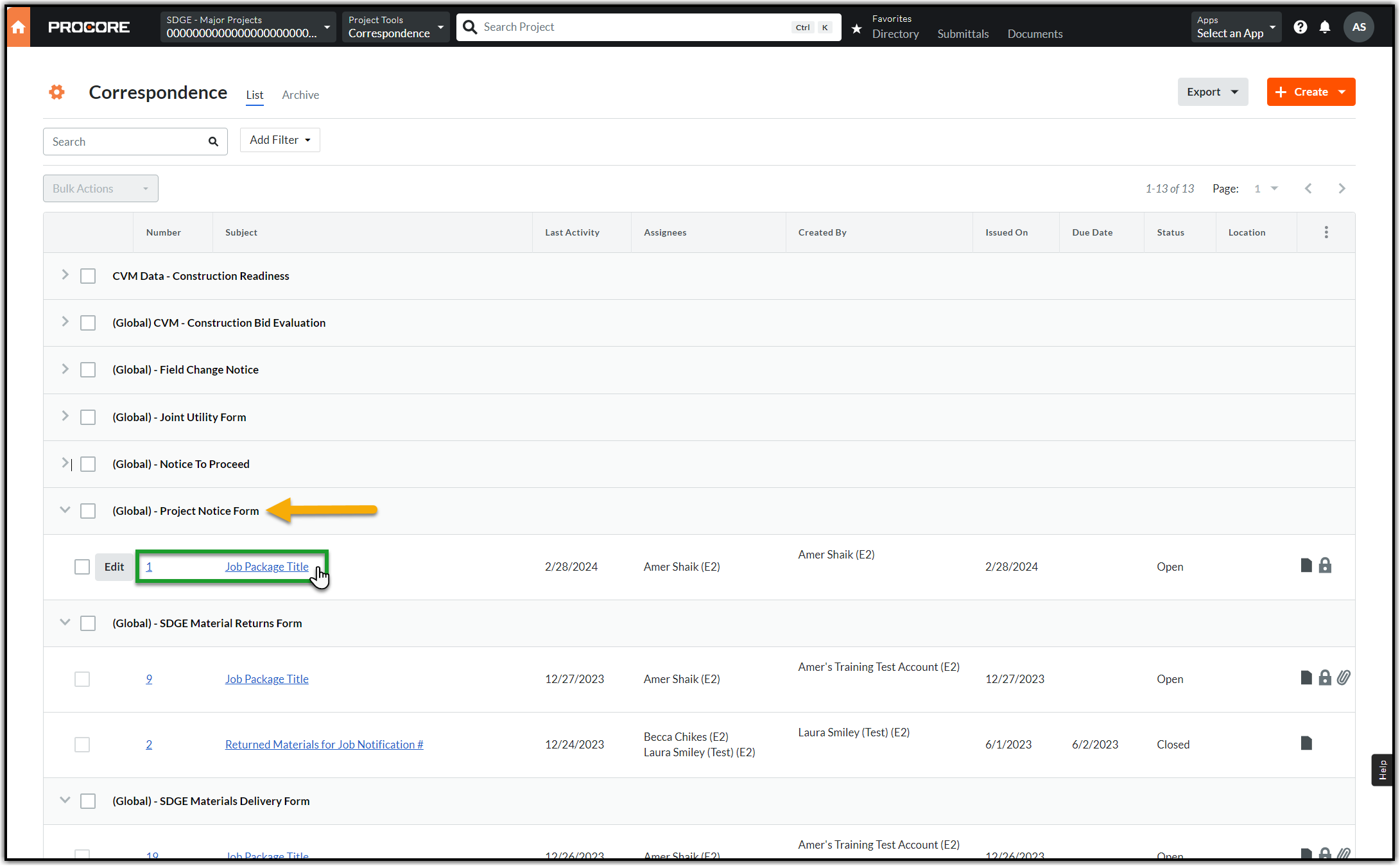
4.3. Option 2: Navigate to Projects Tool menu and select the Correspondence tool.
4.4. Choose the corresponding Project Notice Form. Search with your form number (1 in the screenshot) or subject provided in email and click to open the Project Notice awaiting your response.
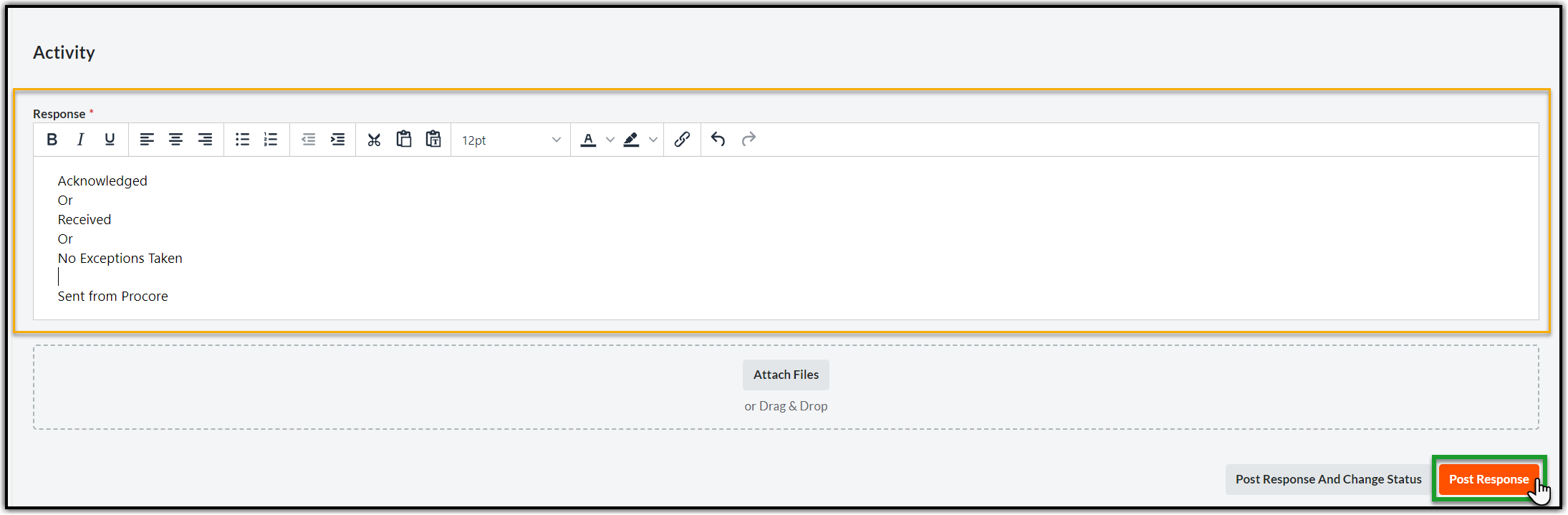
4.5. Some Project Notices require a response, while some do not. For instance, if you are a Contractor being sent a directive, the Owner (SDG&E) would like an acknowledgement. On the other hand, if this is a Notice of Final Completion, this is more of an FYI to let the SDG&E team know that As-Builts should be coming shortly, and therefore may not be responded to.
Note: If there are questions related to any of the Notice types (Notice of Delay, for example), those need to be submitted via the RFI tool.
5. CLOSING THE PROJECT NOTICE FORM
After all responses have been provided, as applicable, it is time to close the Project Notice Form.
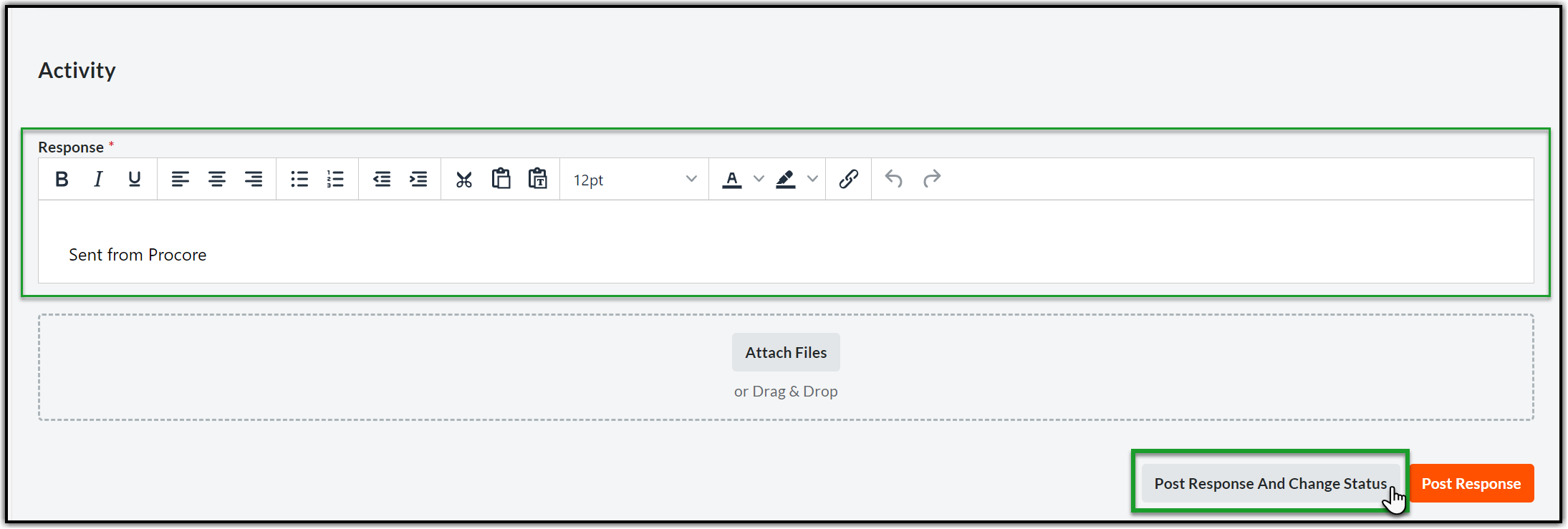
5.1. Open the Correspondence and scroll down to the Activity section. Enter the closing response in the Response section and click Post Response and Change Status at the bottom right corner of the page.
5.2. Click the Status dropdown and select Closed


5.3. Click Save and Change Status to post the response and close the Project Notice Form.
Video Tutorial
| Creating the Project Notice Form Video |