

Construction Redlines Process - Distribution
1. THE CONSTRUCTION REDLINES PROCESS
1.1. Purpose
The Construction Redlines (also known as As-builts) process consists of submitting and approving multiple documents after the completion of the construction work. It involves the Construction Contractor as a submitter and CVM team as reviewers/approvers of the Construction Redlines (documents). This guide will outline the Procore tools and workflows involved throughout the process.
1.2. Tools
Forms Tool:
There are three Form templates that are used for completing the Construction Redlines Review process (CVM - Construction Redline Coversheet, CVM - Joint Utility Form, CVM - Yard Asset Release).
Submittal Tool:
There are three Submittal types that are used as a part of the Construction Redlines review process depending on the type of work performed.
Overhead (OH): This type of work may be a two steps due to the inclusion of the QAQC Process.
(Global) – QAQC Construction Redlines Review: Submittal used to engage the QAQC team for a formal SDGE review and Punchlist Generation.
(Global) - OH Final Construction Redlines: Submittal to deliver the Final deliverables listed in the Construction Redline Coversheet.
Underground (UG): This type of work will have one submittal for final delivery, as there is no SDG&E QAQC review.
(Global) - UG Final Construction Redlines: Submittal to deliver the Final deliverables listed in the Construction Redline Coversheet.
2. CONSTRUCTION REDLINES REVIEW - STEPS
Here is the overview of steps to be followed and workflows applied in the Submittal tool for each Submittal type:
2.1. The OH Construction Redlines Review Process:
Preliminary Submittal -
Step 1: The CMS creates and issues the Preliminary Submittal, requesting the Contractor to submit the Construction Redlines.
Step 2: The Contractor submits the Construction Redlines.
Step 3: The QA/QC reviews the Construction Redlines and issues the PCI report in the same Submittal. Uploads the PCI report to Punch List subfolder in the Documents tool.
Step 4: The CMS closes the Submittal and creates the Final Submittal where the Contractor will be the Submitter and FCA will be the approver.
Final Submittal –
Step 1: The Contractor receives the Final Submittal and submits the final Construction Redlines including the corrected items in the PCI Report (if applicable).
Step 2: The FCA reviews the Construction Redlines for completeness/accuracy and provides final sign-off.
Step 3: The CMS ends the review process - closes and distributes/uploads the Construction Redlines.
2.2. The UG Construction Redlines Review Process:
Final Submittal –
Step 1: The CMS creates and issues the Final Submittal, requesting the Contractor to submit the Construction Redlines.
Step 2: The Contractor submits the Construction Redlines.
Step 3: The FCA reviews the Construction Redlines for completeness/accuracy and provides final sign-off.
Step 4: The CMS ends the review process - closes and distributes/uploads the Construction Redlines.
3. GUIDELINE OF WORKFLOW
Workflows based on Construction Redlines Submittal Type:


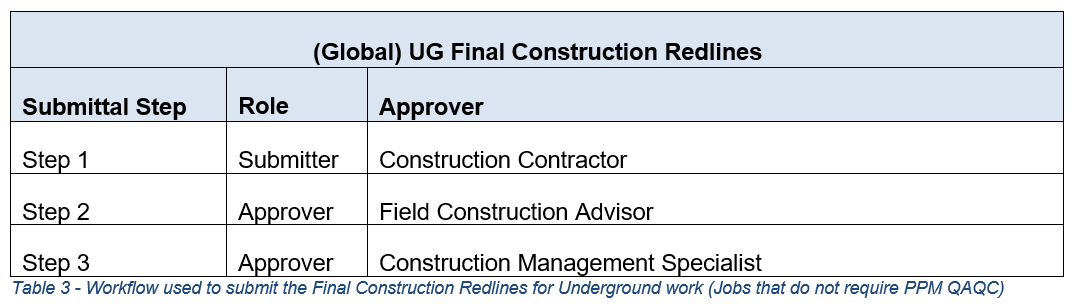
Note: Depending on which instance you work in – these might be kept as Submittal templates.
4. NAVIGATING TO THE SUBMITTAL
4.1. From Project Tools in the top menu bar, select Submittals.

5. CREATING THE SUBMITTAL
5.1. Click +Create orange box on the top right corner and select Submittal.

5.2. Complete the required fields in the General Information section using the information below.

- Title: Enter the Job Notification Number and add “Construction Redlines Review” after the Job Notification.
- Submittal Type: Select the appropriate Submittal type from the drop-down based on the type of work.
- Responsible Contractor: Select the primary contact of the Construction Contractor.
- Received From: This is always you or the person on behalf of whom you are creating the Submittal.
- Submittal Manager: This should be you. The Submittal Manager will be responsible for closing the Submittal.
- Status: Keep the default as ‘Open’.
- Distribution List: Select members who should be notified of the Submittal (Optional).
- Description: Add any notes for the Contractor. You can also mention if there is any specific information or additional documents that you are expecting as a part of the Construction Redlines package.
- SAP Job Notification#: Find this number in the job package or in SAP.
- Trade: Please select from Civil, Electric or Scada based on the job.
5.3. Refer the tables in Section 3 and create a multi-step workflow under the Submittal Workflow section based on the Submittal type. In Step 1 select the primary contact of the Contractor company. Change the default Role from ‘Approver’ to Submitter.

5.4. Add more steps as per the guideline of workflow (Section 3) based on the Submittal type. Keep the default Role as ‘Approver’ in all the steps. Click the Create and Send Emails orange button.

Note: Some Procore instances use Submittal Templates – you do not have to fully create the workflow if this is the case. Choose the correct Submittal template and add the users needed to proceed.
6. RESPONDING TO THE SUBMITTAL - AS AN APPROVER
Responding to the Submittal as an approver will move the workflow towards completion. There must be one Submittal for each Job Level and each work type. The packages will not be combined. Each submittal will arrive via email notification with a link to the project and the submittal.
6.1. An email will arrive prompting you to use a link. Click View Online to open the Submittal directly.
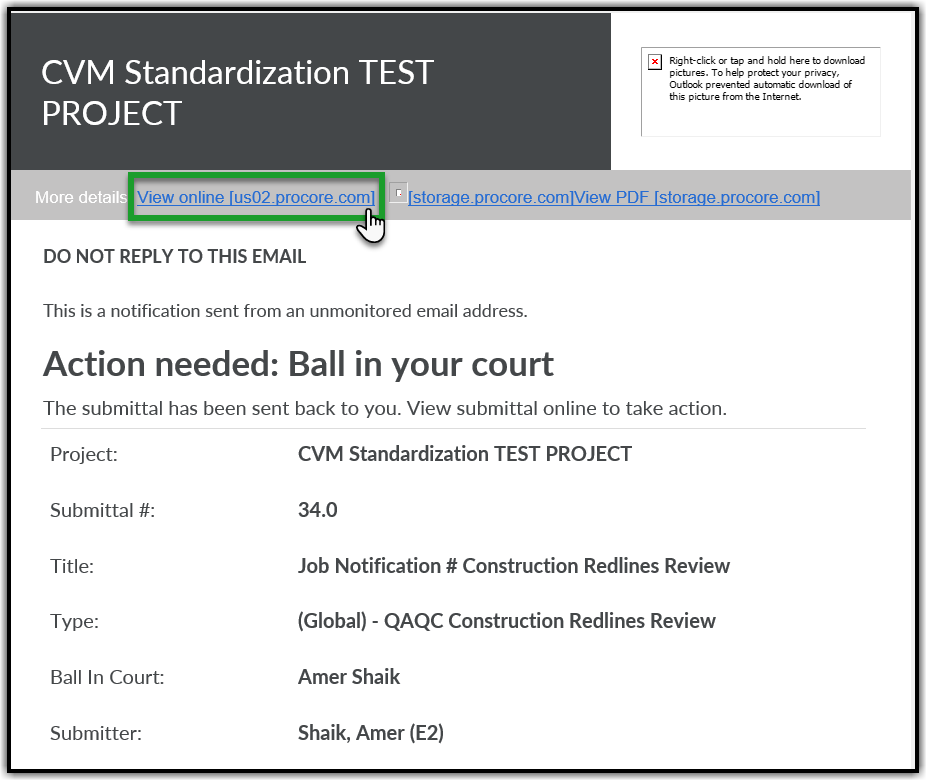
6.2. Alternatively, instead of using the email link, Navigate to the Project Tools menu and select the Submittals tool.
6.3. Choose the corresponding Submittal (You can find the Submittal item by its Number provided in email) and click View to open the Submittal.

6.4. The yellow banner indicates that the Ball is in your court. Review the Construction Redlines submitted by the Contractor and click Respond orange button on the right side of the page to provide appropriate response (you should see Edit Response or Respond option to respond).

6.5. A popup window will appear. Click Attach Files (if applicable) or skip this step and the next step (6.5 to 6.6) and click Next.

6.6. Select Documents in the left pane. Navigate to the Correct Job Level, Stage 5 Folder, and Construction Redlines subfolder in the Documents tool and select the Construction Redlines documents you uploaded in the previous steps. Click Attach and then click Next.

Note: You must follow the SDG&E document naming convention while naming your Construction Redlines Package file.
6.7. You will be in the Respond window. Choose an appropriate response. Enter any special notes for the Contractor related to the documents in the Comments section (if any). Click Preview.

6.8. Once you click Preview, the next window will display the next steps in the Submittal process. Click Respond to finalize Submittal response and move the Submittal to the next step.

6.9. If the Construction Redlines need to be revised:
6.9.1. If the Construction Redlines have errors, and cannot be approved, the Submittal should be marked as “Revise and Resubmit” (refer step 6.7.) by stating the reasons in the comments section to resolve any issues.
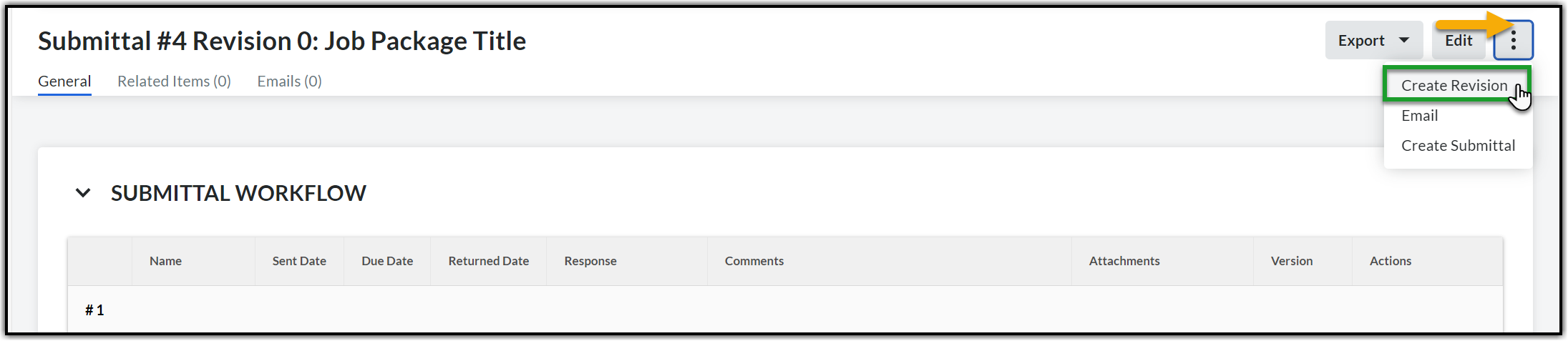
6.9.2. A Submittal revision will then be created by the CMS, and you will then resubmit the Construction Redlines in the revised Submittal indicated by Revision Number 1 (if it is the first revision). Open the Submittal that was not approved, click the Ellipsis menu (three dots icon on the right corner of the page) next to Edit and select Create Revision from the dropdown.
Note: For OH work the QAQC team should review and submit the PCI report in 30-45 days. They should issue the PCI report in the same Submittal. First, they should upload the PCI report in Punch List subfolder under Stage 5 – Construction folder in the Documents tool and then respond to the Submittal by attaching the report to their response. After the response you should then close the Preliminary Submittal: (Global) – QAQC Construction Redlines Review and create and issue the Final Submittal: (Global) - OH Final Construction Redlines.
7. CLOSING THE CONSTRUCTION REDLINES SUBMITTAL TOOL
7.1. Open the corresponding Construction Redlines Submittal via the link in email (refer section 6.1.) or by navigating to the Submittals page (refer section 6.2.). Click Close & Distribute on the Submittal. You should be on the Close & Distribute Submittal popup.

7.2. Select members who should be notified of the closing of the Submittal in To and CC fields. Check the Create revision upon close and distribution box if you wish to create a revision else leave it unchecked. Enter any closing message. Select the official response from the FCA/CM in Workflow Responses and click Distribute orange button.

Note: If you check the Create revision upon close and distribution box then you must select the official response in Workflow Responses from the FCA/CM. In this case the Distribute orange button will change to Distribute and Create Revision button.

7.3. All the members in To and CC will get notified of the distribution via email with Distribution Response and other high-level details related to the closing of the Submittal.
8. APPENDIX
JOB PACKAGE COVER LETTER/CONSTRUCTION REDLINES COVERSHEET
Please refer to this checklist when reviewing all Construction Redlines Package for either Preliminary or Final review.
Construction Vegetation Management Redline Submission:
