

Bidding Tool
1. THE BIDDING TOOL – QUICK BID PROCESS FOR INTERNAL CVM
1.1. Purpose
This user guide outlines the end-to-end Quick Bid Bidding Tool process. The Ariba process managed separately by Supply Management is beyond the scope of this guide.
1.2. Definitions and Acronyms
- CVM - Construction & Vegetation Management
- RFP - Request for Proposals
- MSA - Master Service Agreement
- Direct Award - Directly awarding work on a Time & Equipment basis to one supplier (must be an existing Master Service Agreement holder with existing Time & Equipment rates for the respective scope of work/services being awarded)
- T&E - Time and Equipment
- Quick Bid - a bid call document used to solicit fixed price bids, from three or more Authorized Bidders (must be existing Master Service Agreement holders for the respective scope of work), for the acquisition of services below the Bid Threshold
- Bid Threshold - A dollar threshold at which a project must be competitively bid through Supply Management based on the company’s internal direct-cost estimate for the project/services.
- NTP - Notice to Proceed
- CMS - Construction Management Specialist
- CM - Construction Manager
- FCA - Field Construction Advisor
- Contractor - External construction MSA holder
- SDG&E personnel - Internal SDG&E Employees
- SDG&E Consultant - Person who works for a non-SDG&E company on behalf of SDG&E
- Authorized Bidder - MSA holder approved by Supply Management to participate in the Quick Bid process
- Bid Contacts - Personnel from Authorized Bidder company approved for access to the Bidding Tool
- RFI - Request for Information
2. CRITERIA FOR QUICK BID – CONSTRUCTION VEGETATION MANAGEMENT (CVM) LED REQUEST FOR PROPOSAL (RFP)
2.1 Criteria for Quick Bid – CVM led RFP
2.1.1 Scope – Electric & Civil construction work only.
2.1.2 Eligibility – Only Master Service Agreement (MSA) Holders approved by Supply Chain Management can participate in the Quick Bid process.
2.1.3 The Bidding Instructions on the Bid Form have been approved and cannot be changed with issuing through the Quick Bid Process.
2.1.4 Bid Thresholds – Should not exceed: Transmission = $1,999,999; Substation = $1,999,999; Distribution = $1,999,999; Civil Construction = $1,999,999; Grading / Site Development= $1,999,999 and City of San Diego 20SD (MOU) = $750,000.
Note: If a Job Package includes multiple Work Orders, the Direct-Cost Estimate equals the cumulative value of all the included Work Orders within the job package.
2.1.5 Out of Scope – Anything outside of Electric & Civil construction work, MSA Holders & Bid Thresholds is managed by Supply Chain Management.
3. PROCORE JOB PACKAGE INTAKE PROCESS
3.1. Construction Bid Evaluation – Review CVM Job package and RFP documents (Compilation of bid responses received after inviting the contractors to bid). The RFP is sent out using the Bidding tool.
3.2. Bidding Tool – To manage the Quick Bid process, inviting the contractors to Bid on the job and getting their responses through Planroom.
3.3. Notice to proceed (NTP) – Construction job award notification to winning contractor.
The following sections will clarify how to use the Bidding tool to properly bid & award a new job in the Procore Environment:
4. QUICK BID WORKFLOW PROCESSES

5. NAVIGATING TO THE BIDDING TOOL
5.1. Click the Project Tools down arrow in the top menu bar and select the Bidding tool listed under Preconstruction.

6. CREATING THE BID PACKAGE
6.1. Click Create Bid Package (orange button in the top right corner) to navigate to teh Create Bid Package page.

6.2. Fill out the information in respective sections and the Procore tool will send it over to the Contractors in an email notification. Start by filling out the General Information and Package Contacts sections using the information below

- Title of Package: Enter the Job Package Title.
- Bid Due Date: Generally, four weeks from the Bid Creation.
Note: If the Bid due date is not yet finalized then check the To be determined box.
- Primary Bidding Contact: Select your name or the name of the person who will act as a primary contact for the Contractors to reach out to.
- Bidding CC Group: You can choose others from the primary bidding company in this box.
6.3. The Project Description and Bidding Instructions sections will have prepopulated messages that will go in the email notification. If there are additional instructions on a project by project basis, those would go in the Project Description Field. The Bidding Instructions field is standardized as approved by multiple SDG&E departments (including Supply Management and Legal) and cannot be changed without a re-approval.

6.4. Enable the RFI Deadline option under Pre-Bid Information section and provide a date (typically, a day before the Bill Due Date). Click the Create Bid Package button.
Note: You can include Anticipated Award Date and enable Countdown Emails under Advanced Settings if desired.

6.5. You will be on the Attach Files page. Go to the Documents tab in the left pane.

6.6. Go to the appropriate job level and expand the Stage 5 – Construction folder and select the Construction Package subfolder. Upload the Construction Ready Job package and any other necessary documents from this subfolder for the bidders to be able to access. The following screen will appear.

7. CREATING THE BID FORM
Once you have attached the document to the Bid package you will be on the page that will allow you to create the Bid Form.
7.1. Click the +Create Bid Form orange button and select New from the dropdown.

7.2. Enter the Bid Form Name (Job Package Title and the Job Number) at least one line item for which the Contractors can bid. Click Add Line Item and select one option from the dropdown (Cost Code is selected in the captured screen).

7.3. Select the Cost Code from the Select cost code dropdown. Enter the description (if any) and click Save & Add Bidders dropdown.

7.4. Select the bidders using the Directory option from the Save & Add Bidders dropdown.
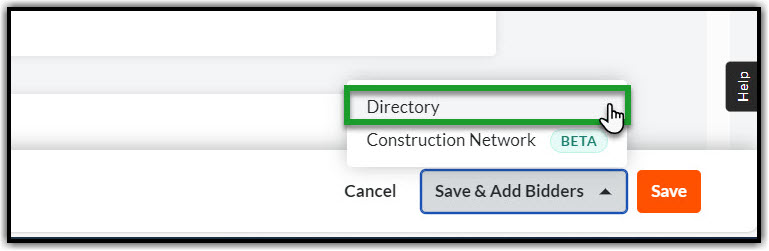
Note: The Construction Network function is in BETA and does not follow SDG&E compliance practices. This option is not to be used at this time.
7.5. Select the companies who will be bidding on this job. Check the boxes before the Company Names and click Add Bidder. The Company needs to be approved by Supply Management prior to being set as an Authorized Bidder by the Company level administrator.
Note: The Company level administrator will need to add the Bid Contacts at the Company level. The Construction Management Specialist is responsible for providing and notifying the Procore Administrator of MSA holder information, including Bid Contacts’ list.
Tip: Enable the Authorized Bidder filter in the left pane to filter the appropriate list.

Note: The new bid package for this project has now successfully been created and can be accessed even later via the Project Name > Bidding Tool.
8. SENDING THE BID INVITATION
Once the bidders are added you will be on the Bidders tab of the Bid Form with your selected list of Contractor Companies to be invited for bidding.
8.1. Click the Invite button in the blue banner on the top of the page or Invite dropdown next to the Export dropdown on the top right and select All Outstanding Bidders to send bid invitations to the necessary personnel for each Contractor Company.

Note: Once the bid invitations are sent to the bidders, they will enter the bid and their entries will be captured under the Bid Leveling tab next to the Bidders tab of the Bid Package.
9. RECEIVING AND RESPONDING TO PRE-BID RFI (REQUEST FOR INFORMATION)
9.1. To respond to an RFI simply navigate to the Emails section within the Bid Package. Select New Email, complete necessary information and Send.

Note: All emails and the responses (any questions in emails are considered RFIs) are saved to the Emails section under the Bid Package.
Note: When an RFI is submitted a ($0) amount bid is submitted automatically. Bidders will need to edit the amount as long as it is before the due date.
10. REVIEWING THE BIDS AWARD PROJECT, AND CLOSING THE BID PACKAGE
10.1. Once the Contractors start submitting their bids you will get notified via email notifications. The email will contain two options – View in Procore and View PDF. Select the first option.

10.2. Alternatively, bids can be reviewed by first navigating to the Master Bid Package screen (Project Tools menu > Bidding Tool > Bid Package (Find by Number and Name provided in Email)). Open the Bid Package and all the Contractors invited for the bid will appear on the Bidders tab.

10.3. Click the Bid Leveling tab next to the Bidders tab. The Bid Leveling tab allows a drill down into each Contractor’s bid (inclusions, exclusions, comments, attachments).

10.4. You will be on the Bid Leveling tab and can see all the Contractors’ bids.

10.5. Most of the Bid Status will change automatically throughout the bidding process. However, there is one change that must be made manually. Once a decision has been made on who the project will be awarded to, the Construction Manager (or authorized Construction Management Specialist) will select the awarded bidder. Change the Bid Status under the Bidder tab from BID SUBMITTED to AWARDED.

10.6. CMS adds PO number to Bid Package Coversheet & Release form and upload the Construction Release order.
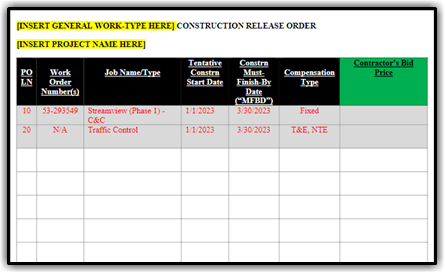
10.7. Please send a final Correspondence from within the Bidding tool stating that the Project is awarded.
10.7.1. Go back to your Bid Package switch to the Correspondence tab from the Bidding tab.

10.7.2. Click the Add New Correspondence button at the top right corner of the page.

10.7.3. Fill out the necessary fields using the below information and click Send:

- BCC: Select from the dropdown.
- Subject: Enter the Job Package Title and the Job Number and add ‘Bid Awarded’ at the end.
- Attachments: Click Attach Files(s) or use the drag and drop option to attach any documents that you wish to send as a part of the bid awarded notice.
- Message: Enter a message to inform that the bid was awarded.
10.8. Please close the bid by navigating back to Bid Packages and clicking Edit for the specific Bid Package to be closed (navigate to Status > Closed).

10.9. Click the Status dropdown and select Closed to close the Bid Package. This will notify the Creator of the Bid Package and all the members in Primary Bidding Contact and Bidding CC Group.

11. CANCELING THE BID PACKAGE
To cancel a bid, close the Bid Package first and then send a Correspondence to all the bidders within the Bidding tool with a notice that bid is cancelled.
11.1. Navigate to the Project Tools menu and select Bidding tool.
11.2. Go to the corresponding Bid Package that you wish to cancel and click Edit.
11.3. Click the Status dropdown and select Closed to close the Bid Package.
11.4. You will be on the Bidding tab, switch to the Correspondence tab.
11.5. Click the Add New Correspondence button at the top right corner of the page.
11.6. Fill out the necessary fields using the below information and click Send:
- BCC: Select from the dropdown.
- Subject: Enter the Job Package Title and the Job Number and add ‘Bid Canceled’ at the end.
- Attachments: Click Attach Files(s) or use the drag and drop option to attach any documents that you wish to send as a part of the cancellation notice.
- Message: Describe why the Bid was cancelled in sufficient words.