

Toolbox Talk Training Guide
Document Intention:
The following is a training document that shows the 2 acceptable ways to create and submit “Toolbox Talks” in Procore. Best practices and company standards are discussed in this document and pictures have been attached for clarity in the explanations. If some topics are still unclear to you, or further explanation is required you can always call Arceo Primero at (423) 646-1625 for clarification or assistance.
Toolbox Talk Explanation:
There are 2 methods that can be used to submit weekly toolbox talks in Procore. Both methods involve the “task” tool on your dashboard and will be explained in the following sections of the guide. Either method can be used to complete toolbox talks please use which ever one makes the most sense and is the most efficient solution for you.
Toolbox talk tasks will be assigned by Paris every week and are due every Friday. (IMPORTANT) Regardless of what method you use, the PDF File or Picture MUST be attached to this task that is assigned to you for Paris to be able to see that you have accomplished your toolbox talk.
The First Method: (less steps)
Submitting a Paper Toolbox Talk:
1. Go to the “documents” tool on your dashboard.
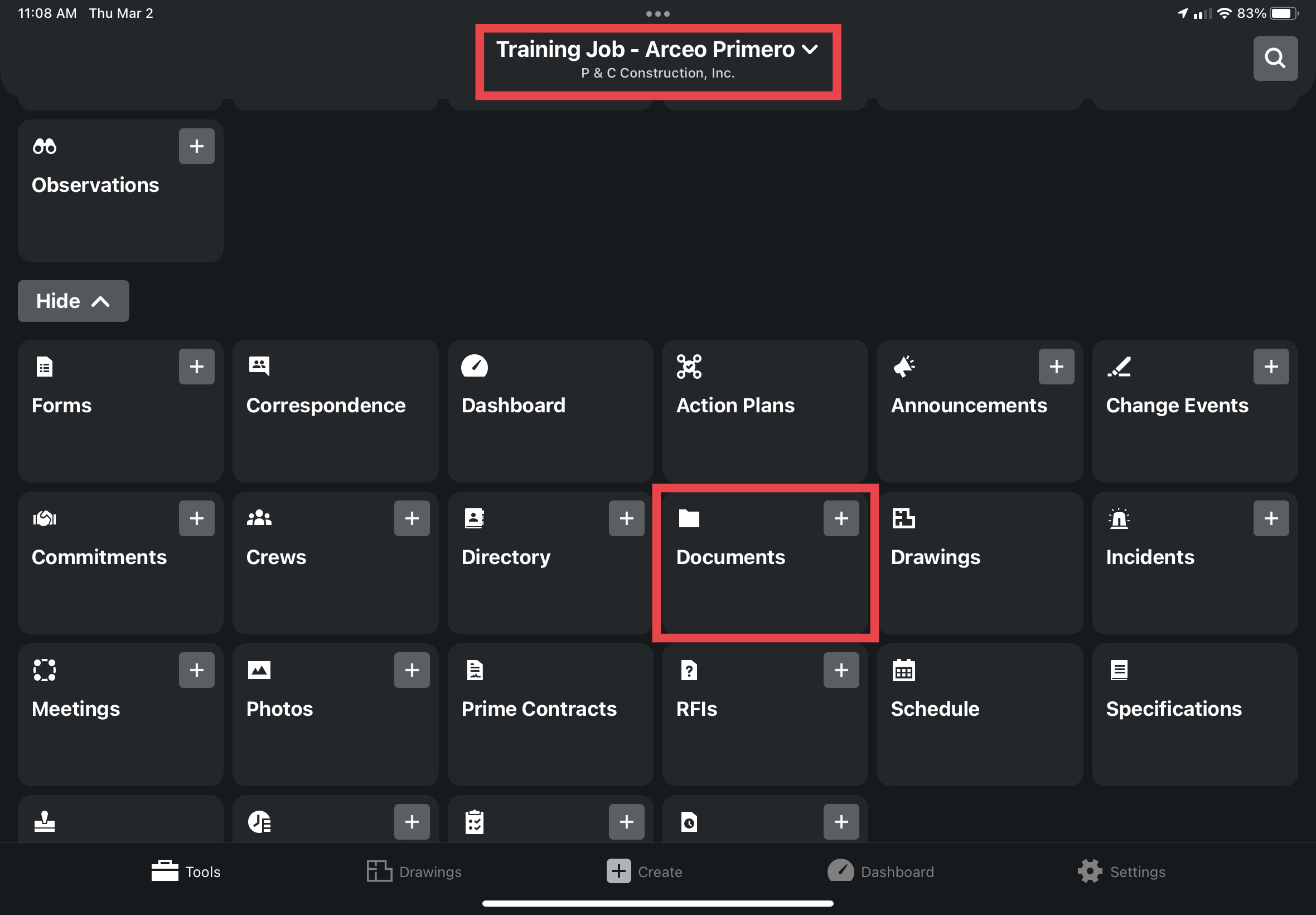
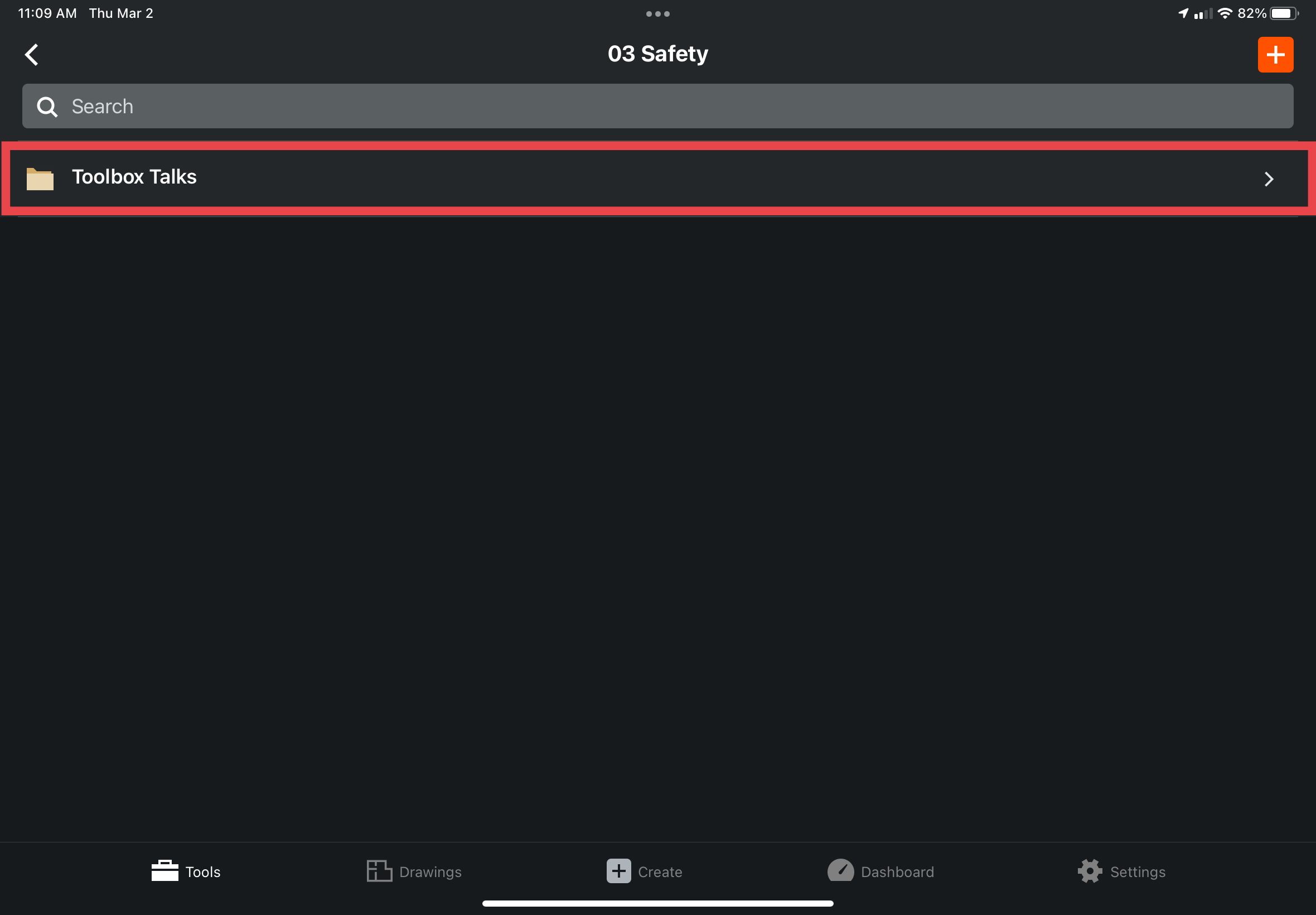
2. Tap the “03 Safety” file.

3. Tap the “Toolbox Talks” file to open the entire catalog of P&C safety toolbox talks.
4. Find and tap a relevant safety topic to the current stage of construction for example PPE.

5. Tap a specific toolbox talk that you want to give to your team. Tapping the cloud button on the right-hand side of your screen (depicted as the golden arrow in the following picture) downloads the toolbox talk so you can view it if your jobsite has bad internet connection.


6. Present the toolbox talk to subs and other members of your team and then fill out a “Tool Box Talk Safety Meeting Report” paper.
a. Using this method only requires the superintendent to submit a picture of the filled-out toolbox talk safety meeting report.
(IMPORTANT) It is probable that the title could be impossible to know. For example, if you say “forklift” and there are 4 different available forklift safety talks, or if you say maintenance, when it could be scaffold maintenance, fire extinguisher maintenance, etc.. Therefore, the “Topics Discussed” box of this form MUST contain adequate information for us to look at later and understand what was covered.
b. For example: “PPE – Preventing common hand injuries” would be an accurate description of the toolbox talk selected in this guide.

7. Finally, go back to your dashboard and tap the “tasks” tool.
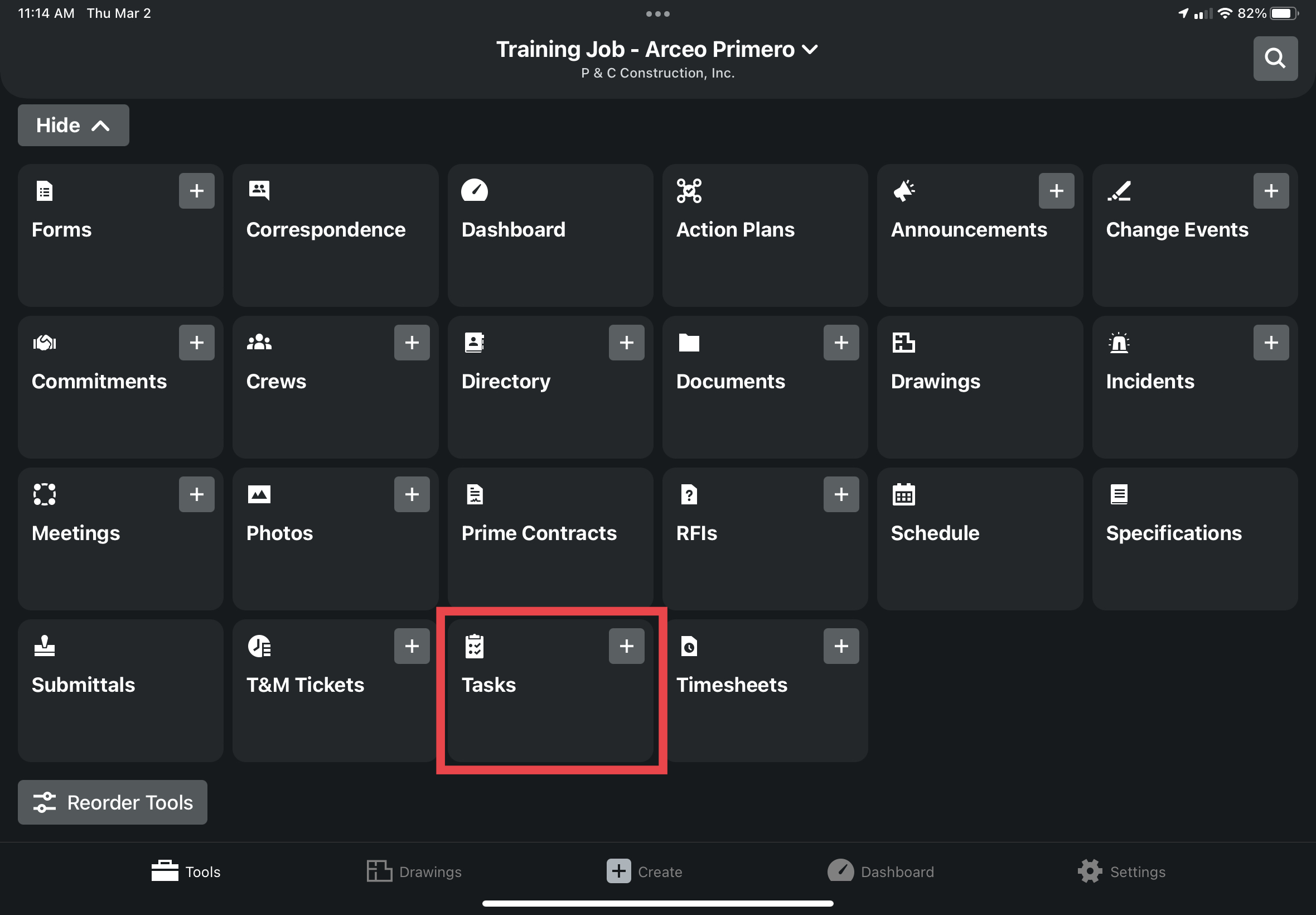
8. Tap the Toolbox Task for the current work week you have completed. If you do not see one, contact Paris and she will assign you a task that you will be able to attach your paper sign sheet to.

9. Tap the “edit” button in the upper right corner of the screen.

10. Tap either the “Camera” button to take a picture of your Toolbox talk sign sheet or use the “attachments” button to attach a picture of the sign sheet.
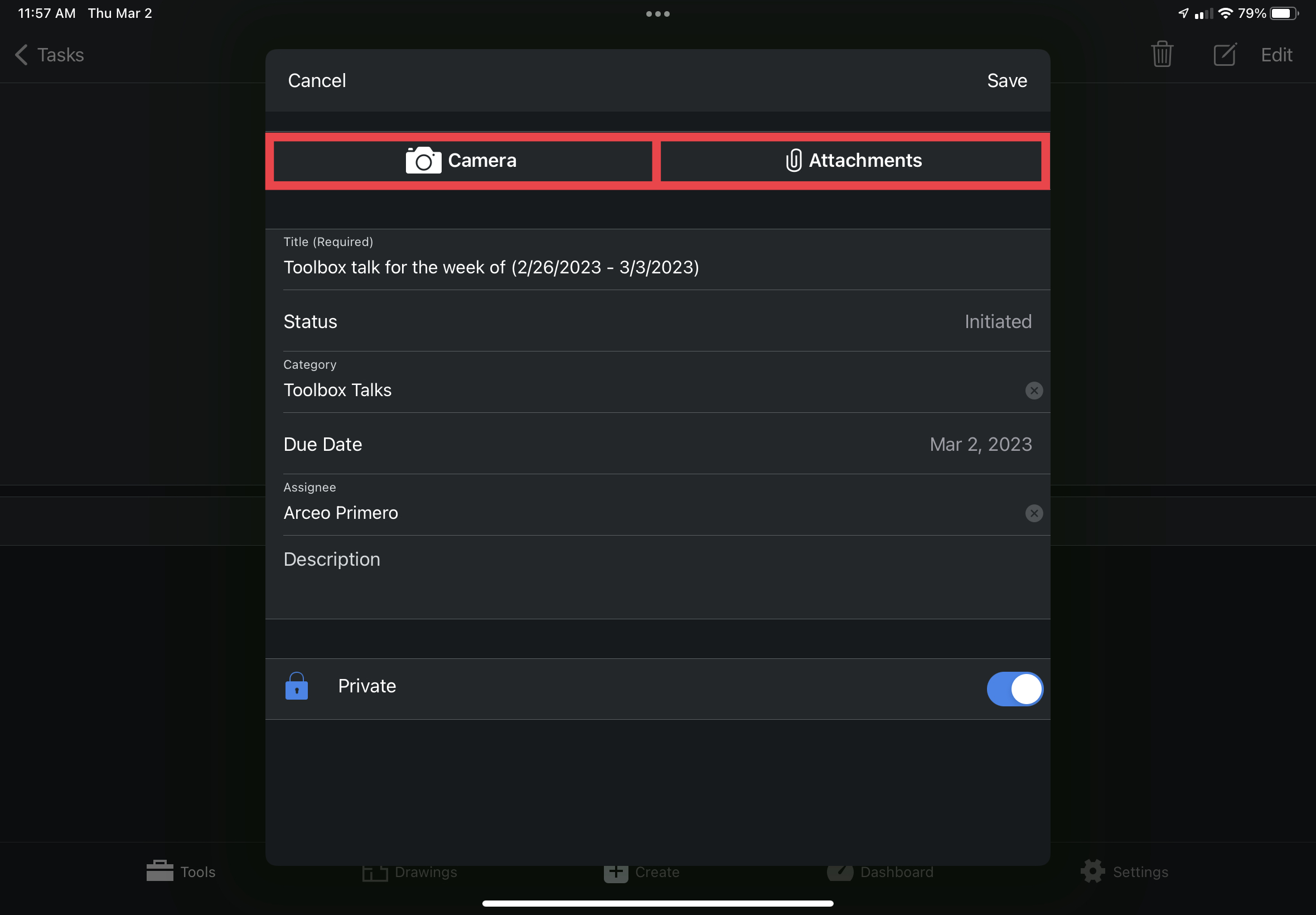
11. (IMPORTANT) After attaching a picture of your sign sheet to the weekly toolbox talk task, make sure to change the status of the task from “initiated” to “ready for review” by tapping the blue "initiated" button, and then tapping the yellow “ready for review” button.
a. Also notice, that you can check if your picture is successfully attached by looking at the “attachments” counter seen in the red highlighted circle in the following picture.


The Second Method: (more steps)
Submitting a PDF Toolbox Talk:
1. As always make sure you are in the correct job, then tap the “documents” tool on your Procore app.

2. Tap the “03 Safety” file.

3. Then tap “Toolbox Talks”.

4. Select or search for a relevant safety topic that applies to the current state of the job and then tap on that folder to open it and view all toolbox talks associated with that topic.
5. Once inside the toolbox talk folder, you can use the search bar to search up a relevant safety topic such as “electrical” or you can just scroll and select the right topic.

6. Select the toolbox talk you’d like to submit. Doing so will open the toolbox talk document that includes the toolbox talk itself and a safety meeting report.
a. You can also download the toolbox talk to your Procore app so you can view it if you don’t have a strong internet connection by tapping the cloud icon at the right side of the screen.

7. Tap the “export” button in the upper right-hand corner and then tap the “Markup” button.


8. Navigate to the “Safety Meeting Report” page and fill out the information boxes using the pen tool to fill in the fields.

a. Then tap done, and then tap “Save File To…”


9. Save the edited PDF to a location you’ll remember (you will need to be able to get back to that location in future steps).
a. I personally recommend creating a folder on your iPad called “Toolbox Talks” and then always saving these edited PDF's to that folder.
b. However, this is not mandatory, and you can just tap “On My iPad” and then tap “Save” in the upper right-hand corner to save the file to your iPad.

10. Next, go back to the Procore dashboard and find then tap the “Tasks” tool.
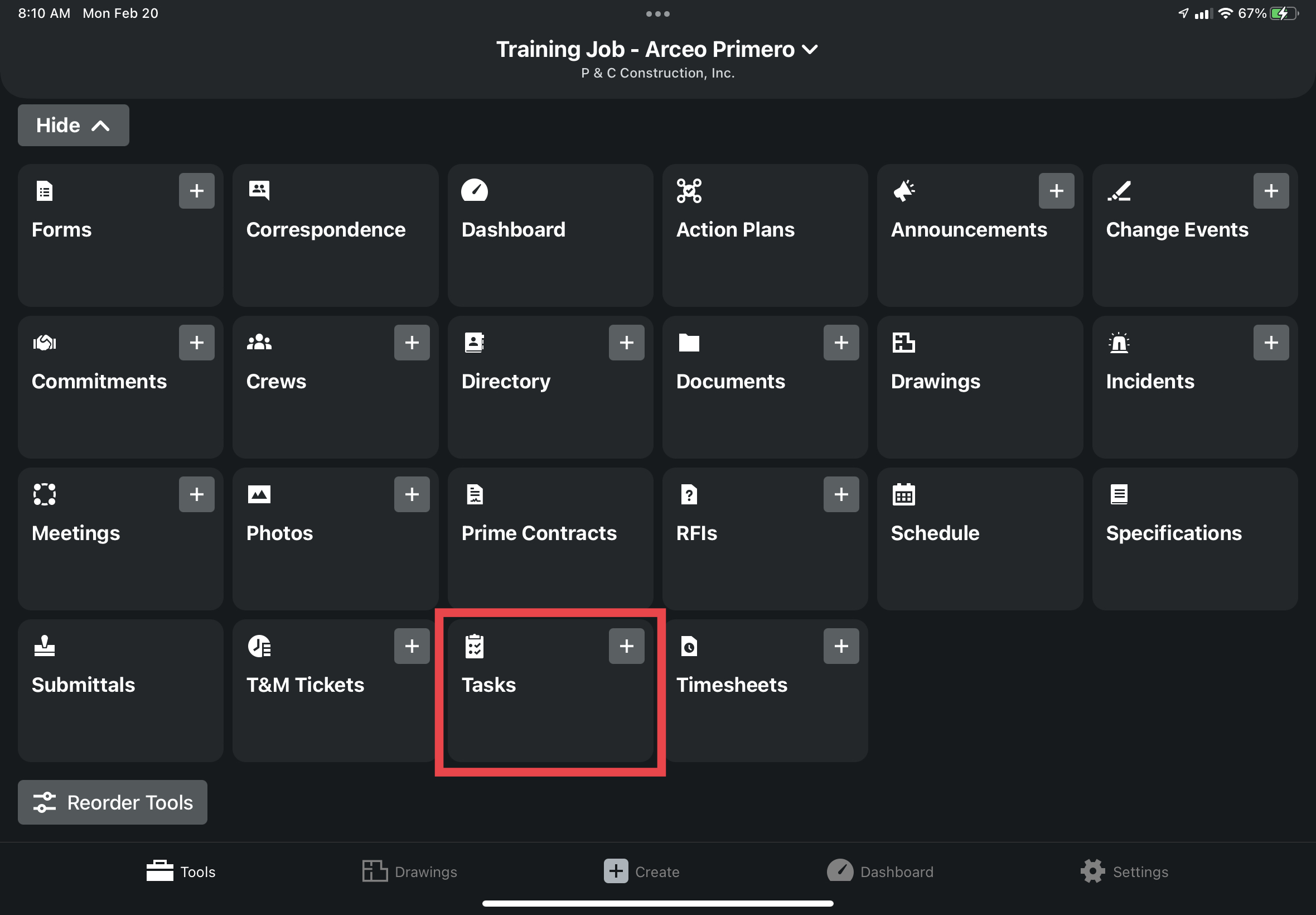
11. Toolbox talks will be assigned by Paris every Monday so there should be an assigned task within this tool for you to select and accomplish.
a. If for some reason there are no tasks in your “tasks” tool, swipe down on the screen to update your tool.
b. If there is still no “Toolbox Talk” assigned to you, contact Paris, and have her assign you one.
12. Tap the “Toolbox Talk” task that has been assigned to you.

13. Next tap the “Edit” button in the upper right-hand corner of your screen.

14. Tap the “Attachments” button and then tap “Files”.


15. Navigate to the location of the edited PDF that you saved in step #8 and then tap your edited “Toolbox Talk” you saved earlier.
a. If you have been copying this guide, the “Toolbox Talk” should just be saved on your device, and you should see it pop up in the first screen you see after touching the “Files” button.
b. However, if you don’t see it, you can always tap “Browse” in the upper left-hand corner and then tap “On My iPad” to get back to the location I used in step #8.

16. Tap “Save” in the upper right-hand corner of your screen.

17. Notice that next to the “Attachment” section of the Toolbox Task, there is now an attachment connected to the task.

18. Finally, to let Paris know that you have completed your Toolbox Talk, tap the blue “Initiated” button, and change it to the yellow “Ready for Review”.


a. This will send Paris a notification that you have completed your task.
b. You can then exit out of the app or make your way back to the dashboard to use other tools.

c. She will then check that you have done everything correctly and change the yellow “Ready for Review” to a grey “Closed” and the process will be completed fully.
