

Observations from Deficient Inspection Items
Document Intention:
To show the process of completing observations that have been created due to a deficient inspection line item in the Weekly Safety Audit.
Process Explanation:
After completing the Weekly Safety Audit inspection for your job site by marking it as “ready for review”, Scott will examine it and then be create “Observations” that will show up in the “Observations” tool that will contain actions to be taken regarding the specific line item in the inspection. Observations will be created as needed for inspection items and will involve taking corrective measures and then documenting with pictures and or comments.
This will provide meaningful tracking of corrective measures taken to address deficient items and don’t involve learning any new skill in Procore. Attaching pictures and leaving comments are tasks that are required in other processes, and so we believe asking this from field staff to be reasonable.
Responding to “Observations” created for inspection items:
1. Back on the main Procore dashboard, tap the “Observations” tool.
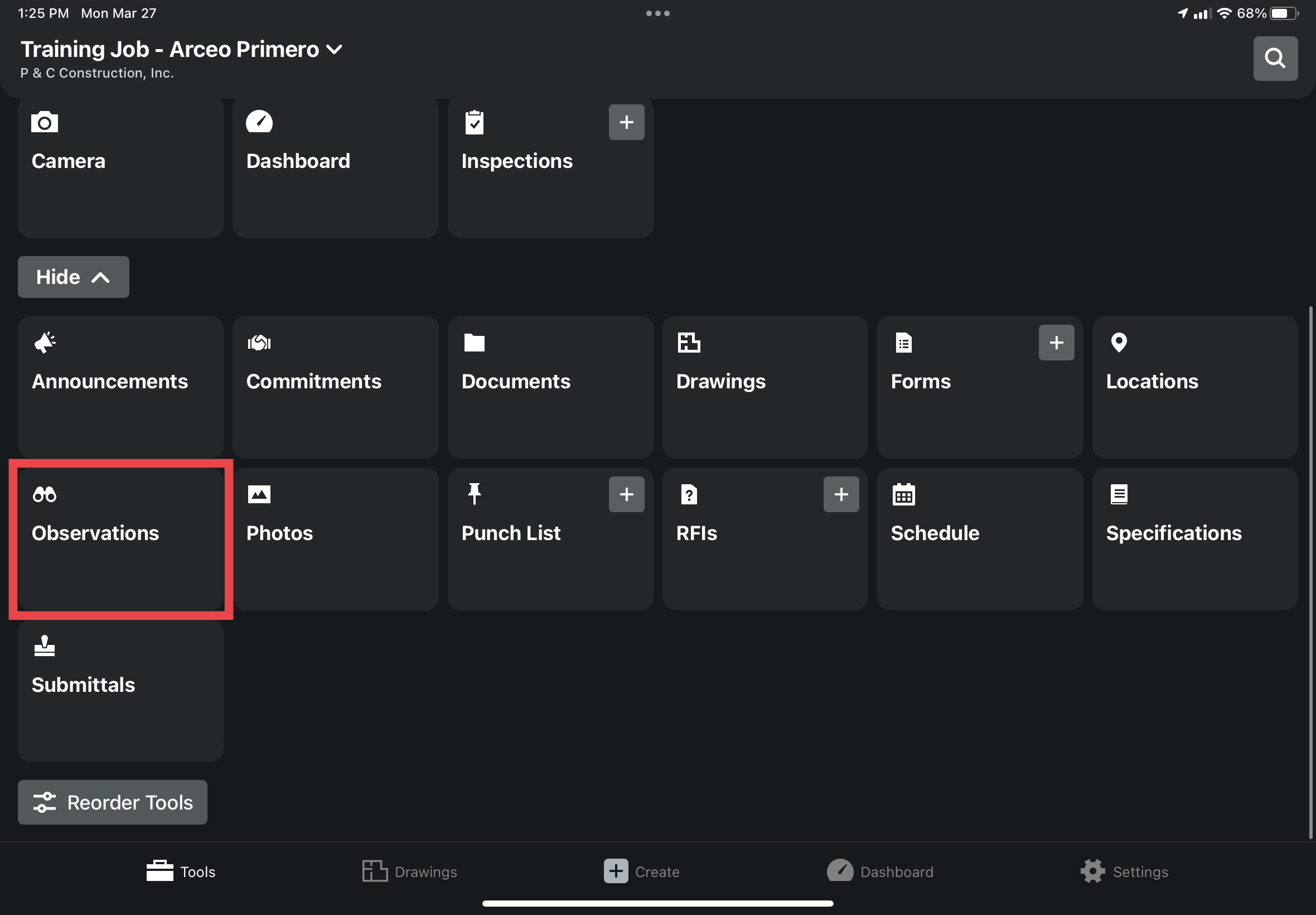
2. You will then see all the observations created in response to your inspection.
a. All of these “Observations” will need to be addressed before Scott can close out your Weekly Safety Job Site Inspection.

3. Tap on your first Observation and scroll down to the “Description” field to see Scott’s message regarding actions needed for that specific inspection item.
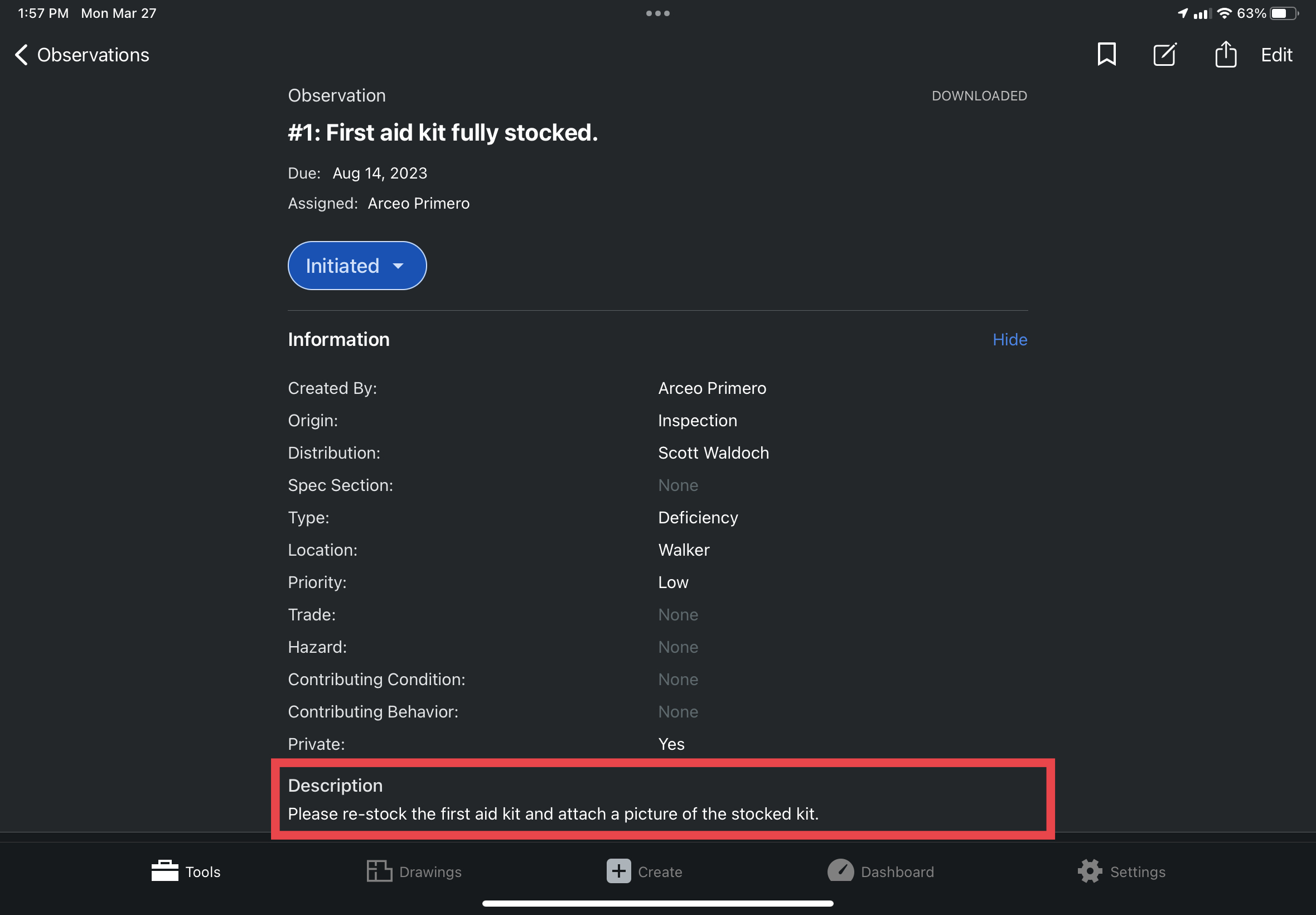
4. After you have completed any instructions given, tap the “edit” button and then using the “Camera” and “Attachment” buttons to take or attach a picture to the observation.


5. In addition, tap the “Comment” button in the upper right corner of the screen to leave a descriptive comment explaining the deficiency, or the actions you took to address the deficiency.
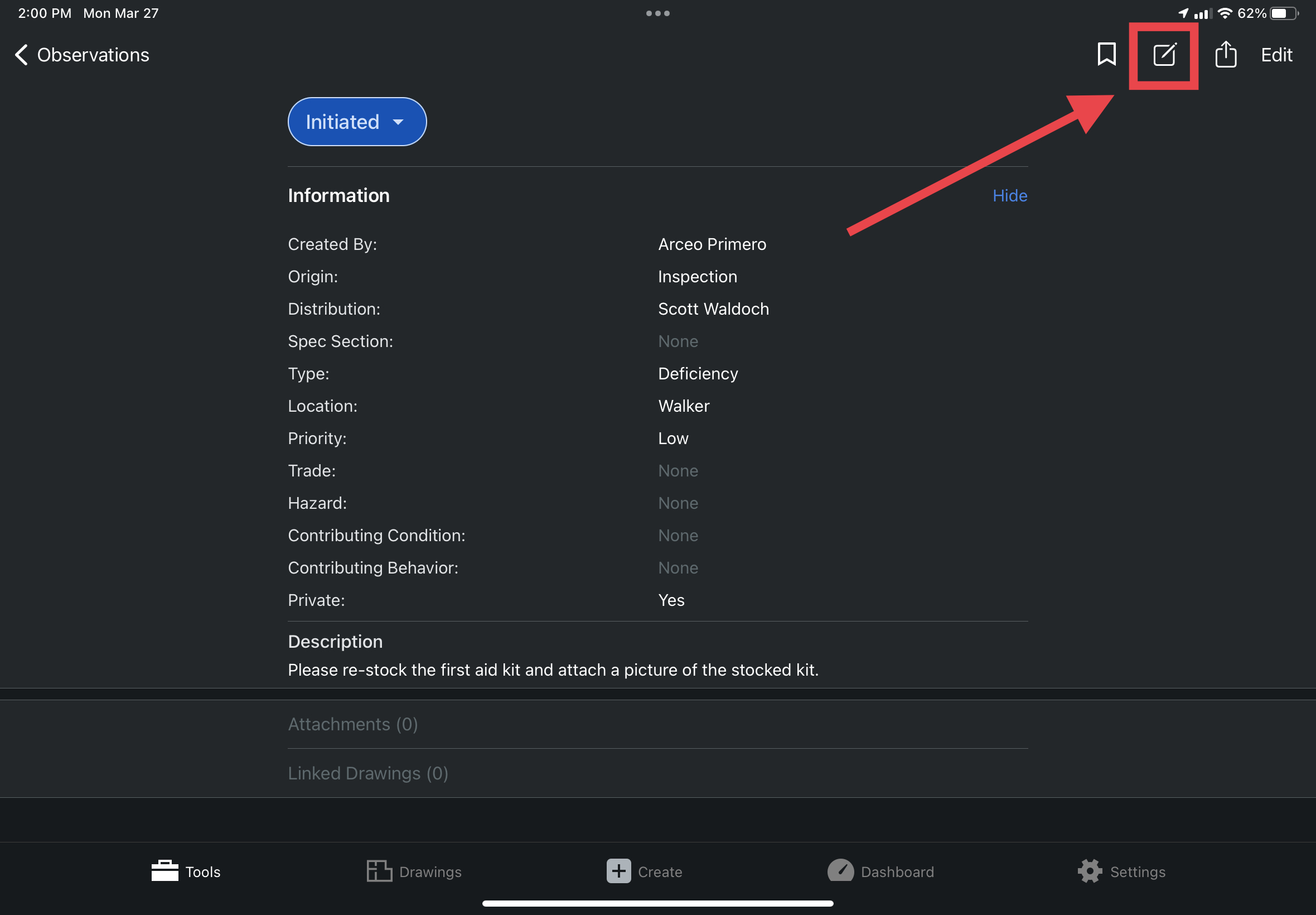

6. Finally, tap the blue “Initiated” button and change the observation status to the yellow “Ready for Review”. Doing so will notify Scott. This "Observation" is now complete.
IMPORTANT: Repeat this process for all Observations assigned to you.

