

My Time Training Guide
Document Intention:
The following is a document that covers how to use the “My Time” tool to clock in and out as a P&C Employee. It also includes best practices and company standards for how to use the tool effectively. Pictures have been included for convenience, however, if a topic is unclear or you would like further clarification you can always call Arceo Primero at (423) 646-1625.
My Time Tool Explanation:
The “My Time” tool is how all P&C employees will record their time for payroll. Clock in times, clock out times, lunch breaks, and cost codes for activity will also be recorded in this tool. It is very important that employees actively use this tool every day to accurately track their daily working hours.
IMPORTANT: This is a reminder that P&C’s policy is that everyone take a 30 minute for every 6 consecutive hours of work in the day. Therefore, 30 minutes will be added every day as a “lunch break” to meet state law. Please make sure to take advantage of this time as these 30 minutes will not be added to your timecard.
Pre-use Checklist:
1. What job am I in?
a. Always make sure you are in the correct job before entering into the “My Time” tool on your dashboard.
Clocking Time with the My Time Tool:
1. Tap the “My Time” tool on your projects dashboard to open the tool.

2. To clock in and begin recording your time, tap the “Clock In” button in the bottom middle of your screen.
IMPORTANT: Do not tap the “red plus” button to create a timecard. You must clock your time with the counter. If you make a mistake, forget to clock in or out, contact Jerome, Scott, or your PM to make sure your time is accurate. You will never need to tap the “red plus” button in the “My Time” tool.

3. In the “Project” section, make sure that your job is selected.
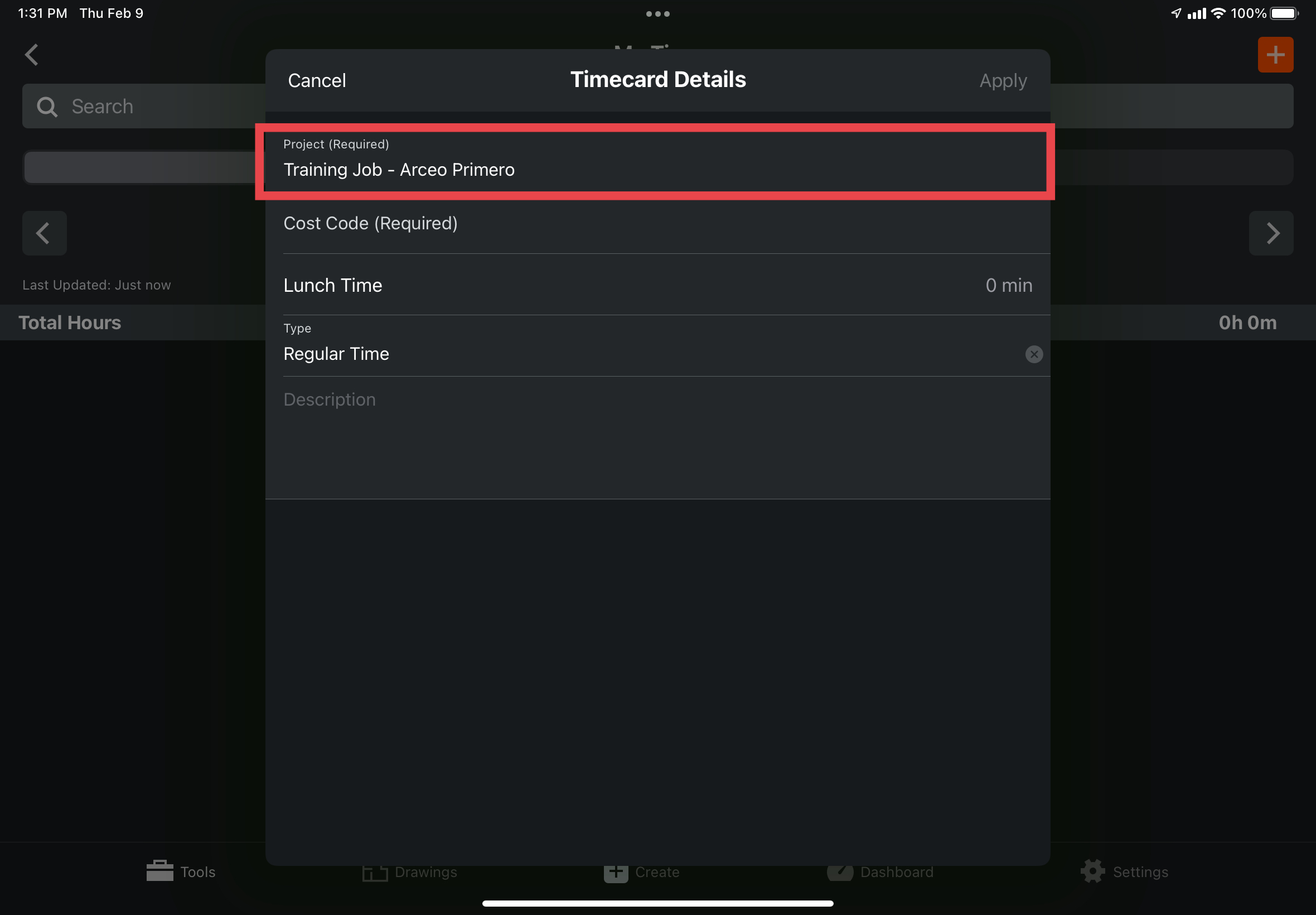
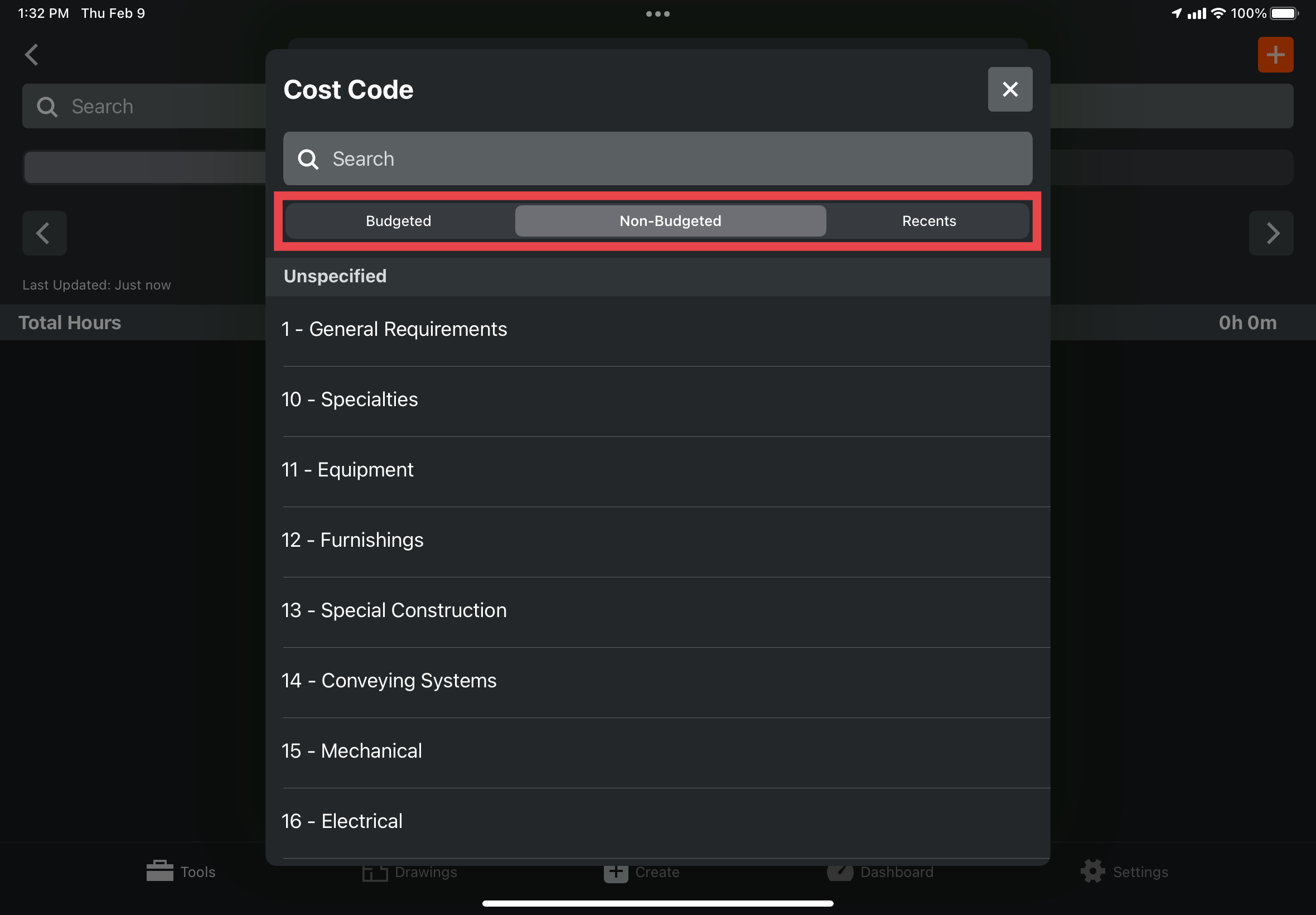
4. Use the “Cost Code” box to select your appropriate cost code.
a. You can either search your cost code or navigate to it by tapping either “budgeted” or “non-budgeted” based on the nature of your specific cost code.
b. If you do not know what cost code you should be using, check with your superintendent.
c. If you switch activities throughout the day, your cost code should also be changed to reflect the type of work you are doing.
5. Click “apply” in the upper right corner to start your clock. You will then be on the clock.

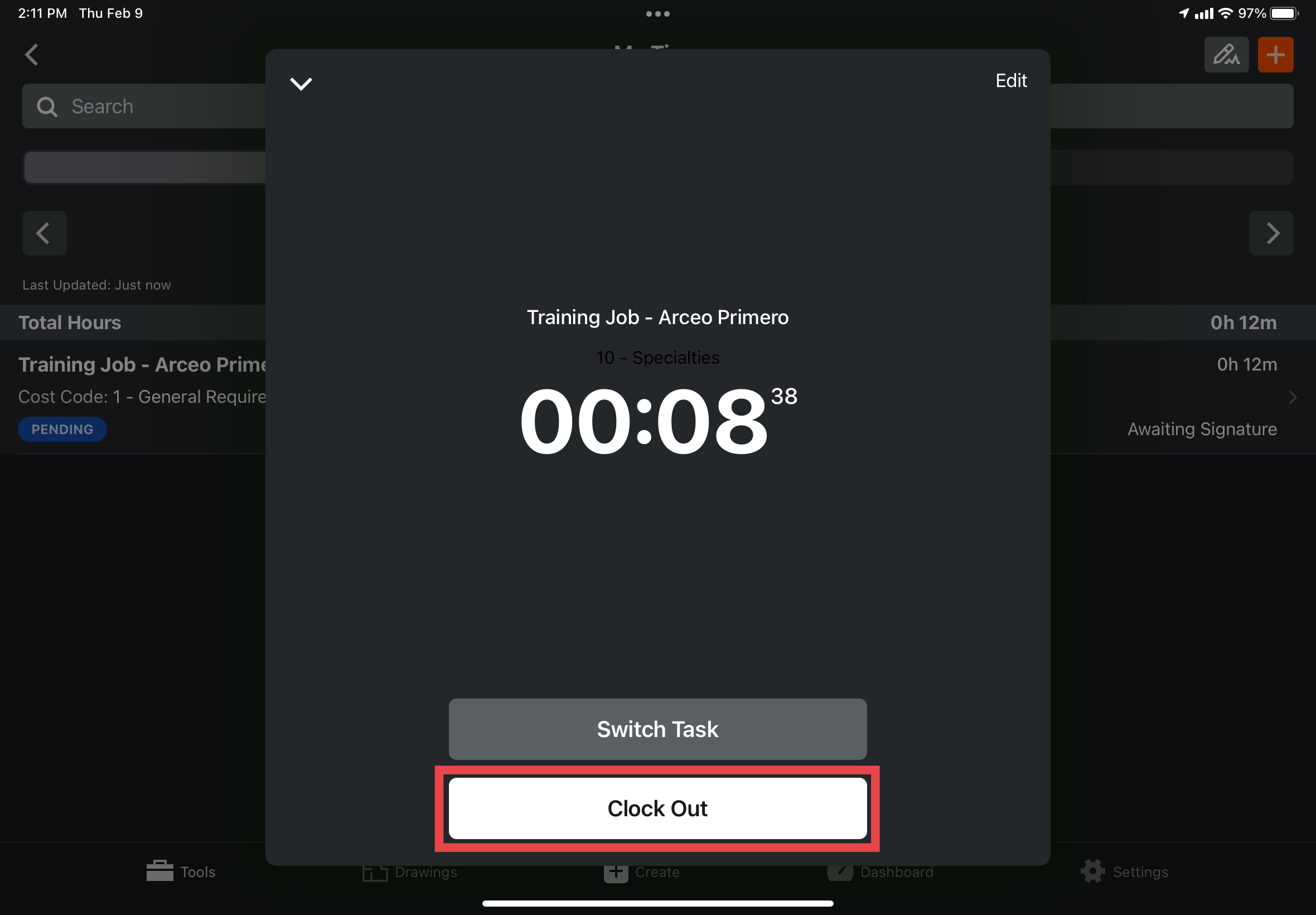
6. If you need to change cost codes, tap the “Switch Task” button, and select your new cost code.

Changing a Lunch Break:
IMPORTANT: P&C Policy and Tennessee State Law dictate that for every 6 hours of consecutive work, workers must take a 30 minute break. Therefore, the default break time in Procore, upon the creation of a new timecard, is set to 30 minutes. This time will be subtracted from your overall time at the end of the day so make sure to take appropriate breaks throughout the day.
1. Tap the “edit” button in the upper right corner of the time clock.

2. Tap, then scroll to record the amount of time you took for lunch if longer then the 30 minute requirement.

3. Make sure to tap the “apply” button in the upper right corner of the screen to add the lunch break to your timecard.
Clocking Out:
1. To clock out at the end of your day, tap the “Clock out” button within the My Time tool.
Viewing your Timecard:
1. Your timecard and all other relevant time related information can be viewed in the main menu of the My Time tool.
a. Time recorded for lunch will be subtracted from your total hours.
b. There will be multiple timecard entries if you had to switch your cost code at some point throughout your day.
