

Align - Creating a Verify Ticket
Department: Equipment Department
Topic: Align Mobile App
Process: Creating a Verify Ticket
Objective
Confirms the assigned location of tools. This will keep track of every tool on the jobsite and quantities on a weekly basis.
Background
Key advantages of the Mobile Apps include the ability to create inventory counts in real-time, showing the changes almost immediately to all connected devices throughout the system.
Creating a Verify Ticket:
|
1. Tap on Verify My Tools to create a new Verify ticket that is populated with tools assigned to the named user. 2. Tap on Verify Tools by location to create a new Verify ticker that is populated with tools assigned to a specific location. To view or modify Verify tickets that have been previously opened, tap on My Open Tickets |
 |
Verifying Unique Tools
1. Tap on a tool to Verify that it is in inventory.
2. When an Item is Verified, a Green Verify image will appear.
3. Tap tool again to “Unverify” if desired.
Tap the Circle with an i icon to:
|
1. View additional distinguishing information about the tool. 2. Verify or “Unverify” the tool, by tapping Verify or “Unverify” in the right corner. 3. View a record of the employee who verified the tool. 4. Add an optional note to the record by tapping on the record. |
 |
Verifying Quantity Tools
|
1. Tap on a tool to Verify that it is in inventory. 2. Enter a quantity. 3. Press OK. 4. Once all expected items are verified, a green Verify image will appear. |
 |
Add Additional Counted Quantity Items on Android Devices:
· Tap the item to enter an additional quantity.
· Tap the Circle with an i icon to open a shortcut to view Item Detail.
1. From the Item Detail screen, tap the Plus icon on Android devices to add additional items to the expected count.
2. Enter an optional note. Each time a user adds an item to the expected count, a separate record indicating the count activity is displayed.
3. Tap on the record to:
|
a. Change Quantity: Update the count of an item. b. Add Note: User can add a note here. c. Delete Item: User can delete selected. |
 |
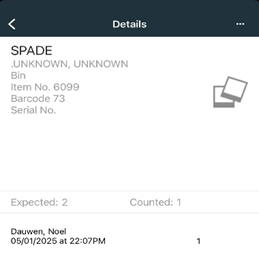
| Add Additional Counted Quantity on iOS: |
1. Tap the Item to enter an additional quantity.
2. Tap the Circle with an i icon to open a shortcut to view Item Detail.
a. Tap the Three Dots icon at the top right to add additional items to the expected count or mark as verified.
b. Each time a user adds items to the expected count, a separate record indicating the count activity is displayed.
c. Tap on an individual record to add an optional note.