

Align - Creating a Request
Department: Equipment Department
Topic: Align Mobile App
Process: Creating a Request
Objective
Draft and submit requisition for specific projects and employees. A Request ticket is visible to Enterprise and Warehouse App users as a Pick Ticket for ease in processing.
Background
This process is for Field user. This can be used for delivering items to job site and to pick up items from jobsite.
 Creating a Request:
1. Tap the Pencil icon at the bottom right of Android device or the Plus icon at the top right on iSO devices on the My Requests screen.
|
2. Tap the following fields to populate: a. Submit To (Required Field) b. Requesting For (Required Field) c. Cost Center d. Cost Code e. Needed By f. Comment |
 |
Adding Items to a Request:
1. Tap the Plus icon on the bottom right of Android devices or the 3 Dot icon at the top right on iOS devices on the New Draft screen.
2. Scroll through categories, search categories or filter by Tools or Materials.
3. Tap on a category to populate a list of models.
4. Scroll or search for specific model.
5. Tap on a model record to add it to the REQUEST ticket.
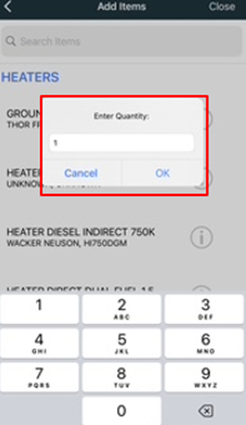
6. Enter a Quantity when prompted.
7. Tap the back arrow at the top left of the screen to return to the Request ticket.
8. Repeat until REQUEST ticket is completely populated.
9. To edit selected model, tap the model record to:
a. Remove Item
b. Change Quantity
 |
 |
 |
Submitting/Saving/Deleting a Request:
1. Tap the 3 Dot icon to:
a. Save Draft: Requests can be saved in Draft status. These are only visible to the user who created the draft.
b. Submit: Ticket can be seen in requested status on Enterprise.
c. Delete Ticket: Permanently deletes all information on the Request.
Processing Request in Enterprise:
The Following steps must be completed by a Desktop User in Enterprise in order to process the Request:
1. In Enterprise, open the Pick Ticket browser. Requested Tickets are visible as Pick Tickets with the Requested status
2. Open Requested Ticket by either:
a. Double clicking online item
b. Highlighting the line item and clicking “view this ticket” at the bottom of the page.
3. Once approved for the process, click Yes.
| The pick ticket is now visible in Enterprise and the Warehouse App in “Ready to Pick” |
Checking the Status of a Request:
A field user can check the status of a Requested Ticket from the My Requests screen.
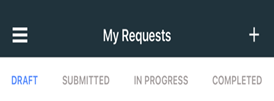
Tap on the following to view the status of Request Ticket.
1. Draft: Ticket that have not been submitted for approval. Tickets may still be edited.
2. Submitted: Tickets that have been submitted but have not been processed or approved.
3. In Progress: Tickets that have been processed or are partially fulfilled.
4. Completed: Tickets that have been fulfilled.