

Configure Project-Level Self Serve Workflows
Background
Direct Costs tool enables Company Admins to build, automate, and manage tailored review processes. Implementing reusable templates and automated self-serve workflows across your projects accelerates the direct cost approval process and significantly reduces manual effort.
Things to Consider
-
Required User Permissions:
-
To view, create, or edit a custom workflow at the company level:
-
'Admin' level permissions on the Company level Workflows tool.
OR -
'Read Only' or 'Standard' level permissions on the Company level Workflows tool with the 'View Custom Workflows' and 'Create and Edit Workflow Templates' granular permission enabled on your permissions template.
-
-
'Read Only', 'Standard' or 'Admin' level permissions on the project's Direct Costs tool.
-
Prerequisites
Steps
Set Up Direct Costs Self-Serve Workflows at the Project Level
-
Create a Workflow Template. To learn more, see Create a Workflow Template.
-
Assign Workflow Templates to Projects. To learn more, see Assign Workflow Template to projects.
-
Navigate to the Company level Direct Cost tool where the workflow is being configured.
-
Click the Configure Settings icon.
-
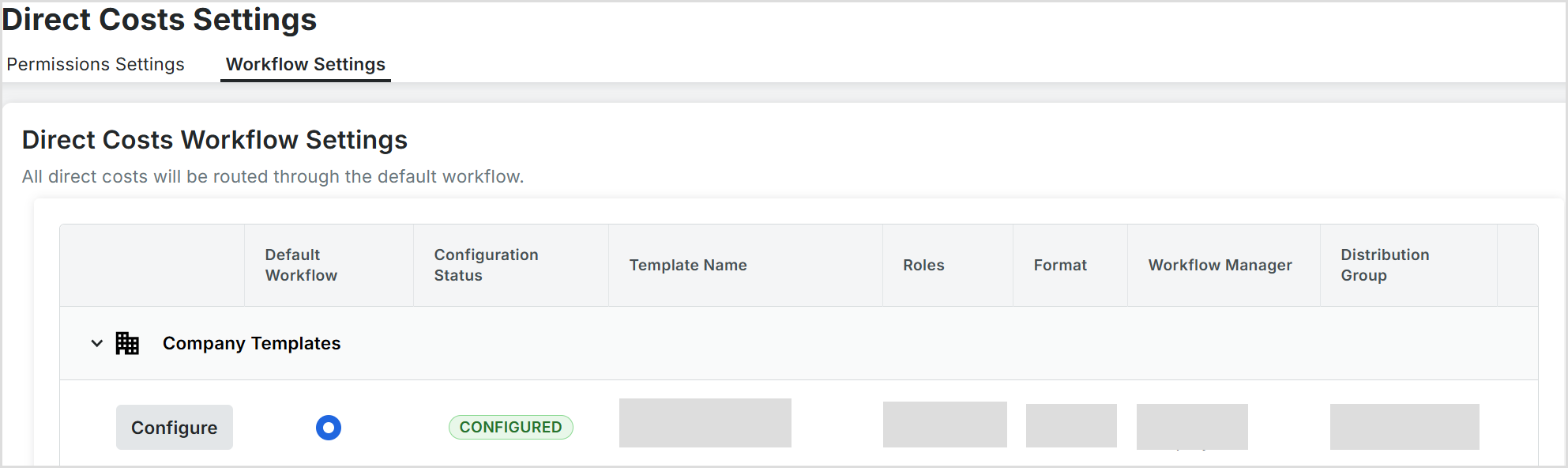
Click the Workflow Settings.
-
Click Configure next to the workflow being configured to open the workflow viewer.
-
At the top of the workflow viewer, assign a Workflow Manager by selecting a project user from the drop-down list.
Note: Optional step. Complete based on Workflow requirements. Assign Distribution Group. Select a distribution group from this list. These are the groups of users who will receive notification emails from Procore when certain actions occur in a workflow. -
Click Save.
Update the Initial Standard Step in the Custom Workflow
-
In the workflow builder, do one of the following to name your initial workflow step:
-
Click the pencil icon and then type over the 'Untitled' step title in the right pane. Then press the RETURN key.
-
Click into the text box and type over the 'Untitled' step in the right pane. Then press the RETURN key.
-
-
In the workflow step, update the 'Step Details' section:
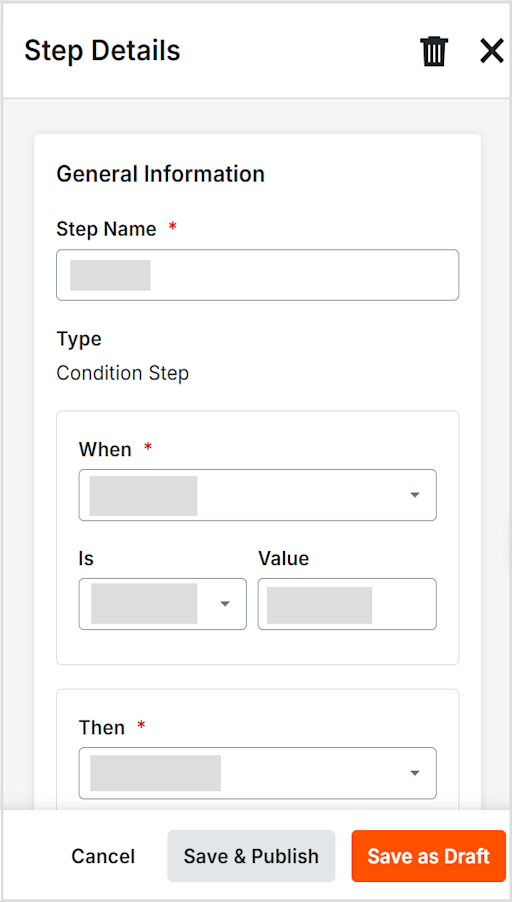
Note: An asterisk (*) indicates a required field.
Step Details & Configuration
-
Step Name: The designated title defining this particular step in the overall workflow sequence.
-
Type (Condition step): Defines the operational logic for the step, specifying whether it performs an action, calculates a value, or evaluates a conditional rule.
-
When: Identifies the main attribute or trigger condition that starts the evaluation. For example: Total Cost, Department, Vendor.
-
Is: The comparison operator used to test the condition, such as Equal to, Greater than, or Contains.
-
Value: The target threshold, numerical value, or text criteria checked against the When selection to satisfy the rule.
-
Then: The designated action or result triggered if the condition is met. For example: Require Manager Approval, Apply Overhead Fee.
Actions
-
Cancel: Closes setup and discards unsaved changes.
-
Save & Publish: Verifies, saves, and immediately deploys the rule to the active direct cost environment.
-
Save as Draft: Saves your work as an inactive draft so you can edit it later.
Respond to a workflow
-
Navigate to the project's Direct Costs tool.
-
Assigned reviewers will receive tasks in their My Open Items dashboard.
-
Click Edit to open the pending item to view the direct cost details.
-
Click Show Workflow.
-
Click Respond and select Approve or the appropriate action to advance or finalize the workflow.
-
Click Submit.