

Manage Scheduled Assignment Alerts for Resource Planning
Background
Resource assignments allow you to manage your resources by assigning them to projects. You can create assignment alerts to notify the assignees and share key information about their assignment. You can schedule assignment alerts to be sent a later time.
Things to Consider
-
Messages are limited to 1,200 characters, not including dynamic tokens.
-
Steps
-
Edit Scheduled Assignment Alerts
-
Send Scheduled Assignment Alerts Now
-
View Scheduled Assignment Alerts
Edit Scheduled Assignment Alerts
-
Navigate to the Company level Resource Planning tool.
-
Click Communications (Beta).
-
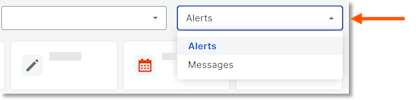
Select Alerts from the drop-down menu.
-
Select Scheduled.
-
In the 'Date/Time Sent' column, select the envelope
 icon for the alert.
-
Edit the assignment alert.
-
Recipients. Select who will receive the assignment alert.
-
Select a recipient from the drop-down menu to add them to the alert.
-
Click remove next to a recipient to remove them.
-
-
Schedule Delivery. Select whether the message is scheduled for delivery.
-
Keep the 'Schedule Delivery' toggle
 ON to schedule the assignment alert. Update the date and time for the scheduled assignment alert to be sent.
-
Turn the 'Schedule Delivery' toggle
 OFF to save the assignment alert as a draft.
-
-
Subject. Enter the subject of the assignment alert.
-
Alert Content. Enter the information to be sent in the assignment alert.
-
-
Click Schedule or Save Draft.
Send Scheduled Assignment Alerts Now
-
Navigate to the Company level Resource Planning tool.
-
Click Communications (Beta).
-
Select Alerts from the drop-down menu.
-
Select Scheduled.
-
In the 'Date/Time Sent' column, select the envelope
icon for the alert. -
Move the 'Schedule Delivery' toggle
OFF. -
Click Send.
View Scheduled Assignment Alerts
-
Navigate to the Company level Resource Planning tool.
-
Click Communications (Beta).
-
Select Alerts from the drop-down menu.
-
Select Scheduled.
-
In the 'Date/Time Sent' column, select the envelope
icon for the alert you want to view.