Procore Feedback Forum
Table of Contents
Overview
Sign In to the Forum
Manage Your Profile
Keep your Procore Feedback Forum (feedback.procore.com) profile up to date and customize how you interact with others.
Important
By using the Procore Feedback Forum (feedback.procore.com) , you agree to the Procore Privacy Notice. Please be aware that this forum is hosted by UserVoice, a third-party provider, and your interactions are subject to their data processing practices.Steps
Choose from these steps to manage your forum profile settings.
Access Your Forum Settings
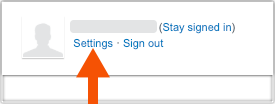
- Sign in to the Procore Feedback Forum (feedback.procore.com).
- Click Settings next to your user name.
Update Your Forum Notification Settings
In the Email Notifications for Ideas You Support and General Notifications sections, Procore recommends keeping the default notification settings. However, you have these options:
- Enable Notifications: Mark the checkbox next to the desired notification.
- Disable Notifications: Clear the checkbox.
Personalize Your Forum Profile
- Add an Avatar. You can Upload Your Avatar or Profile Photo to Procore to automatically update your avatar.
- Change Your Display Name: Click Edit Name to update how you appear to other forum users. This only changes your display name in the forum interface. It does not change your display name in the Procore web application.
- Change Your Language: Click Edit Language and select your preference from the drop-down menu. This setting only changes the language display of the forum interface. It does not change the language settings in the Procore web application.
Translate Ideas and Comments
When viewing content on the forum, you can translate the ideas and comments to different languages in your web browser.
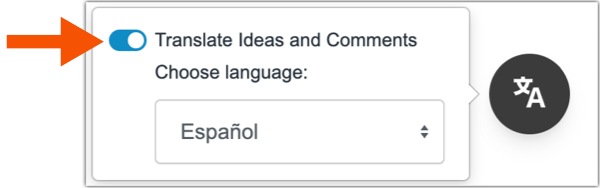
- Click the Translate icon.
- Select the preferred language from the list. Not all content on the page is translated, and only translated content is available
- Move the toggle to the right to translate the page.
Delete Your Forum Profile
Click the Delete My Profile link to remove your email address and personal data from the forum. Any comments you add will be attributed to "Anonymous" and any ideas without support are deleted. Your email address and personal data will be removed from existing forum tickets.
Export Your Forum Data
To export your forum data, click the Export My Data link. Your request is added to a queue. When it is ready, the system sends a message to your email address.
Post an Idea
The Procore Feedback Forum (feedback.procore.com) serves as your direct line to our Product Management team, allowing you to share ideas, vote on requested features, and track what is currently in development. By submitting your suggestions through the Help menu or directly on the forum, you play a vital role in helping us prioritize the tools that matter most to your business. This collaborative space is the most effective way to make your voice heard and actively shape the future of the Procore platform.
Important
By using the Procore Feedback Forum (feedback.procore.com) , you agree to the Procore Privacy Notice. Please be aware that this forum is hosted by UserVoice, a third-party provider, and your interactions are subject to their data processing practices
Post an Idea via the Procore Web Application
- Log into the Procore Web application. See Log in to Procore Web.
- Click the Question Mark (?) icon and then click Post an Idea.
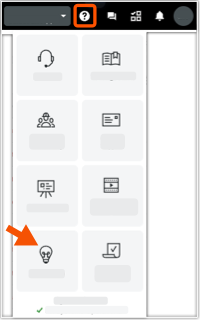
- If prompted with a "We're Glad You're Here" message appears, click one of the available icons to log you into the Procore Feedback Forum (feedback.procore.com) .
- In the Post an Idea box, enter your feature idea.
- If you want to attach an image or file, click the paperclip icon. Then choose the file to upload.
- Click Next.
- (Optional) If prompted with an "Are any of these helpful?" message, click the links to review user ideas previously submitted to the forum.
- To vote for an idea, click Vote.
- To go back to your idea, click Back.
- When ready to post your idea, click Skip and Post Idea. Procore posts your idea to the Procore Feedback Forum (feedback.procore.com).
Post an Idea via the Feedback Forum
- Log into the Procore Web application. See Log in to Procore Web.
- In a new browser window, go to the Procore Feedback Forum (feedback.procore.com).
- Under the How Can We Improve Procore? area, start typing a title for your idea in the Enter Your Idea... box.
- Click Post a New Idea. In a few moments, a drawer of data entry fields appears.
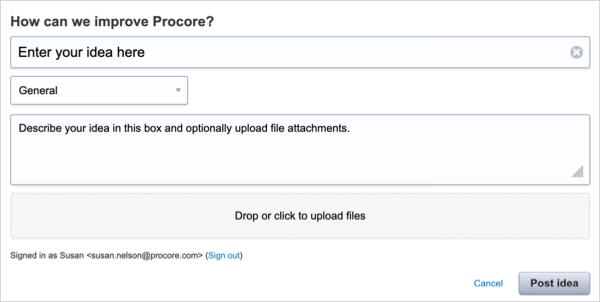
- Enter your idea:
- Category. Select a Procore product category from the drop-down list. If you are not sure which category to pick, choose General or Other.
- Describe Your Idea. Type your idea in this box.
- Drop or Click to Upload Files. Click this box or drag-and-drop any files or images that you want to attach to your idea.
- When finished, click Post Idea.
Add Votes and Comments
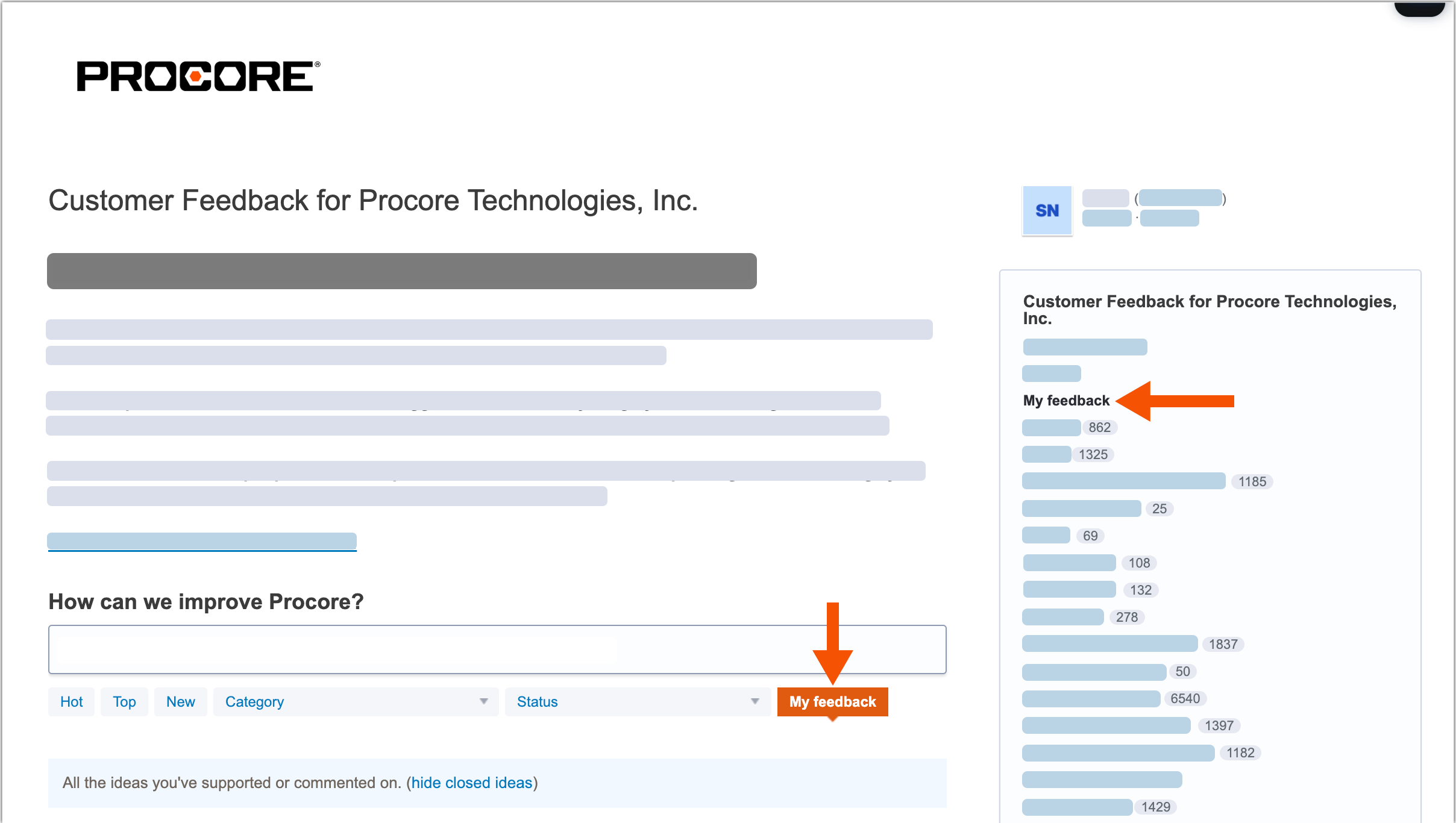
You can add votes to support the ideas submitted by other Procore users. You can also add comments to discuss ideas. Once submitted, use the My Feedback link to see a list of the ideas you've supported and your comments.
Access the Forum
After signing into the Procore Feedback Forum (feedback.procore.com) with your Procore credentials, you have these options.
Vote on an Idea
-
Find an idea to support.
-
Click the Vote button.
Add a Comment on an Idea
-
Find an idea to support.
-
Click the # Comments link under the post.
-
Enter your feedback in the Add a Comment box.
-
(Optional) Click Attach a File to upload a file or image with your comment.
-
Click Post a Comment.
Review Your Feedback
-
Go to the Procore Feedback Form (feedback.procore.com) and sign in.
-
Click one of the My Feedback links.