Create a Change Order (CCO)
Objective
To create a commitment change order.
Background
In Procore, purchase orders and subcontracts are called commitments. A commitment is a contractual agreement between a buyer (for example, a project owner, a general contractor, or a specialty contractor) and a seller (for example, a contractor, a subcontractor, or a vendor). The seller is responsible for completing project work or fulfilling an order for the buyer. When you need to alter the terms of the original agreement, you can create a commitment change order.
Important
When the Change Events tool is enabled on a project
The process that you will use to create a commitment change order in Procore depends upon a few factors. First, if the Change Events tool is disabled on the project, you will use one of the processes below. Also, keep in mind that the number of steps required to create a commitment change order is dependent upon the change order tier setting that is configured on the project's Commitments tool. See Configure the Number of Commitment Change Order Tiers:
- 1-Tier configuration:
- Create a commitment change order as described below.
- 2-Tier configuration
- Create a commitment potential change order
- Create a commitment change order
PROCORE INTERNAL USE ONLY
Although not recommended, Procore also supports a 3-Tier configuration:
- 3-Tier configuration
- Create a commitment potential change order
- Create a change order request
- Create a commitment change order
Things to Consider
- Required User Permissions:
- 'Admin' level permissions on the project's Commitments tool
- 'Admin' level permissions on the project's Commitments tool
- Additional Information:
- If the Change Events tool is disabled on the project:
- The steps for creating a change order are determined by the number of change order tiers configured for the Commitments tool. See What are the different change order tier settings in Project Financials? and Configure the Number of Change Order Tiers.
- If the Change Events tool is enabled on the project:
- The Create Commitment CO button is not available.
- Instead, click Create Change Event.
- Next, follow the steps in Create a Change Event.
- Then, follow the steps in Create a Commitment Change Order from a Change Event.
- If the Change Events tool is disabled on the project:
- For companies using the
 ERP Integrations tool: Show/Hide
- Additional requirements, considerations, and limitations vary depending on the ERP system your company's account is integrated with. Most ERP systems have limitations on the number of characters that can be used for a commitment's title. See Things to Know About your ERP Integration for details.
Prerequisites
Steps
Create a Commitment Change Order
If you have created a purchase order or a subcontract and need to alter the terms of that item, use the steps below to create a commitment change order.
- Navigate to the project's Commitments tool.
- Under Contracts, locate the commitment. Then click Edit.
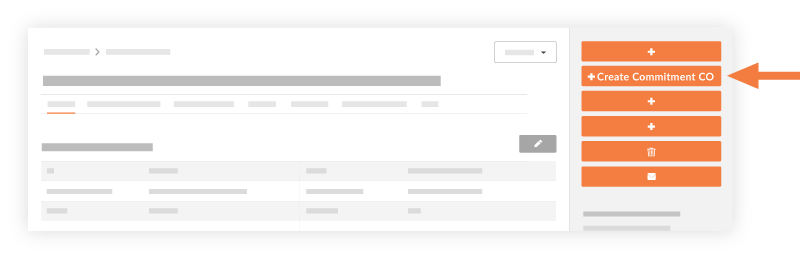
- Click Create Commitment CO.
Notes
If the Change Events tool is enabled on your project, the Create Commitment CO button is not available. Follow these steps instead:
- First, click Create Change Event.
- Next, follow the steps in Create a Change Event.
- Then, follow the steps in Create a Commitment Change Order from a Change Event.
- In the General tab, do the following:
- Sign with DocuSign®
If you have enabled the Procore + DocuSign® integration (see Enable or Disable the DocuSign® Integration on a Procore Project), a checkmark appears in this box by default. If you do NOT want to collect signatures with DocuSign®, remove the mark. - Number
This field automatically populates based on the number of change orders already created. By default, the number will automatically increment by one.Tip
How does Procore assign numbers to commitment change orders? To learn more, see Can I customize the numbering system for financial objects in Procore? - Revision
- Displays the change order's revision number. When a change order is first created, its revision number is zero. A change order could have multiple revisions because of feedback from a reviewer/approver.
- Date Created
Automatically populates with the date that you create the commitment change order. The date cannot be changed. - Created By
Automatically populates with the name of the user who is creating the change order. - Contract Company
Automatically populates with the name of the subcontractor or vendor listed on the subcontract. This field is only available for subcontracts. - Contract
Automatically populates with the name of the contract for which the change order is being created. This field is only available for subcontracts. - Title
Enter a name for the change order. The maximum character limit is 255 characters.Important
If you are using an integrated ERP system, the maximum character limit for the 'Title' field on a commitment is different for each system. For a list of each system and its limitation, see What is the maximum character length for a commitment's 'Title'? - Status
Select a status for the change order. To learn more, see What are the default statuses for change orders in Procore? - Private
Mark this checkbox to make the change order visible only to users with 'Admin' level permissions on the Commitments tool. - Change Reason
Select one of these reasons for the potential change order: Client Request, Design Development, Allowance, Existing Condition, or Backcharge. To learn how to configure change reasons, see Set Default Change Management Configurations. - Accounting Method
This field inherits the accounting method that was specified in the contract. - Due Date
Select a due date for when the change order must be approved by. - Invoiced Date
Select the date when the change order was invoiced. - Designated Reviewer
Select the Procore project user at your organization who will be responsible for approving or rejecting this change order later. See Approve or Reject Commitment Change Orders.Important
- The 'Designated Reviewer' can submit an approve or reject response only when a change order is in the Pending - In Review status.
- To send an email notification to the 'Designated Reviewer' to notify that person that a change order is awaiting their response, you have these options:
- You can forward the prime contract change order to the 'Designated Reviewer' by email. See Forward a Change Order to a Project User by Email.
OR - The pending change order will also be listed in the 'My Open Items' area in the project's Home page. The user can check this page at any time.
- You can forward the prime contract change order to the 'Designated Reviewer' by email. See Forward a Change Order to a Project User by Email.
- After the 'Designated Reviewer' submits an approve or reject response, the 'Reviewer' field (directly below the 'Designated Reviewer' field) shows the date/time stamp of that users response. The 'Reviewer' field is only visible to the 'Designated Reviewer.'
- Request Received From
Select a user from the project's directory who you are submitting the change order on the behalf of. - Description
Enter a detailed description of the change order.Notes
- If you are exporting the change order to Sage 300 CRE® and Integration by Procore, entries exceeding one thousand (1000) characters will be truncated during the export.
- If you will be exporting the change order to a different integrated ERP system, you can to enter an unlimited number of characters in Procore.
- Schedule Impact
If known, you can provide an estimate of the number of additional days that would potentially be added to the current project schedule if the change order were approved. - Location
Use the location drop-down menu to select a location the [item] impacts. Either select from the predefined locations, or add a multi-tiered location. See Add a Multi-tiered Location to an Item. This location may be as general as the site location at the first tier or as specific as where on the site the contractor will be working at the second tier. - Reference
Reference any other tools, materials or documents that are related to the change order. - Executed
Mark this check box if the change order has already been executed. - Field Change
Mark this check box if the change order requires a field change. - Paid in Full
Mark this check box if the cost is already covered in the budget. - Attachments
Select and add any relevant documents.
- Sign with DocuSign®
- Click Create or Create & Email to send the change order to any users listed as 'Reviewers'.
Add a Schedule of Values (SOV) to the Change Order
If there are costs associated with the change order, add line items to the change order's Schedule of Values (SOV). 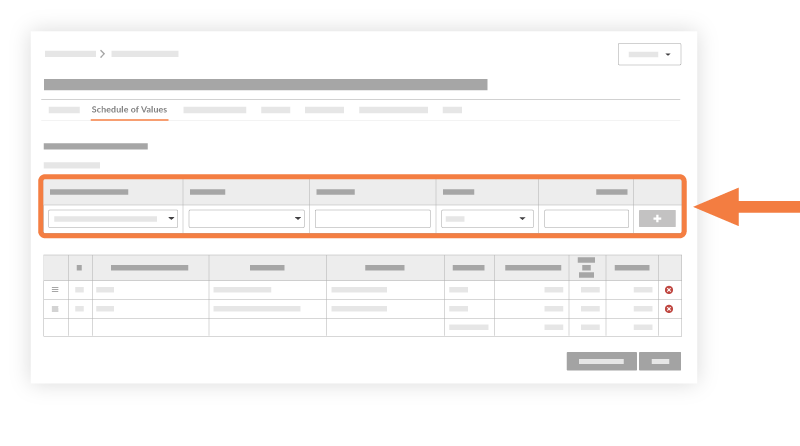
- Click the Schedule of Values tab.
- Click Edit.
- Click Add Line.
- Prime Contract Line Item
Select a line item from the drop-down list. If there is no line item that fits, select Not Budgeted. - Change Event Line Item
Select a change event line item from the drop-down list. - Sub Jobs
If the Sub Jobs feature is enabled on your project, select one from the list. See Enable Sub Jobs on Projects for WBS. - Budget Code
Select a budget code from the drop-down list. See What is a budget code in Procore's WBS? - Description
Type a description for the new change order. - Cost Amount
Enter an amount in the box. - Optional: Tax Codes
If you are using tax codes with this project, select a tax code to use for the line item.Tip
Don't see the Tax Codes field? This field only appears when the tax codes feature is enabled on the Procore project. See How can I use tax codes on a project?
- Prime Contract Line Item
- Click Add
- Repeat these steps for each line item.
- Click Save.
Note
For Companies That Have Enabled the ERP Integrations Tool
After the commitment change order is placed into the 'Approved' status in the Commitments tool, project managers will typically send the change order to the ERP Integrations tool where it must be accepted by an accounting approver for export to the integrated ERP system. For instructions, see Send a CCO to ERP Integrations for Accounting Acceptance.
Next Steps