Performing the Job Site Safety Inspection Report (JSSIR)
Objective
The JSSIR is Koester’s weekly Jobsite Safety inspection, meant to routinely identify any safety hazards that exist on a jobsite.
Background
Regular inspections of Jobsites for safety hazards is important to prevent accidents and injuries from occurring.
Things to Consider
Questions on the JSSIR should be answered accurately to the conditions onsite. No Koester employee will be disciplined for identifying safety hazards. The goal is to identify hazards and correct them.
It is important to note that simply documenting safety hazards is not the end of this process. Trade Partners should be notified of hazards ASAP and correct/remove them immediately.
Prerequisites
The JSSIR is found in the Procore inspection tool, it will be scheduled weekly by the project PC/PE and assigned to the project superintendent. See “Creating Inspections” for more details.
Steps
· Each week the JSSIR will be generated on the day scheduled (typically Monday)
· Open Procore, open the Inspections tool within the project, select the open JSSIR inspection for the current week

o It is best to do the inspection via the mobile app on the phone, so that you are able to walk around the site during the inspection
o Answer each item in the inspection, if the item does not pertain to the job, answer N/A

o If an item is answered “No”, the inspection will auto-generate an observation. An Observation should be created for what needs to be corrected to fix the safety hazard
o If an entire section of the inspection does not apply to your job, the “N/A” next to that section can be selected, saving you time

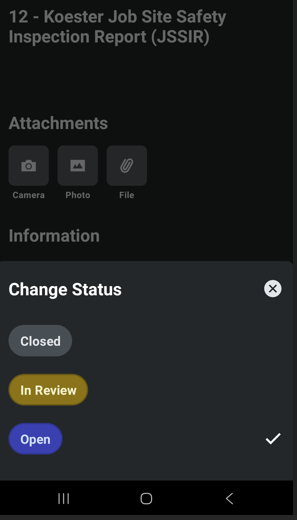
· Once the inspection is completed, be sure to close the inspection
o Tap the “edit” icon


o Change the inspection status to “Closed”