

KAST Prequalification Process - Compass
Recording of original orientation training
(be aware that the Polcy outlined in the written instructions below differ from, and supercede the recording above and the recording should be used for button-clicking instructions only)
See Also KAST Subcontract and PO Award Process
Objective
To become familiar with the KAST Prequalification process and the steps necessary to complete a prequalification through the Compass online software.
Overview
KAST uses Compass Prequal to ensure that subcontractors have the financial capability to meet our standards for KAST projects. Below are the instructions for getting subcontractors pre-qualified for KAST work.
- To include a subcontractor in a Guaranteed Maximum Price (GMP) or to recommend them to a client, they must pass the soft prequalification process.
- Before a commitment can be issued to a subcontractor, they must pass the hard prequalification process and be approved by the KAST Credit Committee.
The Credit Committee reviews all prequalification requests before the project team is authorized to issue a commitment for execution. The individual requesting to issue a commitment to any subcontractor must complete the hard prequalification process. Subcontractors must be hard prequalified for every project they are on (a single prequalification does not cover the subcontractor for all projects).
For access to Compass, to have projects added, or for any other issues or concerns, please email KAST General Counsel. We recommend watching the video and reading through the tutorial before requesting assistance.
Please note that only subcontractors can edit their records in Compass; KAST cannot change these records.
Things to consider
- Companies do NOT need to be in Compass to be able to send them an Invitation To Bid (ITB)
- To carry a number or show a quote to a client, they must pass the Soft Prequalification.
- To issue a commitment to a company, they must pass the Hard Prequalification.
- The Credit Committee meets every two weeks; plan accordingly.
- There is no need to wait until you are ready to issue a commitment to add companies to Compass for Credit Committee Hard Prequalification.
- Consider adding ALL of your potential subcontractors to the credit committee during negotiations
- Ensure that the companies are already in Procore, and collect W9s & send to corporate accounting to add to Sage & Procore.
Soft Pre-Qualification (Carrying)
Notes
- All subcontractors should pass the soft pre-qualification test outlined below before their price is included in a GMP or recommended to an Owner or Client.
- Need to ensure that you are selecting the correct company in Compass
- Be aware of specific spelling
- Review the W9 for the correct legal entity
- Request Tax ID# (FEIN) & check against the sub in the system
- The subcontractor must approve KAST to view their financials. This is not a "permissions" issue within the system or KAST.
- Subs may have provided their financials to Compass, but they must separately approve KAST to view
- Only a Compass rep can assist with unlocking Financials
- Direct any Subcontractors that are uncomfortable adding financials to Compass to Lanette Carter
You must search for the subcontractor you are trying to Soft Pre-Qualify. Once you've searched for the company name, there are four possible scenarios:
- Sub in Compass & has approved KAST to view financials
- Green or yellow Q-Score
- Review against Compass limits
- OK to invite if under limits
- Red Q-score
- Do not invite, do not accept a number
- If a hardship, escalate to the regional VP of Ops
- NO (N/A) Q-score
- escalate to the regional VP of Ops
- Green or yellow Q-Score
- The sub is in Compass & has not approved KAST to view financials
- They will need to provide their financials in Compass & allow KAST to view to do business with KAST
- Click "Invite to Qualify" on the sub's profile
- Call Sub and let them know that you have invited them and ask them to approve
- Do not accept the number until they approve KAST to view financials
- Then see scenario 1 above
- The sub is in Compass & has not provided their financials AT ALL
- They will need to provide their financials in Compass if they wish to do business with KAST
- Sub is not in Compass
- Compass will prompt to invite. Click "Invite new Subcontractor" and fill out the form
- Call Sub and let them know that you have invited them and ask them to apply
- This will put the ball in court on the Sub to apply
- Once the sub is in Compass, see Step 1 above


Hard Pre-Qualification (Contracting)
Notes
- Any contract value above $100k requires a hard pre-qual
- Required before issuing a commitment to a subcontractor
- Check to see that the sub has "completed" prequal in Compass
- Create a project-specific Request
- The credit committee reviews every 2 weeks
- Receive approval for sub on the project
- Refer any questions regarding fees from subcontractors to Compass directly
- Martin Aronshtam; maronshtam@bespokemetrics.com; 647-282-0122
Pre-requisites
1)Sub must be
a) In Compass
i) Only the primary contact in Compass is capable of editing a subcontractor's Compass page
b) Information submitted
c) Approved KAST to view financials
i) The sub has to have approved KAST to view financials to be approved
ii) All subcontractor financials must be for the immediate prior year (e.g. 2023 financials for requests made in 2024)
iii) The requester should follow up with sub BY PHONE to ask them to approve
d) --> "Completed" in the Compass Column on the Qualification Management tab
Project Approval Requests
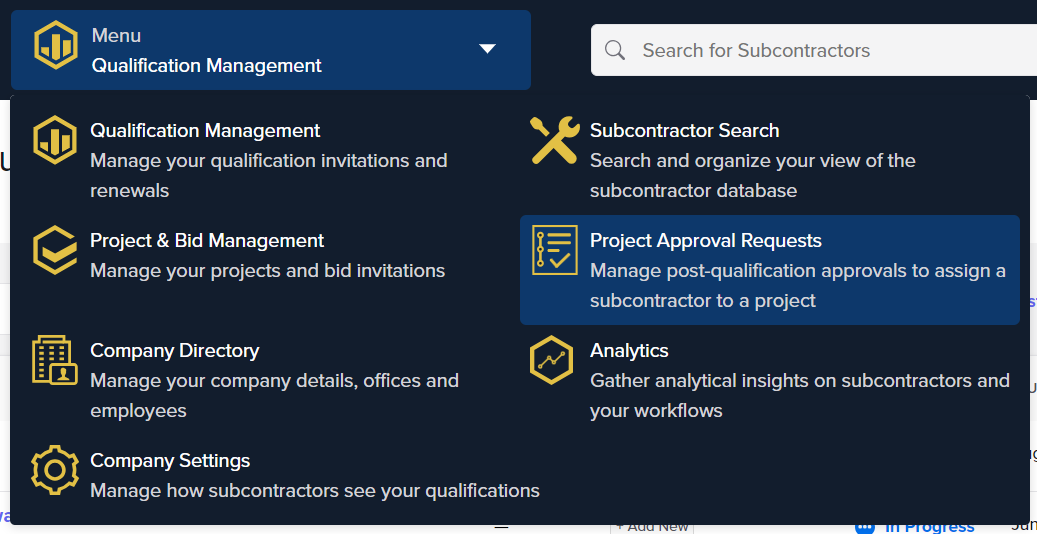
1) Click "Create Request"
a) Choose Project
i) If the Project is not in Compass, email KAST General Counsel
b) Choose Subcontractor
if the Subcontractor is not in Compass, see the Soft Pre-Qualification section above.
c) "Approval Flow = "credit committee prequalification"
d) If requesting on someone's behalf, select them
e) Enter contract award value
f) Optional
i) Scope start
ii) Scope end
III) Required by
iv) Notes
g) Click "Create Project Approval"
i) -->adds the sub & project to the open requests
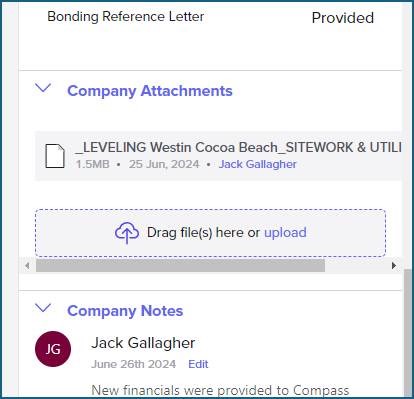
h) Upload the leveling sheet to the "Company Attachments" field located under the financials in the "General" section
2) The credit committee reviews all "open requests" every two weeks
Check Approval Status
1) Go to Project Approval Requests (as shown above)
i) This is the best way to check subcontractor status when managing multiple trades on one project
2) You will only see your requests
i) Including those done on your behalf
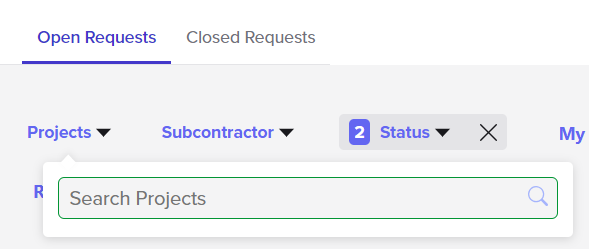
3) Choose either open or closed, then select your project
4) Find the sub
Once approved
1) The requester gets an email from Compass
2) Any restrictions will be emailed separately
i)Increased retainage, joint checks, monitoring plan, etc.