What are the functions of the Estimating toggle Settings?
Background
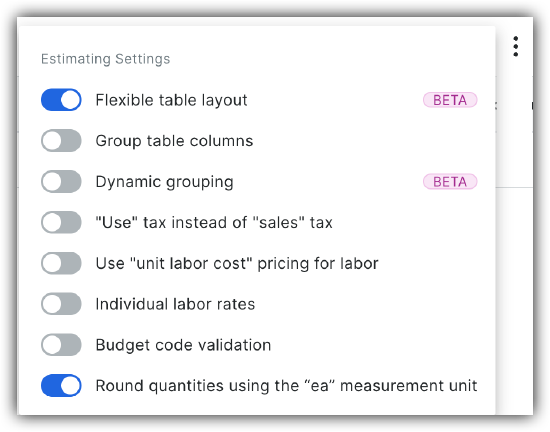
The Estimating Settings panel controls how key project values are calculated and displayed. These include the flexible column layout in Procore, labor costs, tax calculations, cost code validation and material quantities. Configuring these settings ensures your cost estimates are accurate and comply with both company standards and practical project requirements.
Answer
Flexible Table Layout
The Flexible Table Layout setting is automatically enabled for all users and provides advanced configuration options. When this setting is active, it allows you to enable related features like Group table columns and Dynamic grouping.
Group Table Columns
Configuring columns using the Group table columns setting helps users easily meet even the most complex sorting requirements within the estimate. This setting enables you to create a column group where you can add any relevant columns to that group. You can create as many groups as you need and sort the individual columns within the group however is needed. See Configure Columns for an Estimate.
Dynamic Grouping
The Dynamic Grouping feature in Procore's Estimating tool provides a powerful way to quickly reorganize and analyze your estimate data. This functionality helps estimators fine-tune and review estimates by providing a quick overview based on user defined criteria. Within Dynamic Grouping, you can also enable the Split Assemblies feature, which allows you to view the individual components of multiple assemblies within your estimate. See Configure Dynamic Grouping on an Estimate.
"Use" tax instead of "Sales" tax
| Setting | Calculation Method | Description |
|---|---|---|
| "Use" tax | Tax calculated from Cost. | The material tax is calculated based on the cost of the material items. |
| "Sales" tax | Tax calculated from Sales. | The material tax is calculated based on the sales amount for the items. |
Tip: If you are expecting tax to be calculated on the final sales price to the customer, ensure this setting is toggled  OFF .
OFF .
Use "Unit Labor Cost" Pricing for Labor
See What is the difference between individual labor rates and unit cost pricing for labor?
Individual Labor Rates
See What is the difference between individual labor rates and unit cost pricing for labor?
Budget Code Validation
Budget code validation provides a warning if a cost code is manually entered in the item editor that does not align with your established Company Work Breakdown Structure (WBS).
- Purpose: It prevents the inadvertent creation of unusable budget codes when the estimate is pushed to the budget. For example, if you manually enter a Tier 1 code ("01") that has dependency codes, pushing the estimate to the budget might create a technically invalid code like "01.x" that cannot be used on a Commitment or Direct Cost.
- Functionality: This setting acts as a validation/warning to notify you of the potential error, allowing you to fix it before pushing to the budget. It is not currently a complete blocker, as users preferred a warning over being prevented from moving forward.
Round Quantities Using the "ea" Measurement Unit
When this setting is toggled  ON, any item quantity using the "ea" (each) measurement unit is rounded up to the nearest whole number. This is based on the real-world need to purchase a whole item.
-
Impact on Cost: This rounding affects the calculation of the Subtotal Item Cost in the Estimating tab:
-
Subtotal Item Cost = EA rounded unit cost × Quantity
-
-
Contrast with Proposal: The unit cost shown in the final Proposal remains Total Cost/Quantity to prevent confusion for customers/investors.