

View the Change History of a Project
Background
Review the change history of a project in the Project Admin tool to track edits made to project settings, custom fields, and configurations. Viewing this log provides full transparency into who modified a field, when the change occurred, and the values before and after the edit. Accessing these details helps maintain data integrity and streamline compliance auditing across project records.
Things to Consider
- Required User Permissions:
- 'Admin' level permissions on the company's Admin tool.
- Additional Information:
-
Change history logs track updates exclusively made within the Project Admin tool.
-
Changes made to tool level items outside of project settings are not included, but can be found in each project's change history.
-
Timestamps display in your local time zone.
-
Log entries specify whether a change occurred through the Procore web interface, an integrated application, or an automated bulk import.
-
Steps
- Navigate to the Project level Admin tool.
- Under 'Project Settings', click General.
- Click the Change History tab.
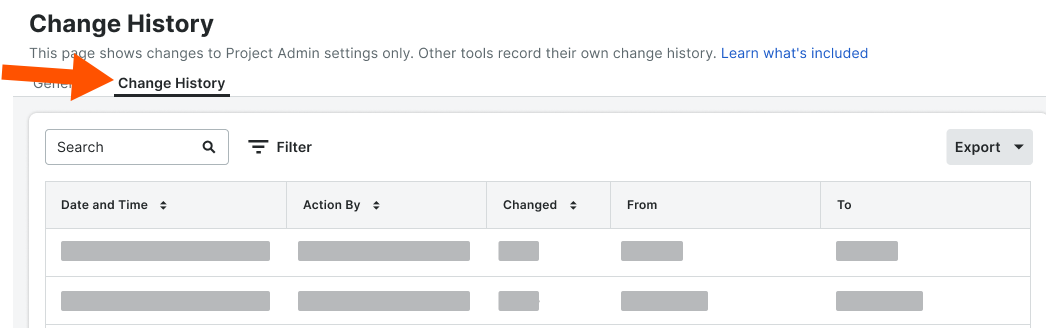
Project Admin → Change History Data Mapping
Fields Visible in Project Admin and Tracked in Change History
|
Project Admin Field |
Change History Label |
|---|---|
|
Project Name |
Project Name |
|
Project Number |
Project Number |
|
Accounting Project Number |
Accounting Project ID/Number |
|
Stage |
Stage |
|
Description |
Description |
|
Estimated Budget |
Estimated Budget |
|
Priority |
Priority |
|
Work Scope |
Work Scope |
|
Sector |
Sector |
|
Delivery Method |
Delivery Method |
|
Square Feet |
Square Feet |
|
Total Value |
Total Value |
|
Code |
Code |
|
Language - Country |
Locale |
|
Type |
Type |
|
Bid Type |
Bid Type |
|
Program |
Program |
|
Parent Project |
Parent Project |
|
Owner Type |
Owner Type |
|
Flag |
Flag |
|
Active |
Active |
|
Country |
Country |
|
Address |
Address |
|
City |
City |
|
State |
State Code |
|
ZIP |
ZIP |
|
County |
County |
|
Time Zone |
Timezone |
|
Latitude Note: Latitude is tracked only when populated through auto-geocoding. |
Latitude |
|
Longitude Note: Longitude is tracked only when populated through auto-geocoding. |
Longitude |
|
Phone |
Phone |
|
Fax |
Fax |
|
Region |
Region |
|
Office |
Office |
|
Store Number |
Store |
|
Designated Market Area |
Designated Market Area |
|
ERP Sync This Project |
ERP integrated |
|
Enable ERP Job Cost Transaction Syncing |
Enable ERP Job Cost Transaction Syncing |
|
Departments |
Departments |
|
Default Tax Code |
Default Tax Code |
|
QuickBooks Customer |
QuickBooks Customer |
|
Enable DocuSign |
Enable DocuSign Integration |
|
Prevent Overbilling on this Project |
Allow Overbilling Of Requisition |
|
Non-Commitment Costs |
Change Event Noncommitted Enabled |
|
Demo Project |
Demo |
|
Labor Productivity (Budget/CE/CO) |
Productivity tracking enabled |
|
Start Date |
Start Date |
|
Actual Start Date |
Actual Start Date |
|
Completion Date |
Completion Date |
|
Projected Finish Date |
Projected Finish Date |
|
Warranty Start Date |
Warranty Start Date |
|
Warranty End Date |
Warranty End Date |
|
Additional Dates |
Date's display name |
|
Custom Fields |
Custom field label |
Fields Shown in Project Admin That Are Not Tracked in Change History
|
Project Admin Field |
|---|
|
Project ID |
|
Logo |
|
Project Photo |
|
Currency |
|
Project Template |
|
ERP Job ID |
|
Copy Contracts From |
|
Copy Directory From |
Fields Excluded from Project Admin That Appear in Change History
|
Change History Label |
|---|
|
County Override Enabled |
|
Public notes |
|
Sandbox |
|
Use Tax Codes |
|
Enable RFQs |
|
Enable Sub Jobs |
|
Enable Change Order Associations |
|
Enable Commitment Change Orders At The Bottom Of Payapps |
|
Enable Prime Change Orders At The Bottom Of Payapps |
|
Direct Cost Subcontractor Invoice Feature Enabled |
|
Documents Private By Default |
|
Inbound Email Access Level |
|
Show Milestones |
|
Show Schedule |
|
Show Weather |
|
Punch Item Response Will Be Due |
|
Lat Long Override Enabled |
|
Override start date check |
|
Override end date check |