

View Financial Views in the Portfolio Tool
new Version Available
Procore Home has replaced the legacy Company Portfolio page and is enabled by default. Learn more about the difference between the legacy Company Portfolio page and the new Procore Home.
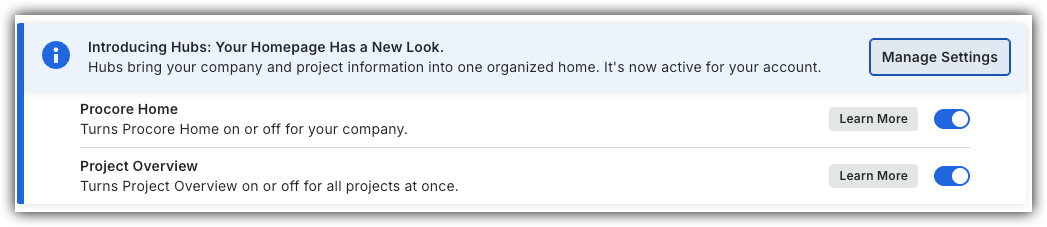
To return to the legacy Company Portfolio, Company Administrators can navigate to the Company Portfolio / Procore Home tool, click Manage Settings and toggle Procore Home OFF.
OFF.
However, later this year it will be sunset and will no longer be available. If your company reverted to the legacy Company Portfolio experience, Company Administrators can re-enable the Procore Home experience in Procore Explore. (US 2 | UK)
Background
Financial Views let you view different financial reports summarizing your company's projects.
Things to Consider
-
Required User Permissions on the company's Procore Home tool.
Steps
-
Navigate to the company's Portfolio tool or Home.
-
Click Reports.
-
Click Financial Reports or Custom Reports and select from the following options:
-
Financial Reports:
-
Budget Variance, summarizes budget and variance data so you can analyze how closely each project is meeting its budgetary goals.
-
Contract Variance, summarizes contract and variance data so you can analyze how closely each project is meeting its contractual goals
-
Contract Summary, summarizes your Prime Contract data across your company's projects.
Note: If the Schedule tool is enabled on a project, the 'Schedule % Complete' column shows the percentage complete. -
Commitment Summary, summarizes your commitments data across your company's projects.
-
-
Custom Reports:
-
Projects, displays all available projects and their details.
-
Your Name, displays your available projects and their details grouped by stage.
company portfolio (legacy)
- Navigate to the company's Portfolio tool.
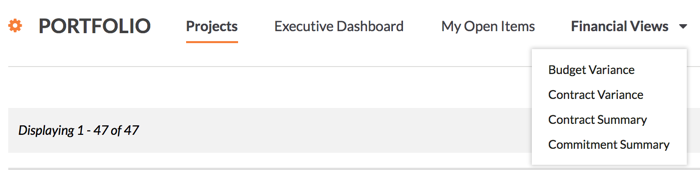
- Click the Financial Views tab and select one of the available options:
-
Budget Variance, summarizes budget and variance data so you can analyze how closely each project is meeting its budgetary goals.
-
Contract Variance, summarizes contract and variance data so you can analyze how closely each project is meeting its contractual goals
-
Contract Summary, summarizes your Prime Contract data across your company's projects.
Note: If the Schedule tool is enabled on a project, the 'Schedule % Complete' column shows the percentage complete. -
Commitment Summary, summarizes your commitments data across your company's projects.
-
-