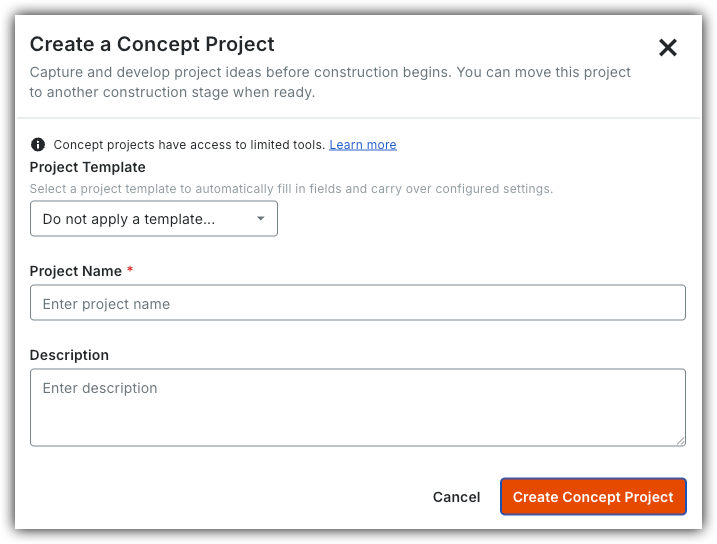
Create a Concept Project
new Version Available
Procore Home has replaced the legacy Company Portfolio page and is enabled by default. Learn more about the difference between the legacy Company Portfolio page and the new Procore Home.
To return to the legacy Company Portfolio, Company Administrators can navigate to the Company Portfolio / Procore Home tool, click Manage Settings and toggle Procore Home OFF.
OFF.
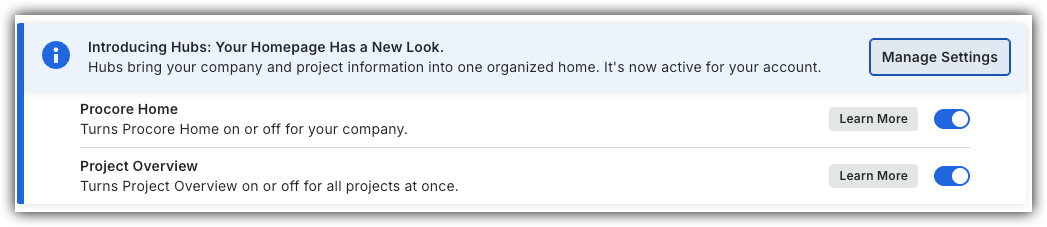
However, later this year it will be sunset and will no longer be available. If your company reverted to the legacy Company Portfolio experience, Company Administrators can re-enable the Procore Home experience in Procore Explore. (US 2 | UK)
Background
Concept projects allow you to estimate costs, build preliminary budgets, and track pre-construction data without affecting active project analytics. Using these temporary project shells ensures your financial reporting remains accurate while you plan upcoming workloads.
Things to Consider
-
Required User Permissions on the Company Portfolio tool.
-
Additional Information:
-
Financial data recorded within a concept project does not aggregate into active company-level financial overview tools.
-
After a contract is awarded, you can update the project status from concept to active to begin construction tracking.
-
Concept projects have access to limited tools. For more information, refer to What are Concept Projects?
-
-
Steps
-
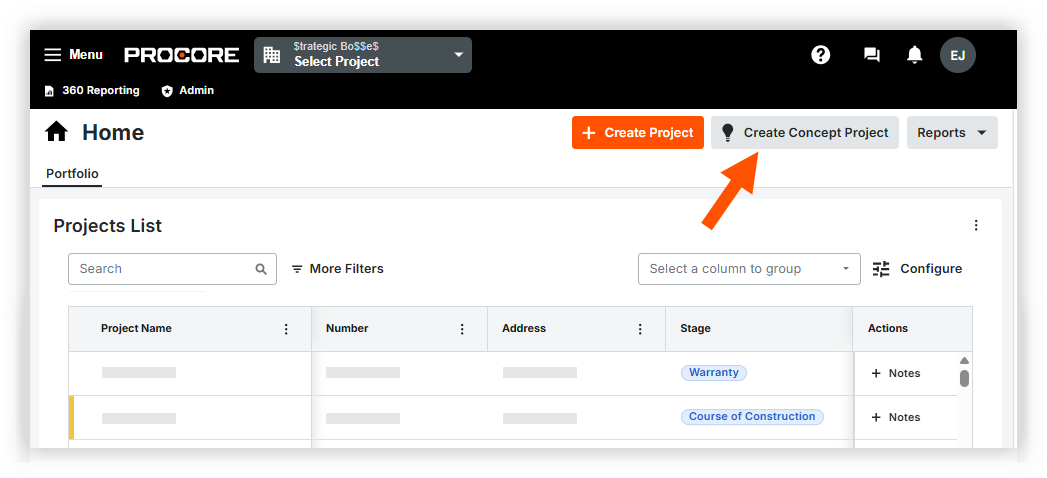
Navigate to the company's Portfolio or Home tool.
-
Click Create Concept Project.
-
Optional: Select a Project Template from the dropdown menu.
-
Enter a Project Name.
-
Optional: Enter a Description.
-
Click Create Concept Project.