Send a Budget to ERP Integrations for Accounting Acceptance
Objective
To send your budget to the ERP Integrations tool for acceptance for export to an integrated ERP system by an accounting approver.
Background
When you create or update a project's budget in Procore, you will want to send the new and updated data in Procore's Budget tool to your company's ERP Integrations tool. After the data is successfully sent to the ERP Integrations tool, it can then be accepted or rejected for export to your ERP by your company's accounting approver.
Things to Consider
- Required User Permission:
- 'Admin' permission on the project's Budget tool.
OR - 'Standard' permission on the project's Budget tool with the 'Send and Retrieve Budgets from ERP' granular permission enabled on your permission template.
- 'Admin' permission on the project's Budget tool.
- Additional Information:
- The budget must be locked before the export. See Lock a Budget.
- You will not be permitted to unlock the Procore project's Budget tool, unless the following is true:
- The exported entries have been manually posted to your your ERP system system using the Job Cost function.
OR - The budget is rejected by the accounting approver
- The exported entries have been manually posted to your your ERP system system using the Job Cost function.
- If you sent the budget by mistake or need to make a change, you can Retrieve a Budget Sent to ERP Integrations Before Acceptance.
- Not all ERP integrations support syncing budgets. Additional considerations, limitations, or requirements may apply depending on the ERP system your account is integrated with. See Things to Know about your ERP Integration for details.
Steps
- Navigate to the project's Budget tool.
This reveals the Budget page. - In the 'Budget' page, review the budget's line items.
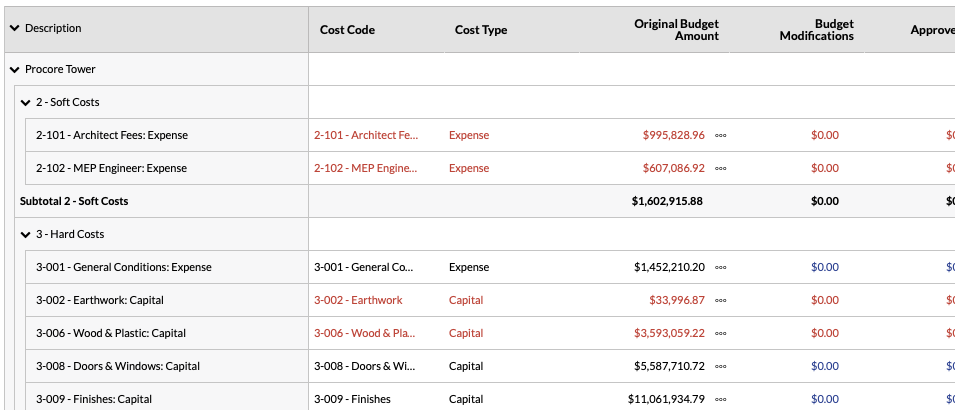
- When you are ready to send your budget to the ERP Integrations tool for acceptance by an accounting approver, click Send to ERP (or, if you've previously sent the budget, click Re-send to ERP).

-
If you are updating a Procore budget that has been synced with your ERP, see Create a Budget Line Item and Create a Budget Change.
The system sends the original budget and budget modifications to the ERP Integrations tool where it can be accepted or rejected for export to your ERP by an accounting approver.