

Associate Contract Line Items on ERP-Synced Prime Contracts
Background
When working on a project with an integrated ERP accounting system, creating Change Orders on a synced Prime Contract requires mapping each Change Order SOV line item to a Prime Contract line item.
These line item associations direct Procore on which specific line items in your ERP accounting system should be updated when a Prime Contract Change Order (PCCO) is exported to ERP.
Things to Consider
-
Required User Permissions:
-
To associate line items during Change Order creation:
-
'Standard' or 'Admin' level permissions on the project's Change Events tool.
AND -
'Standard' or 'Admin' level permissions on the project's Prime Contracts tool.
-
-
To enter contract item code & export to ERP:
-
'Standard' or 'Admin' on the company's ERP Integrations tool.
AND -
The person's account must be granted the 'Can Push to Accounting' privilege in the Company Directory. See Grant Accounting Approver Privileges.
-
-
How Line Item Association Works
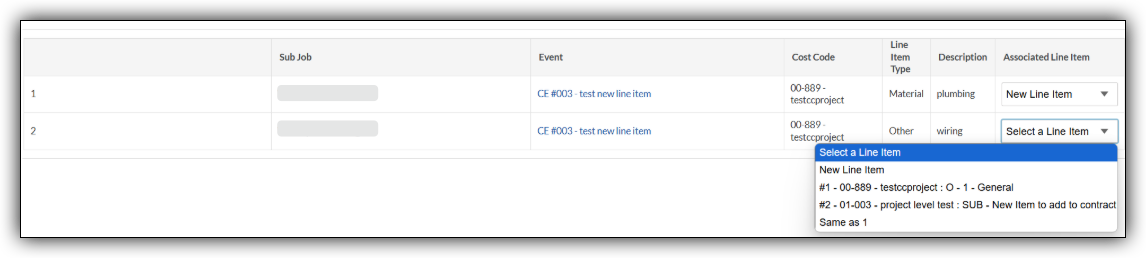
When converting a Change Event into a Change Order, Procore prompts you to select an Associated Line Item for each Change Event line item.
Your selection determines how the amount for that line item will update your contract in your ERP system:
Note
If you are unsure whether to choose an existing line item or create a new one, consult your internal accounting or project management team to ensure alignment with your company's billing structures.|
Dropdown Option |
How it Works & ERP Behavior |
|---|---|
|
Select Existing Line Item |
Maps the change event line to an existing line on your contract. The Contract Item Code automatically populates and is greyed out (read-only). |
|
New Line Item |
Tells ERP to create a brand-new contract line item. You will be required to manually enter a Contract Item Code prior to exporting so it populates correctly on the Prime Contract in ERP. |
|
Same as 1 (Multi-line PCOs) |
Bundles multiple Change Event lines into a single ERP contract line. Select New Line Item for the first line, then choose Same as 1 for all subsequent lines. |
Steps
Associate Line Items During Change Order Creation
-
In the Change Order creation screen, locate the Associated Line Item dropdown for each line item.
-
Select one of the following:
Click here to view full-sized image
-
An existing line item on your contract.
-
New Line Item.
-
Same as 1 (if grouping multiple lines under the first line item).
-
-
Save the Change Order and proceed with your approval process.
Enter Contract Item Code & Export to ERP
-
Navigate to the ERP Integrations tool.
-
Click the Prime Contract Change Order tab.
-
From the Ready to Export filter, for any item set to Create New Line Item, enter the required Contract Item Code in the input field.
Note: If you are unsure what contract item code format should be entered, consult your internal accounting or project management team to ensure alignment with your company's billing structures. -
For items mapped to Existing Line Items, verify that the greyed-out code displays correctly.
-
Click Export to [ERP System] (e.g., Export to Sage Intacct).