

Connect to Microsoft Excel Using Exponam
Overview
This guide provides step-by-step instructions for importing Analytics data from Delta Share directly into Microsoft Excel using the Exponam.Connect add-in.
Using this method allows you to:
-
Access your Procore data directly in Excel without manually downloading CSVs.
-
Filter and select specific columns before importing, ensuring you only load the data you need.
-
Work with large datasets that might otherwise be too slow to process.
Prerequisites
-
Delta Share Credentials. Access to config.share file containing the Delta Sharing credentials.
-
Licensing:
-
Exponam.Connect Free: Limited to importing 100 rows of data.
-
Exponam.Connect Pro: Required for importing larger datasets (up to 1 million+ rows).
-
Install Exponam Add-in
-
Download the Exponam.Connect installer for your operating system (Windows or Mac).
-
Run the installer file and follow the on-screen prompts.
-
Once installation is complete, launch Microsoft Excel and open a new workbook.
Initialize Delta Share Connection
-
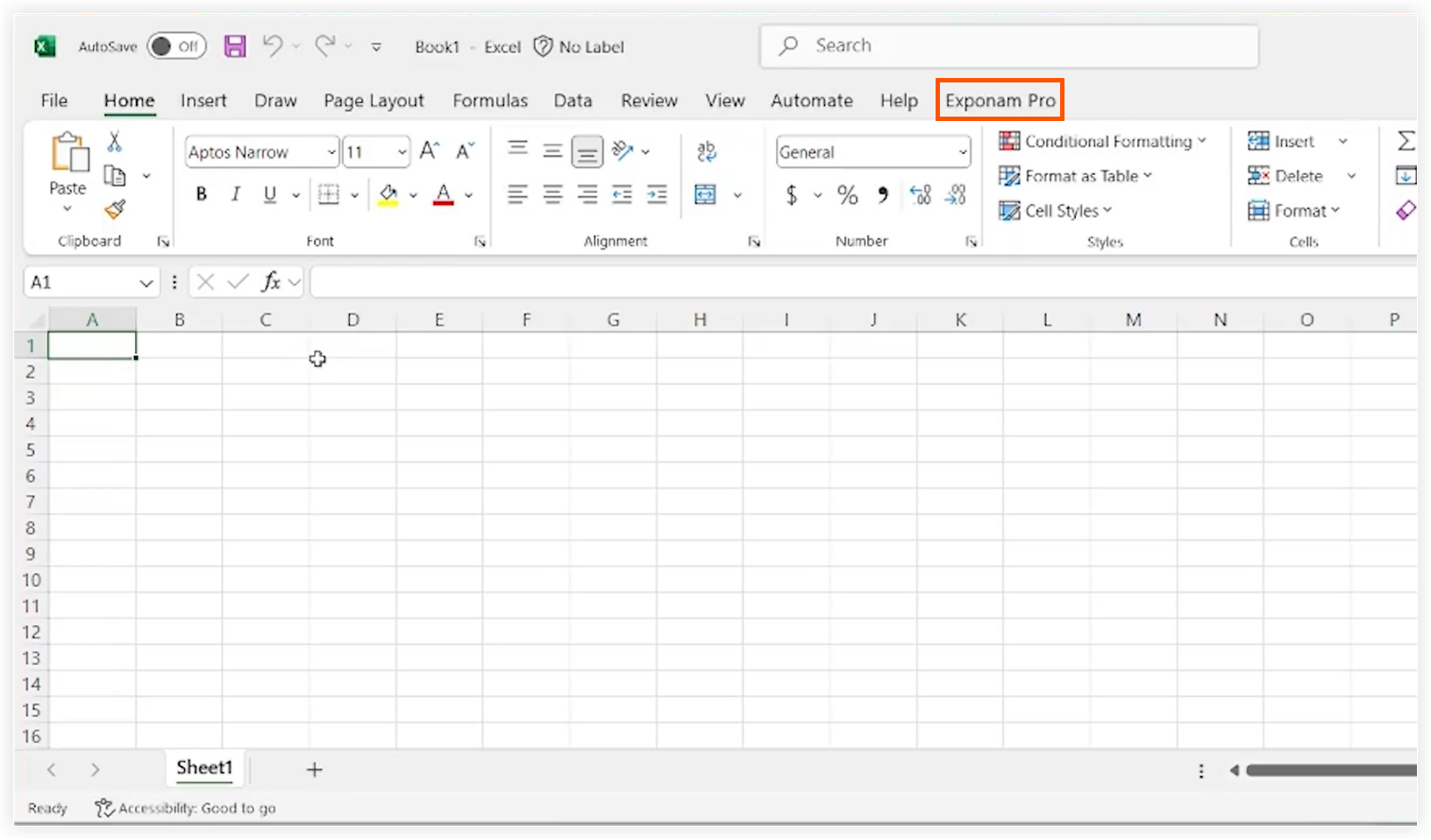
In Microsoft Excel, navigate to the Exponam Pro tab.
-
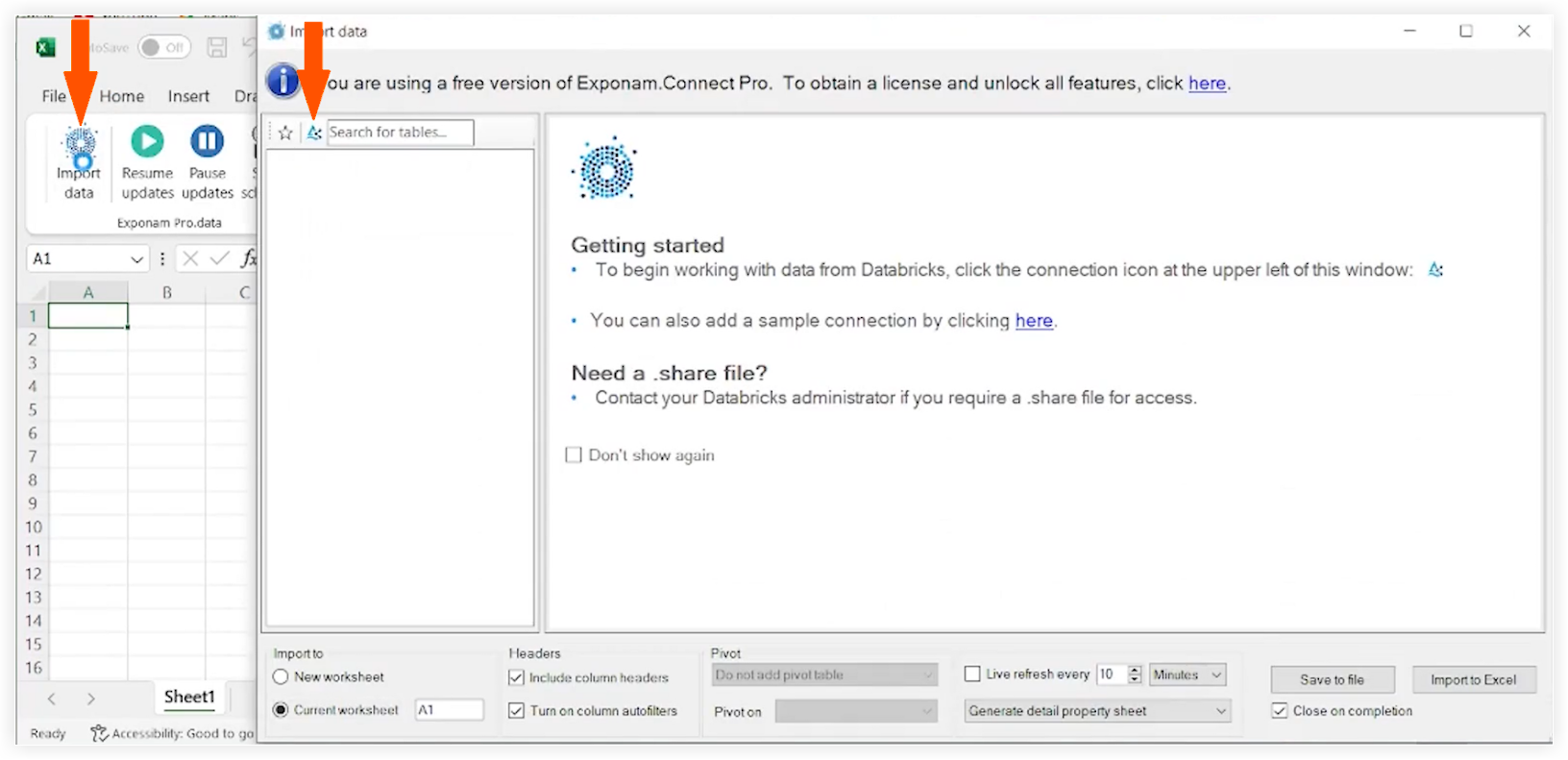
Click Import data.
-
Click the Delta Share icon.
-
Locate and select your config.share file.
-
Click Open.
Select and Filter Data
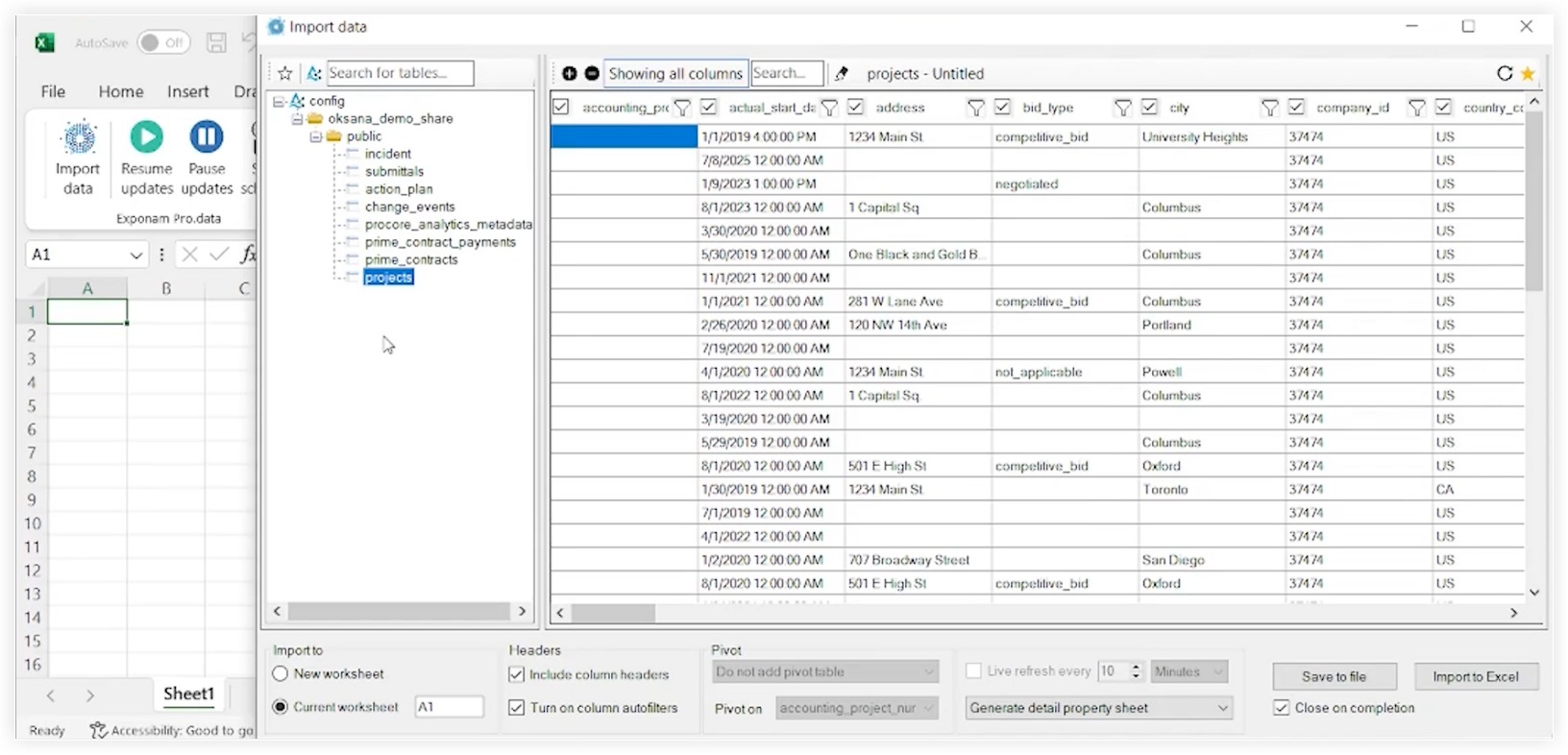
The Exponam interface will now display a list of all available data tables.
-
Click on the name of the table you wish to access.
-
Use the Exponam interface to refine your data before importing to Excel. For example, you can apply filters, select particular columns, and more.
Import to Excel
-
Review your configuration and row count.
Note: Make sure that the row count is within your license limit. -
Click Import to Excel.
The data will populate in your active Excel worksheet.
Verification
-
Make sure that the columns and rows in Excel match what you selected in the Exponam window.
-
Check that data types (dates, currency, and more) are formatted correctly.
Troubleshooting
-
Missing "Exponam Pro" Tab. Make sure the installation was successful and check the Excel "Add-ins" settings to confirm that it is enabled.
-
Connection Error. Verify that your config.share file is still valid and that you have an active internet connection.
-
Row Limit Reached. If only 100 rows are displayed, check your license status in the Exponam settings.