Create a Budget View
Background
In Procore, a budget view is a customizable layout that allows teams to display their project's budget data to suit their specific company needs. It acts as a tailored visual arrangement of your budget information. Key benefits of using budget views include:
-
Customization: Present the most relevant budget data for different stakeholders or purposes.
-
Insights: Gain better insights into your project's financial status.
-
Reporting: Use these views as data sources for custom budget reports.
A Procore Administrator can create new budget views in the Company level Admin tool. Once its columns are configured, users with 'Admin' level permissions on the Budget tool can access the view directly from the Budget tool.
Things to Consider
-
Required User Permissions:
-
'Admin' level permissions on the Company level Admin tool.
-
-
Additional Information:
-
To create a budget view for real-time labor productivity, see Resource Tracking and Project Financials: Setup Guide.
-
To create a labor productivity cost budget view, see Set Up the Procore Labor Productivity Cost Budget View.
-
Any user with 'Read Only' permission or higher on the Budget tool can apply views to a project's budget. See Apply the View, Snapshot, Group, and Filter Options on a Budget or Forecasting View.
-
-
Steps
-
Navigate to the Company level Admin tool.
-
Under 'Tool Settings', click Budget.
Tip
You can also access the 'Budget Views' page from a project's Budget tool. Click the ellipsis icon in the top right corner while viewing the 'Budget' tab, and select Configure Budget Views from the drop-down menu.
 -
Click + Create.
Note
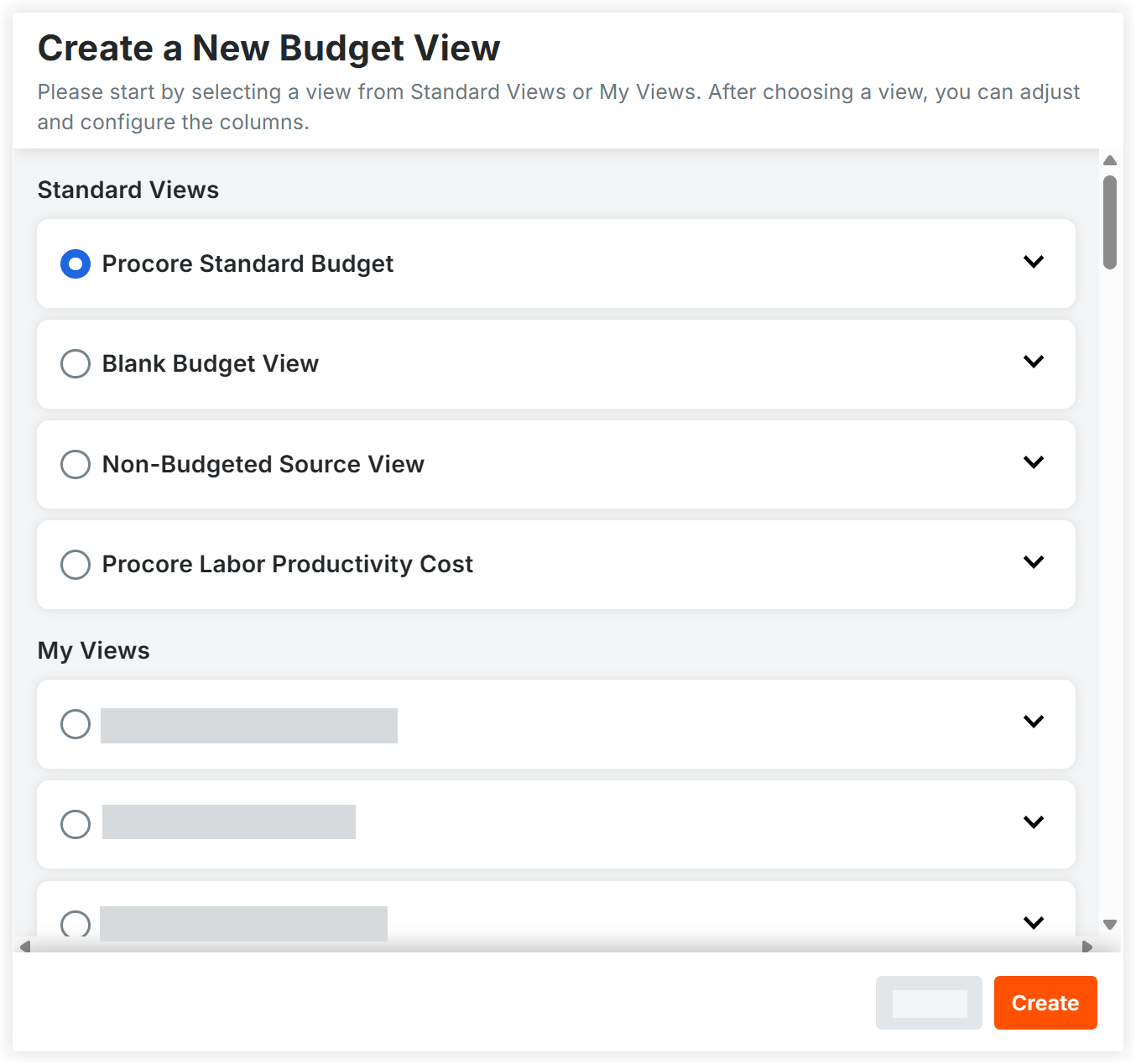
Procore provides four standard budget views named Procore Standard Budget, Blank Budget View, Non-Budgeted Source View, and Procore Labor Productivity Cost that contain various standard columns. This example shows you how to set up the view named 'Procore Standard Budget'. However, you can use any Standard Budget View as a starting point for customizing a budget view to fit your specific business needs. -
In the 'Create a New Budget View' modal, select the radio button next to one of these views:
-
Standard Views
-
Procore Standard Budget: Default view containing standard columns such as Original Budget Amount, Approved Budget Changes, and more.
-
Blank Budget View: Minimal column set including standard columns such as Original Budget Amount, Approved Budget Changes, and Notes.
-
Non-Budgeted Source View: Displays financial sources connected to cost codes/cost types to locate unbudgeted items. This view includes standard columns such as Original Budget Amount, Approved Budget Changes, Client, All Direct Costs, Commitments, Change Event ROM, and Notes.
-
Procore Labor Productivity Cost: Contains labor cost, quantity, and rate tracking columns. This view includes standard columns such as Revised Budget, Direct Costs, Direct Costs Unit Cost, % Budget Complete, and more. It is used in the Procore default labor cost productivity report for projects.
-
-
My Views: Select from any existing custom views created by your company.
Note
If your company is using the Procore + Sage 300 CRE® integration and you want to sync your project's job cost transactions from ERP to Procore, you should add the columns described in Add the Columns for Job Cost Transaction Syncing to a Budget View for ERP Integrations to your budget view.
-
-
Click Create.
-
On the 'New Budget View' page, configure the following:
-
Header & Setup Options
-
View Name. Enter a name for the view.
-
Description. Enter a description for the view.
-
Assigned Projects. Click the hyperlink (e.g., 0/27 Projects) to assign this view to specific or all projects. See Assign a Budget View to a Procore Project.
Note
You can assign the view to specific projects or to all new and existing projects now by clicking the hyperlink (e.g., 0/27 Projects) under Assigned Projects. Alternatively, you can wait to assign projects after configuring the columns.
-
-
Preview Panel & Table Controls
-
Preview with Project. Select a project from the drop-down menu to view live sample data. See Preview a Budget or Forecasting View.
-
Display Name. Click the pencil
 icon next to any column header to set a display name for this view.
Note: The display name can be up to 50 characters long.
-
-
Columns Panel & Customization
-
+ Create. Click to create new custom columns, including:
-
-
Search. Enter a keyword in the Search box and click the search
 icon or press ENTER to find columns by name.
 -
Column Type. Click on the drop-down list and select one or more column types to filter columns by type.
-
Reportable Column. Click to filter columns by one of the following options:
-
Yes. Select this option from the drop-down list to filter for columns included in the Single Tool budget reports.
-
No. Select this option from the drop-down list to filter for columns excluded from the Single Tool budget reports.
-
-
Show enabled columns only. Click the toggle on
 icon to view only active columns.
 -
Enable or Disable Columns. Click the toggle on
icon or the toggle off  icon next to individual columns to show or hide them in the view. See Enable or Disable Columns in a Budget or Forecasting View.
 -
Manual Load Data. Click Load Data to refresh or load column data in the preview budget table manually.
-
-
Click Save.
Note
After you create a budget view:
- The new budget view will be accessible in the Budget Views tab and in the 'My Views' section of the 'Create a New Budget View' modal.
- The new budget view is available to use as a starting point for creating custom budget views.