

Managing Columns
Procore’s budget views allow teams to customize how they display and report on project financial data. The modernized experience introduces a more efficient, decoupled experience by separating column management from individual views.
With this new update, columns are managed independently rather than being built inside a specific view. This allows users to create a column once and enable it across multiple views, significantly reducing the effort required to manage and duplicate data layouts.
Budget columns allow you to customize how financial data is displayed and calculated. You can create custom columns, utilize Procore standard columns, or modify existing configurations.
Creating a Column
To create a new Budget View column:
-
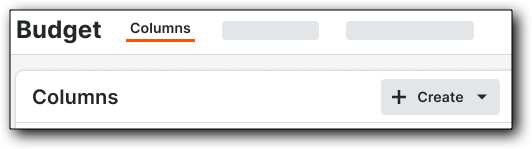
In the Budget Settings page, click the Columns tab.
-
Click the Create dropdown and select one of the following column types:
-
Source: Direct data from a specific tool or origin.
-
Calculated: A column based on a mathematical formula between other columns.
-
Forecast to Complete: Columns used specifically for forecasting projected costs.
-
-
Complete the required fields in the configuration panel.
-
Click Create to save.

Note: Once created, these columns can be added to your various Budget Views.
Understanding Locked (Standard) Columns
Locked columns are Procore Standard Columns. These are pre-configured, "out-of-the-box" columns that form the foundation of Procore Standard Views. Here are a few things to consider when working with these columns:

-
You cannot delete standard columns or change their default names.
-
You can provide a Display Name alias when assigning these columns to a specific Budget View.
-
Most standard columns can be duplicated for custom use, except for:
-
Original Budget Amount
-
Budget UOM / Unit Cost / Unit Qty
-
Notes
-
Budget Modifications
-
-
Standard columns can be assigned or unassigned to Single Tool Reports as needed.
View or Duplicate a Standard Column
Select a column from the Columns list to open the detail panel. Click Duplicate to re-create it as a custom column.

Edit or Delete Custom Columns
Only custom columns can be edited or permanently deleted.

-
To Edit.
-
Click on the specific custom column from the list to open the detail panel and make changes. Changes can be saved in the existing column or as a new column.
-
-
To Delete.
-
Click the Trash icon in the top right corner of the detail panel.
-
Note: If a column is currently assigned to a Budget View or is being used as a component in a Calculated Column, the system will provide a warning notification before allowing you to proceed with deletion.
Searching and Filtering Columns
To quickly locate a specific column:

-
Search.
-
Use the search field to find columns by name.
-
-
Column Type.
-
Use the dropdown to filter by the following column types:
-
Calculated Column
-
Source Column
-
Standard Column
-
-
-
Reportable Column.
-
Use the dropdown to filter by reportable status:
-
Yes, reportable
-
No, not reportable
-
-