

About Direct Cost Exports to ERP
- Last updated
- Save as PDF
Table of Contents
Overview
The Company-Level Direct Cost tool serves as a centralized staging area for non-commitment direct cost invoices, specifically designed to streamline data extraction and push exportable direct cost data directly into integrated accounting and ERP systems. It features AI-assisted data extraction and provides structured approval workflows to manage invoice transfers between company and project levels prior to ERP export.
Considerations
Here are some important things to know about Direct Cost Exports to ERP:
Permissions & Prerequisites
Before managing direct cost exports, ensure you have the correct permissions and roles assigned.
-
Required Tool: Company-Level Direct Costs tool.
-
Required User Permissions:
-
To manage uploads, view all company-wide direct costs across all projects in the Uploads tab, and execute ERP exports via the 'Send to ERP' action, 'Standard' or 'Admin' level permissions on the Company level Direct Costs tool.
-
To review and code direct costs only on the projects you’re assigned to, without seeing direct costs across the whole company:
-
‘Read Only’ level permissions on the Company level Direct Costs tool.
AND
-
Assignment on the project to a role that your company has set up as a reviewer role in the Company level Direct Costs tool’s configuration settings.
-
-
-
If exporting to Sage Intacct:
-
Ensure the PC non-commitment transaction definition is configured. See Sage Intacct® Setup Guide - Direct Cost Export Setup.
-
Current Supported ERP Integrations
-
CMiC
-
QuickBooks® Desktop
-
QuickBooks® Online
-
Sage 100 Contractor®
-
Sage 300 CRE®
-
Sage Intacct®
-
Trimble® Vista
-
Workday®
Limitations
Please note the following limitations regarding exports in this Beta version:
-
Multi-Project Invoice Export Coding: A single invoice cannot be split and coded across multiple projects for export within the tool.
-
Workaround: Enter the invoice multiple times for each project before exporting. For example, for a $1,000 invoice split between two projects, upload it once for $300, and upload it a second time for $700 (appending a letter such as 'B' to the end of the invoice number).
-
-
Manual Accounting Date for ERP Posting: Accounting Date currently requires manual entry to establish the financial posting period (auto-populating to match invoice date is planned).
-
Third-Party Integrations: Custom or third-party ERP integrations must explicitly account for the tool origin filter to prevent cost duplication post-export.
Key Features
-
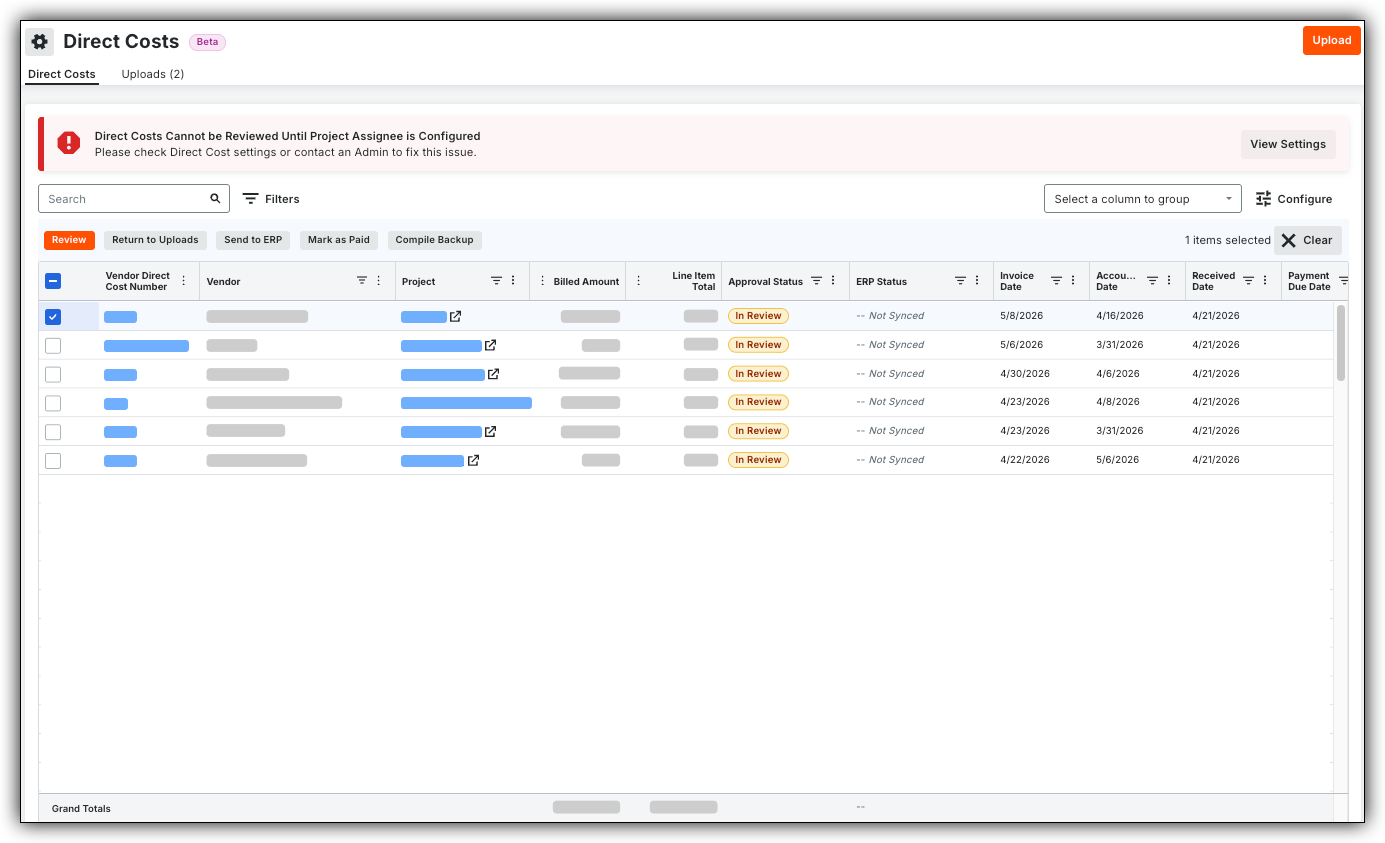
Centralized Staging for ERP Exports: Manage non-commitment direct cost invoices in one place before exporting them into your ERP financial system.
-
AI Automated Extraction: Accelerate processing and minimize export errors by automatically scanning and extracting critical invoice data from uploaded or emailed files.
-
ERP Sync & Smart Filtering: Push approved direct costs directly to your ERP system with a single click while automatically filtering them out to prevent duplicate entries in project-level tools.
Common Questions
-
How does the ERP sync process actually work, and is it automated?
-
How do permissions differ between Company Administrators and Project Managers?
-
What should I do if an invoice needs to be split across multiple projects?
-
Why aren't my uploaded invoices showing up in the Project-Level Direct Cost tool?
-
How does AI extraction work, and what fields are auto-populated?
-
Will using this tool affect how direct costs are reported in Procore?
How does the ERP sync process actually work, and is it automated?
The initial export to your accounting system is manually triggered, while the post-export filtering is automated.
-
The Sync Action: Once a Project Manager finishes reviewing and budget coding a direct cost item, the item moves to a ready status. A Company Administrator must select the approved item(s) in the Company-Level Direct Cost tool and click the Send to ERP button to initiate the transfer.
-
The Post-Sync Behavior: Once sent, items appear in the Synced tab. If there are missing fields or mapping errors, the invoice will temporarily pause in the ERP Integrations tool under Failed to Export with a description of the error so you can correct and re-export it.
-
Preventing Duplicates: After a successful sync, Procore’s integration automatically applies an origin filter so these costs do not flow backward into the project-level Direct Cost tool, protecting your project logs from duplicate entries
How do permissions differ between Company Administrators and Project Managers?
Access is intentionally separated to maintain company-wide accounting oversight while allowing project teams to manage their specific budget line items:
-
Company Administrators (Full Staging & Export Control):
-
Permissions: Require Standard or Admin level permissions on the Company-Level Direct Costs tool.
-
Capabilities: They have full access to the Uploads tab across all projects. They perform initial intake checks, assign costs to projects, and trigger the final Send to ERP export.
-
-
Project Managers & Reviewers (Project-Specific Coding):
-
Permissions: Require Read-Only level permissions on the Company-Level Direct Costs tool (to prevent them from viewing unassigned company-wide invoices).
-
Capabilities: Must be assigned the Direct Cost Reviewer or Project Manager 2 role on their specific project(s). This grants them access to view and code only the direct costs routed to their active projects in the In Review filter.
-
What should I do if an invoice needs to be split across multiple projects?
Currently, the Company-Level Direct Cost tool does not support splitting a single uploaded invoice across multiple projects on a line-item basis.
To allocate an invoice across multiple projects, use the following standard workaround before submitting items for review:
-
First Portion: Upload the invoice file and enter the specific dollar amount allocated to the first project (e.g., $300 of a $1,000 total invoice). Route it to Project A.
-
Second Portion: Upload the same invoice file a second time for the remaining dollar amount (e.g., $700).
-
Invoice Numbering: To avoid duplicate invoice warnings in Procore or your ERP, append an identifying letter to the secondary invoice number (e.g., if the original is
INV-89104, label the second entryINV-89104B). Route this second entry to Project B. -
Approval Routing: Each Project Manager will receive and approve their respective portion without impacting the other project's budget.
Why aren't my uploaded invoices showing up in the Project-Level Direct Cost tool?
If a user cannot locate an invoice in their project's Direct Cost tool, check the following troubleshooting steps:
-
Approval Status Filter: By default, items sent from the company level enter the project as In Review. Ensure the Project Manager has filtered their view by Approval Status: In Review.
-
Project Role Assignment: Verify that the Project Manager is explicitly assigned as the Direct Cost Reviewer or Project Manager 2 in the settings of that specific project. Without this role, invoices will not be visible to them even if they have Read-Only company access.
-
Returned to Uploads: Check if the item was sent back to the staging area. If general invoice details (like vendor or total amount) were incorrect, the item may have been returned to the Company Administrator via Return to Uploads for correction.
-
Already Synced: If the item was already exported to the ERP, Procore automatically filters it out of the project-level Direct Cost tool view to prevent duplicate processing.
How does AI extraction work, and what fields are auto-populated?
When an invoice is uploaded directly, imported from Company Documents, or forwarded to the company's dedicated direct cost email address, Procore AI scans the file.
-
Processing Time: Extraction typically takes 1 to 2 minutes per document.
-
Supported File Types: PDF, JPEG, and PNG.
-
Extracted Fields: Procore AI reads the document and automatically fills in:
-
Vendor Direct Cost / Invoice Number
-
Vendor Name
-
Invoice Date
-
Billed Amount
-
Description
-
Project Match
-
-
Dates Handling: The Receive Date is set automatically based on the upload date. The Accounting Date currently requires manual selection to ensure alignment with your financial posting period (auto-populating to match the invoice date is scheduled for a future update).
Will using this tool affect how direct costs are reported in Procore?
No, all direct costs—whether created at the project level or processed through the company-level export tool—are consolidated in Procore's 360 Reporting tool.
-
Reporting Subsections: You can find all entries under the Direct Cost and Direct Cost Line Items reporting subsections.
-
Differentiating Origins: To audit or filter items by how they entered Procore, use the Tool Origin field in 360 Reporting. This allows you to easily segregate costs processed through Company-Level Direct Costs from project-originated entries like payroll or expenses.