Integration by Ryvit: Accept or Reject a Company for Export to Viewpoint® Vista™
Objective
To accept or reject a company record for export to the Viewpoint® Vista™ Integration by Ryvit.
Background
Things to Consider
- Required User Permissions:
- Prerequisites:
Steps
- Navigate to the company's ERP Integrations tool.
This reveals the Integration by Procore Integration page. - Click the Vendors tab.
- In the Filters menu, click Ready to Export.
This opens the Companies Only in Procore page.
Note: For a company record to appear as a line item in this table, you must first complete the steps in Integration by Procore: Send a Procore Company to ERP Integrations for Accounting Acceptance. - Review the vendors/companies in the list. Then do the following:
Accept the Company
- In the Ready to Export page, locate the desired vendor/company in the Companies Only in Procore table:
- Accept the vendor for export as follows:
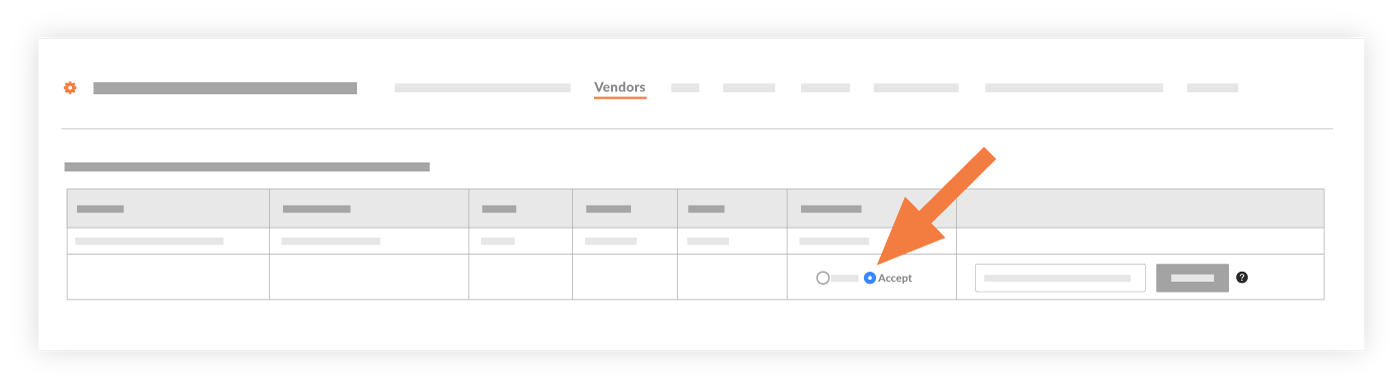
Note: For a vendor record to appear in this table, a user must first complete the steps in Integration by Procore: Send a Procore Company to ERP Integrations for Accounting Acceptance.
Reject the Company
- In the Ready to Export page, locate the desired vendor/company in the Companies Only in Procore table:
- Reject the vendor as follows:

-
This rejects the vendor/company record. It is not imported into the integrated ERP system.
Note: The system returns the record to an editable state in both the Company and Project Directory tools so it can be edited. Edit a Company in the Company Directory, Edit a Company in the Project Directory, Edit a User Account in the Company Directory, and Edit a User Account in the Project Directory.