Add, Modify, or Remove Project Links on the Project Home Page
| Back | Current Lesson - 3/14 | Lesson 4 - Next |
The project links feature allows Procore users with admin permission to create hyperlinks on the project's home page to other resources on the web. Project Managers can add links to company websites, webcams, industry resources, or any web entity that may provide helpful information for Procore users working on the project.
Add a Project Link
- Navigate to a project's Home page.
- Do the following:
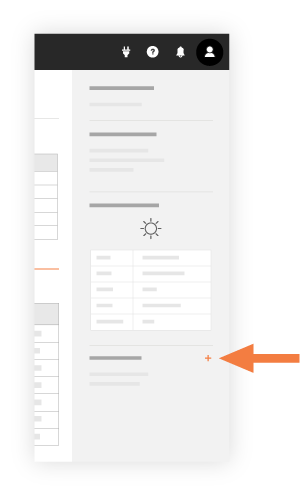
- New. Under Project Links, click this button.
- Title. Enter a title for your link.
- URL. Enter a valid URL.
- New. Under Project Links, click this button.
- Click Save.
This adds the new link to the Project Home page.
Modify a Project Link
- Navigate to your company's Portfolio tool.
- Select the desired project.
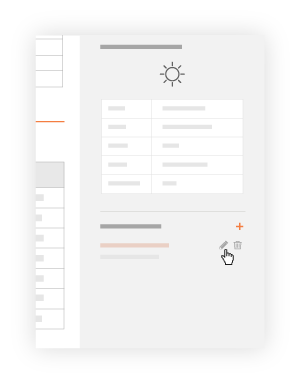
- Under Project Links, hover over the link you want to modify and click the 'pencil' icon.
- Do the following:
- Title. Enter a title for your link.
- URL. Enter a valid URL.
- Click Save.
The system saves your changes.
Remove a Project Link
- Navigate to your company's Portfolio tool.
- Select the desired project.
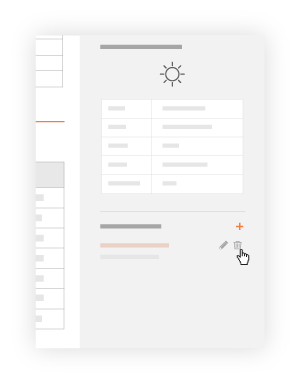
- Under Project Links, hover over the desired link and click the 'trash can' icon.
The system removes the selected link.