

Transmittal Correspondence
1. THE TRANSMITTAL CORRESPONDENCE
1.1. Purpose
The Transmittal Correspondence serves as an official project email for Procore. It is used by either party to send or communicate project related information that usually does not require a mandatory response. This guide will provide step-by-step instructions on how to effectively utilize the Transmittal Correspondence in your project.
2. NAVIGATING TO THE TRANSMITTAL CORRESPONDENCE TOOL
2.1. From the Project Home page, click the Project Tools dropdown and select the Correspondence tool.

2.2. Click +Create in the orange box on the top right corner and select Transmittal.

3. CREATING THE TRANSMITTAL
3.1. Complete the required fields in the General Information section using the information below. Click the Create and Issue orange button on the bottom right of the page.

- Status: Keep the default as ‘Open’
- Subject: Enter the Job Package Title and the Job Number.
- Assignees: Add the direct party to whom you are sending the Transmittal.
- Received From: This is always you or the person on behalf of whom you are creating the Submittal.
- Distribution Member: Select members who should be notified of the Transmittal.
- Description: Enter the main reason or message or special notes for the recipient.
- Attachments: Click Attach Files. Select Documents in the left pane. Navigate to the correct job level (Job Notification), go to Stage 5 Folder, and appropriate subfolder in the Documents tool and select the documents you wish to attach. Click Attach and then click Next.
- SAP Job Notification#: Find this number in the job package or in SAP. Skip this field if the business unit you are part of does not have an SAP#.
- Issue For: Select the appropriate reason from the dropdown.
4. RESPONDING TO THE TRANSMITTAL
4.1. Option1: An email will arrive prompting all parties to use a link. Click View online to open the Correspondence directly in Procore.

4.2. Option 2: Alternatively, instead of using the email link, Navigate to the Project Tools menu after navigating to hte project and select the Correspondence tool.
4.3. You will be on the Correspondence page. Find the right Transmittal Correspondence using the Number (9 in the screenshot) or the Subject (Test in the Screenshot). Click either of these two to open. Review the information and respond.

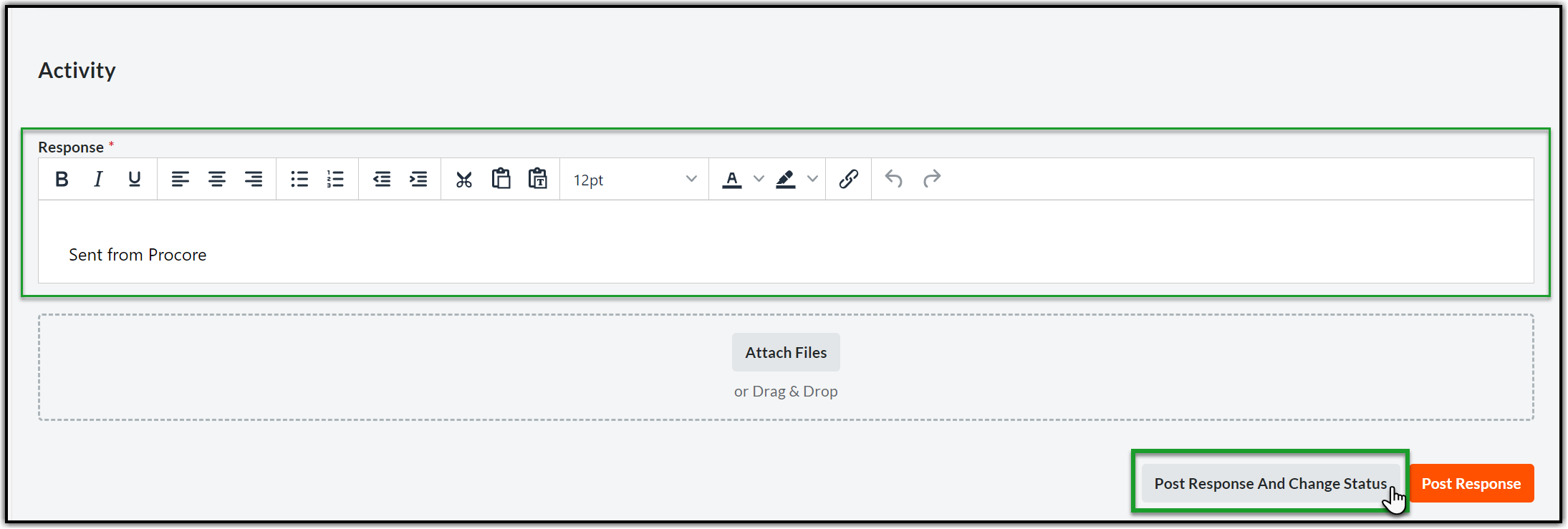
4.4. To respond, please go to the Response text area in the Activity section. Type in your response (you may also attach any documents using Attach Files option if necessary) and hit Post Response orange button on the bottom right corner.

5. CLOSING THE JUF CORRESPONDENCE
5.1. Open the Correspondence and scroll down to the Activity section. Enter the closing response in the Response section and click Post Response and Change Status at the bottom right corner of the page.
5.2. Click the Status dropdown and select Closed.
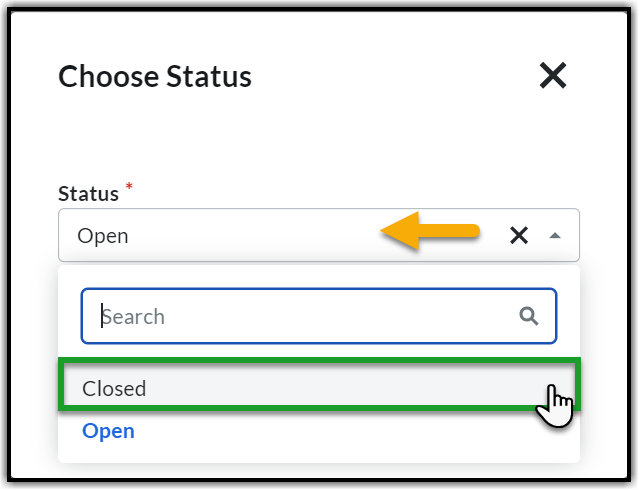
5.3. Click Save and Change Status to post the response and close the Construction Bid Evaluation Correspondence.
