

IFC to CVM
IFC TO CVM SUBMITTAL PROCESS - UPSTREAM DEPARTMENTS
The upstream departments that have projects created in Procore will need to issue the “Construction Ready Job Package” to Construction & Vegetation Management (CVM) for an official hand-off. This step is required to initiate the CVM internal processes within Procore.
Note: A job package is construction ready once, the project has passed 90% design, and completed all internal IFC activities (which include budget allocation and review of the IFC package itself)
Here are the steps for a clean hand-off:
1. NAVIGATION TO ADD USERS TO HOME SCREEN
As the Upstream department is handing the project off to CVM, it is important to outline the key roles and update them on the home screen of the project. This is aimed to ensure effective communication during the entire phase of construction activities.
For instance, if a change is needed the CVM knows whom to contact from the Upstream department (Engineering, Project Management, Planning etc.) when they are listed on the Home Screen.
1.1. Navigate to the project Home Page. Click Edit on the Project home screen to edit your project team and add roles to be displayed.
 Note: Only certain roles that are managing the projects in your department will have Edit permissions.
1.1. A new window will open where you can see all the roles in Project Directory Settings. Make sure all project roles assigned for your department are filled out.

2. UPLOAD DOCUMENTS IN DOCUMENTS TOOL
Precheck: Ensure to include all the project documents (listed in the table below) as a part of the ‘Construction Ready Job Package’. The CVM will need all of these to accept the Job Package.
Note: A ‘Construction Ready Job Package’ is a Redacted Job Package with no Financial Information.
|
S.no |
Job Package Documents |
|---|---|
|
1 |
Face Sheet (remove financial info) |
|
2 |
DBL (remove financial info) |
|
3 |
Environment Release or Quick Release |
|
4 |
Material List or JTO Material List |
|
5 |
Tie Line Map and/or Transmission Circuit Map |
|
6 |
Alignment Map or Construction Plan |
|
7 |
Pole Data Sheet and/or Pole Loading Calculation |
|
8 |
Plan and Profile |
|
9 |
Fielding Photos |
|
10 |
Permits |
|
11 |
Fusing Request |
|
12 |
Sketches |
|
13 |
Traffic Control Plan |
|
14 |
JTO |
|
15 |
City of SD MOU Requirement Checklist (only applicable for City of San Diego jobs) |
Table: List of Job Package Documents
2.1. Gather all relevant project documents and prepare to upload them into Procore. Files can be transferred from an encrypted USB stick, scanned onto your computer, or saved from a softcopy from email or SAP onto your desktop for uploading.
Note: Uploading PDFs is preferred over Zip files.
2.2. From the top menu bar, navigate to Project Tools and select Documents.

2.3. Click Stage 5 – Construction folder, then click the Construction Package sub-folder. Click +New orange button then select File Upload.

2.4. Select the file(s) then click Open to attach file(s).
Or
You can use ‘Drag and Drop’ feature once you are into your desired folder.

3. NAVIGATING TO THE IFC TO CVM SUBMITTAL
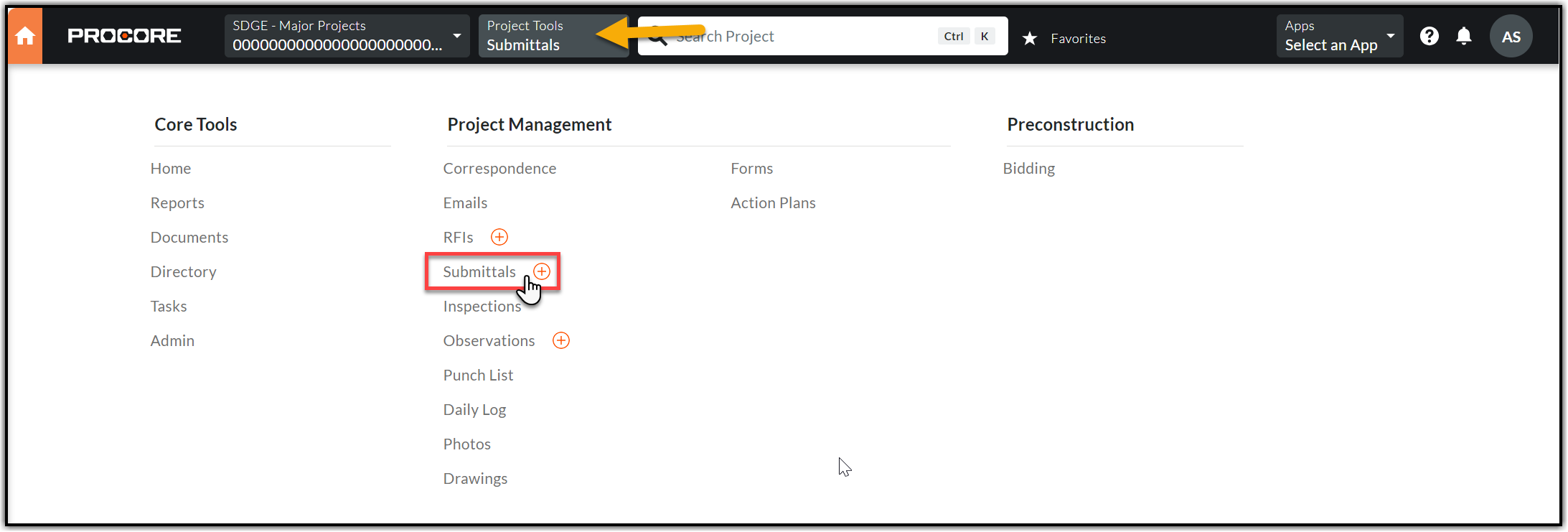
3.1. From Project Tools, select Submittals.
4. CREATING THE IFC TO CVM SUBMITTAL
4.1. Click Create on the top right corner and select Submittal.

4.2. Complete the required fields in the General Information Section using the information below.
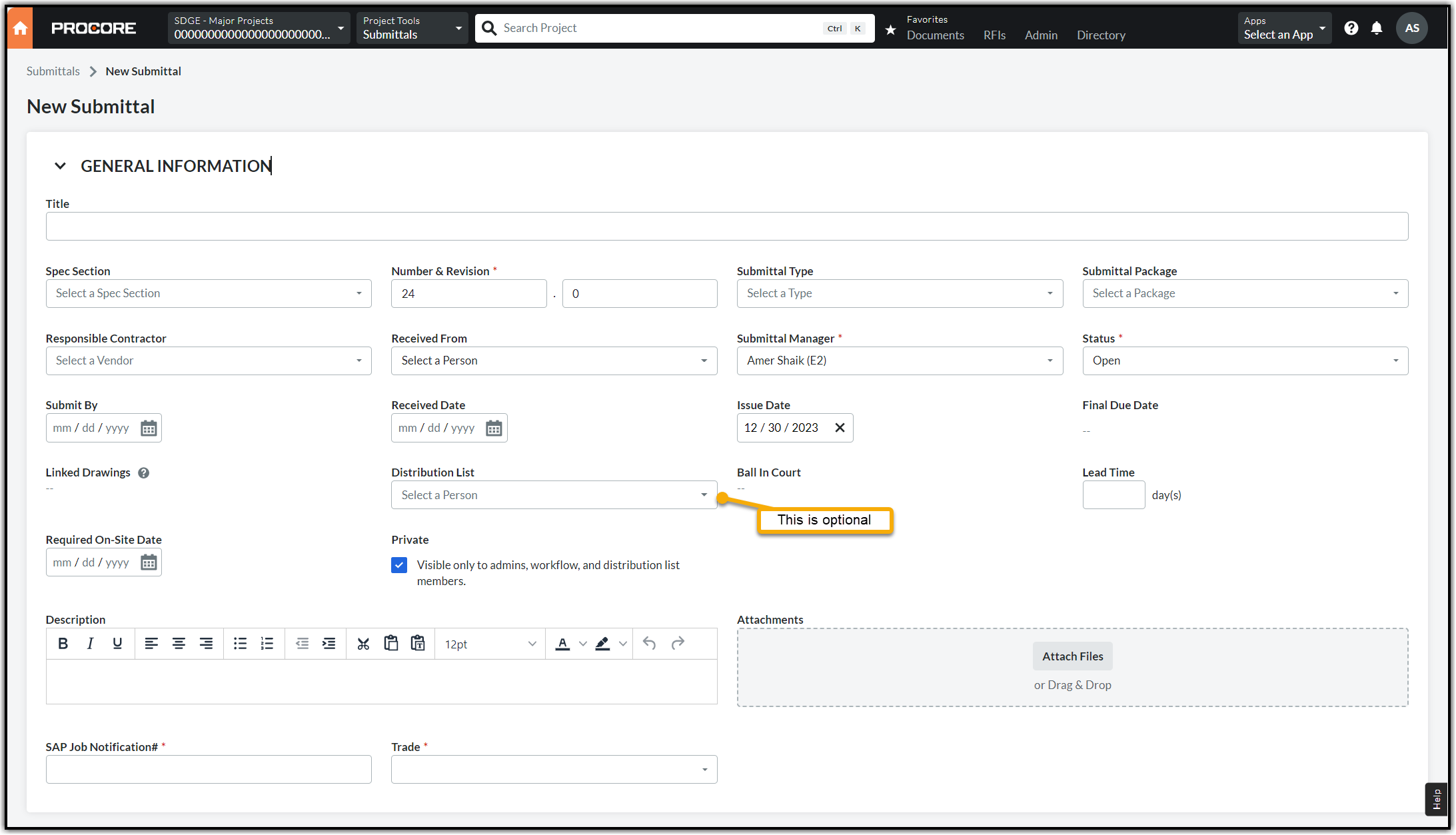
- Title: Enter the Job Package title.
- Received From: This is always you.
- Type: Select “IFC to CVM” in the drop-down.
- Submittal Manager: This should be you. The Submittal Manager will be responsible for closing the submittal (after the CMS accepts the job package by acknowledging the submittal).
- Status: Keep the default status – ‘Open’
- Description: Provide any relevant details including but not limited to, budget restrictions/recommendations/requirements for the bid, and any City/Jurisdiction guidelines that might affect the job etc. Ensure to mention the location of the Final Job Package (Unredacted i.e., with the financial information).
- Attachments: Attach the ‘Construction Ready Job Package’ to this submittal. Please do not drag and drop from your computer. Upload from the Documents tool using the Attach files button.
- SAP Job Notification#: Find in Job Package or SAP
- Trade: Please select from Civil, Electric or Scada
4.3. Complete Submittal Workflow section. Click Add Step to add more approvers and click Create and Send Emails. Keep the default role “Approver” intact for each person.

Standard for this will be a one-step workflow:
|
Submittal Step |
Approver - IFC To CVM |
|
Step 1 |
Construction Management Specialist |
Note: This process is repeated for any FCO if major design changes are needed during construction or if additional project scope needs to be issued to CVM.
5. CLOSING THE IFC TO CVM SUBMITTAL
5.1. CMS Accepts the Job Package: They respond to the Submittal with No Exceptions Taken. You will be notified of the response via email. At this point you can close the Submittal.
Here are the steps:
5.1.1. Click View online in the email to go directly to the corresponding Submittal.

OR
Navigate to the Project Tools menu and select the Submittals tool. Choose the corresponding Submittal (You can find the Submittal item by its Number) and click View to open the Submittal.

5.1.2. Click Edit on the Submittal. This should open the Submittal in edit mode.

5.1.3. Change the Status to Closed and click Update & Send Emails button

5.2. CMS Does not Accept the Job Package: They will send the Submittal back to you by mentioning the reason(s) in the Comments section. You will be notified of the response via email. At this point you are supposed to create a revision of the Submittal with a revised job package.
Note: The Job Packages are sent back mostly if there are any missing documents (refer to the table in section 2) or if the CMS needs any other document or information.
First, you should upload the revised job package documents to the Documents tool (refer section 2 for instructions) then create a revised Submittal.
5.3. Steps to Create a Revision from Existing Submittal:
5.3.1. Open the existing Submittal - you can refer to section 5.1.1.
5.3.2. Once you have opened the Submittal, click the Ellipsis menu (Three dots icon) next to Edit and select Create Revision.

5.3.3. The revised version of the Submittal gets created and it duplicates all the information from the previous one (Assignees, Dates, Workflow etc.). You should upload the revised job package and provide the requested information (if any) and hit either the Create or Create and Send Emails button.
Note: The Submittal title and Number and Revision fields will have an updated revision number from 0 to 1 for the first revision and 2 and so on until the reviewers take no exception to the Submittal and no further revisions are required

6. APPENDIX
6.1. There are certain process exceptions for ESH. Please refer the below guide:
CVM Process Exceptions for ESH.pdf