

Field Change Order
1. THE FIELD CHANGE ORDER FORM
1.1. Purpose
This is a new form (Correspondence type) that represents officially agreed upon field changes from the engineers to the contractors. If there is still a question about a potential change that needs review then that can go through the RFI tool as usual, however, once the change itself has been agreed upon, either in the RFI or in the field, then this form will have to be created for official project record.
1.2. Definitions
FCN will be created by Construction Contractors for Engineers
FCO will be initiated by Engineering Team/Project management/ Construction Management for Construction Contractors
Note: EPICS (used by Transmission) will also fall under the FCO form.
Note: Depending on when the EPIC/FCO occurs during the project lifecycle there will be following variations to the process:
- If an EPIC/FCO occurs during the construction or before giving the Final Construction Redlines (As-Builts) to the Engineering team for review – only an FCO form will be used.
- If an EPIC/FCO occurs post-construction or during the review of Final Construction Redlines (As-Builts) by engineering groups – a new work order needs to be issued, which will in turn result in issuing an NTP and will be considered as a new project scope.
- If an EPIC/FCO occurs during the job walk or RFP process – It is a rev up (from REV0 to REV1) to the IFC package, and not to be issued as an EPIC/FCO.
- It is possible that if an upstream department also uses Procore that they may issue a new NTP directly to the contractor.
2. NAVIGATING TO THE FIELD CHANGE ORDER
2.1. Navigate to the project in Procore by clicking the Company Tools and clicking on the Portfolio. Once there, search for the project, and select the project. Click Project Tools from the Project Home page and select Correspondence from the drop-down menu.

2.2. From the Correspondence page, click the orange +Create button and select (Global) – Field Change Order Form.

3. CREATING THE FIELD CHANGE ORDER
3.1. Complete all the required fields (marked with an asterisk) using the below information and then click Create & Issue at the bottom right.

- Status: Keep the default - “Open”.
- Subject: Give the Job Package Number and add a title to describe the change in very few words.
- Assignees: Select the Contractor, Project Manager, CMS, FCA, and RFI Manager (if applicable).
- Received From: Should always be you - the sender (SDG&E).
- Distribution Member: Select anyone else who may want to be notified of this form.
- Origin RFI: If this conversation originated in an RFI, please reference that here.
- Description: Describe the change to be made in as much detail as possible, specify where in the job package, mention if it affects specifications, or materials.
- Attachments: Add photos and/or documentation representing the agreed change, including any markups/redlines. These should all be uploaded in the Documents tool in the Stage Five – Field Changes subfolder and linked over here.
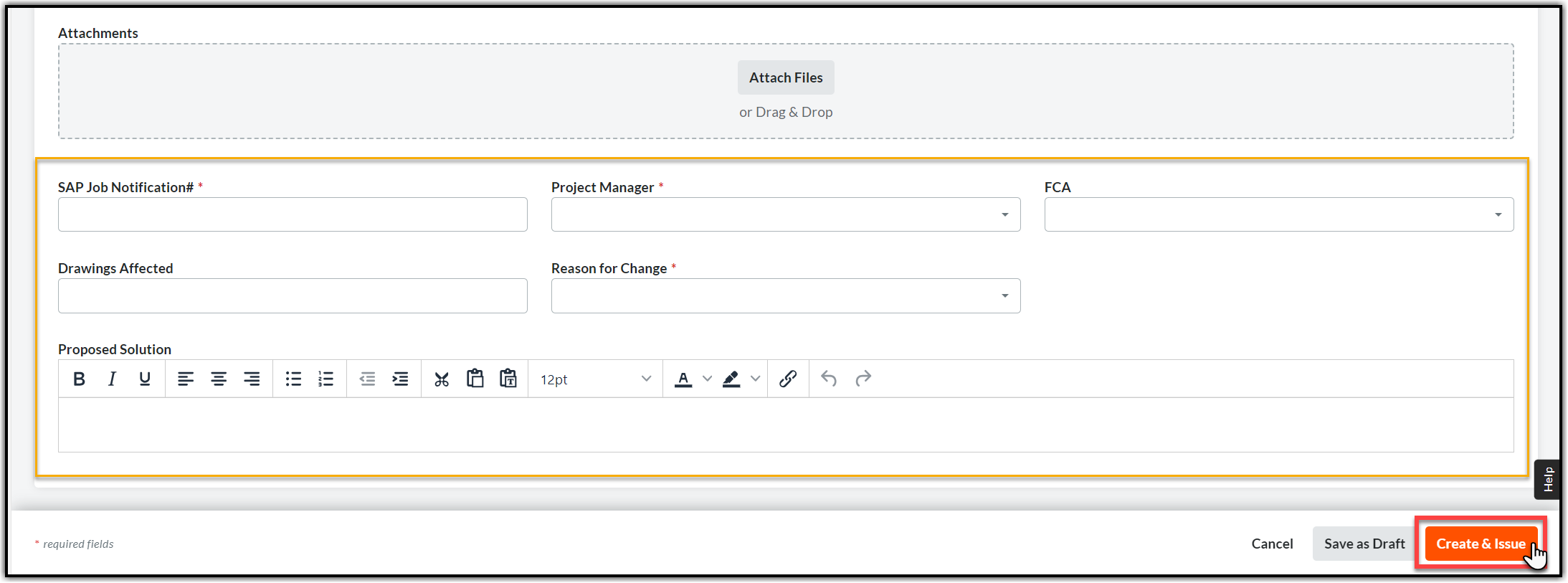
- SAP Job Notification #: The number is located in the job package and SAP.
- Project Manager: Choose from the drop-down
- Drawings Effected: if the change has an impact on drawings or sheets from the Job package (add drawing code/number/title)
- Reason For Change: Choose from the drop-down
- Proposed Solution: Please be descriptive in the decision that was made about proposed solution for the change.

3.2. The creator, assignees, and those on the distribution list will receive email notifications that a new form has been created.
4. CLOSING THE FIELD CHANGE ORDER CORRESPONDENCE
After all the responses have been provided, as applicable, it is time to close the Field Change Order.
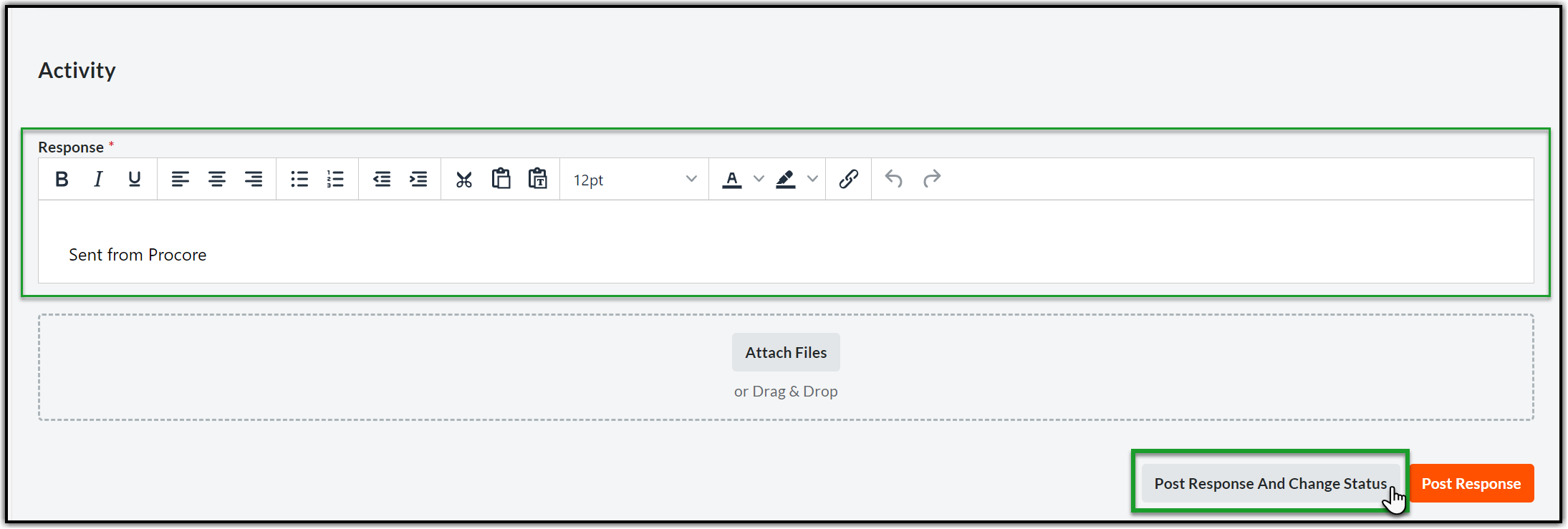
4.1. Open the Correspondence and scroll down to the Activity section. Enter the closing response in the Response section and click Post Response and Change Status at the bottom right corner of the page.
4.2. Click the Status dropdown and select Closed.
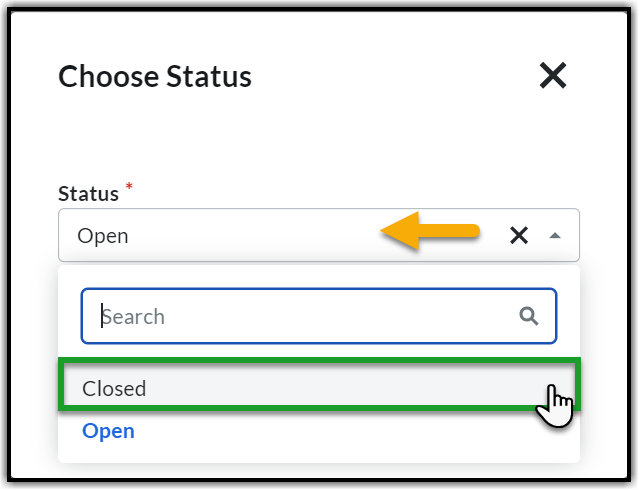
4.3. Click Save and Change Status to post the response and close the Field Change Order Correspondence.
