

Field Change Notice
1. THE FIELD CHANGE NOTICE FORM
1.1. Purpose
This is a new form (Correspondence type) that represents officially agreed upon field changes from the Construction Contractor to the project team. If there is still a question about a potential change that needs review then that can go through the RFI tool as usual, however, once the change itself has been agreed upon, either in the RFI or in the field, then this form will have to be created for official project record. If the change is large enough to have effected design, then the FCN will follow with “IFC to CVM” submittal and “NTP”.
1.2. Definitions
FCN (Field Change Notice) will be created by Construction Contractors for Engineers.
FCO (Field Change Order) will be initiated by Engineering team/ Construction Management for Construction Contractors.
2. RESPONDING TO THE FIELD CHANGE NOTICE FORM
2.1. Option 1: When a new FCN Correspondence is created and issued, an email will arrive prompting you to use a link and open the FCN. Click View Online to open Procore - you will be in the Correspondence area for the project.

2.2. Option 2: Navigate to the Project Tools menu, and the Correspondence tool, choose the corresponding Global Field Change Notice (You can find the correspondence item by its number).
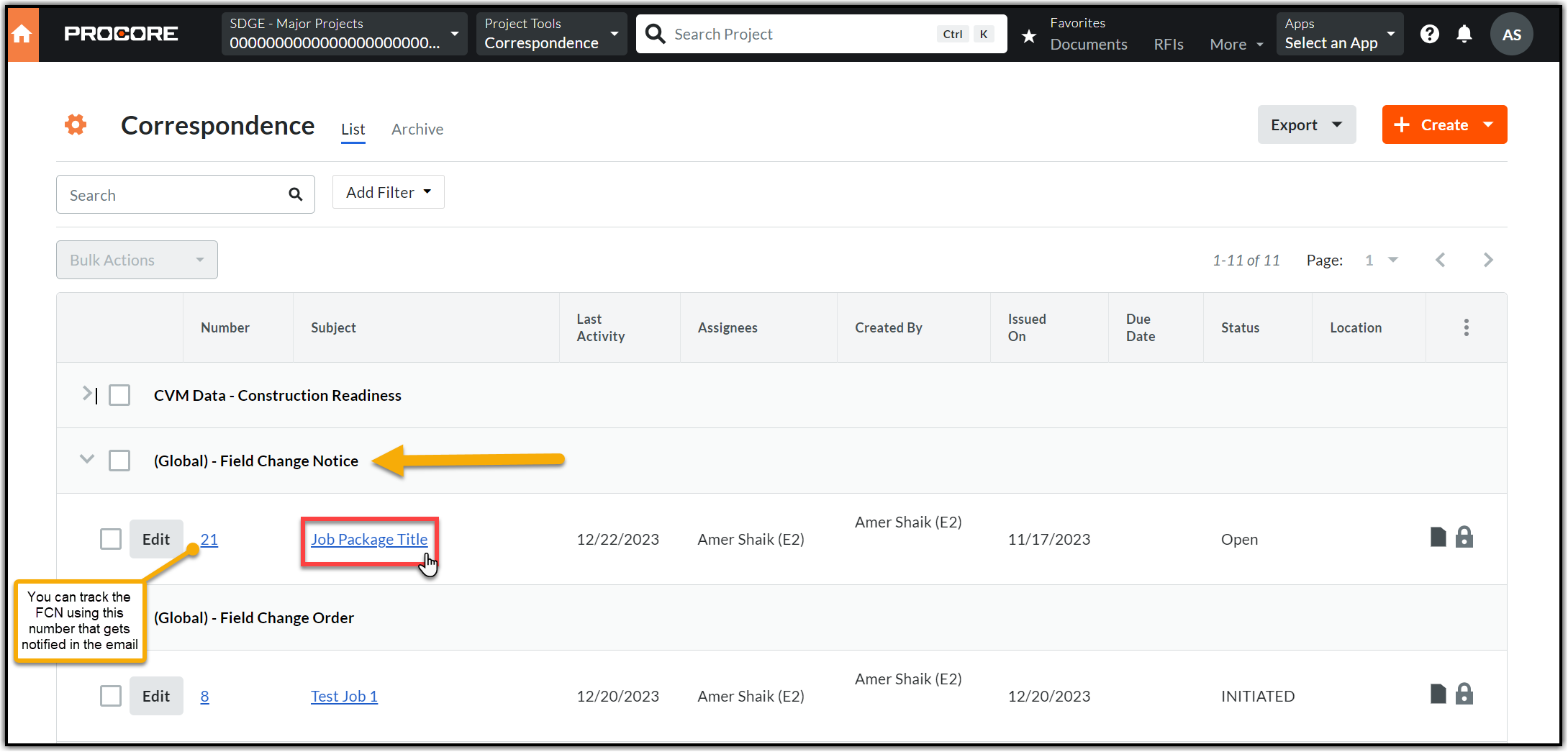
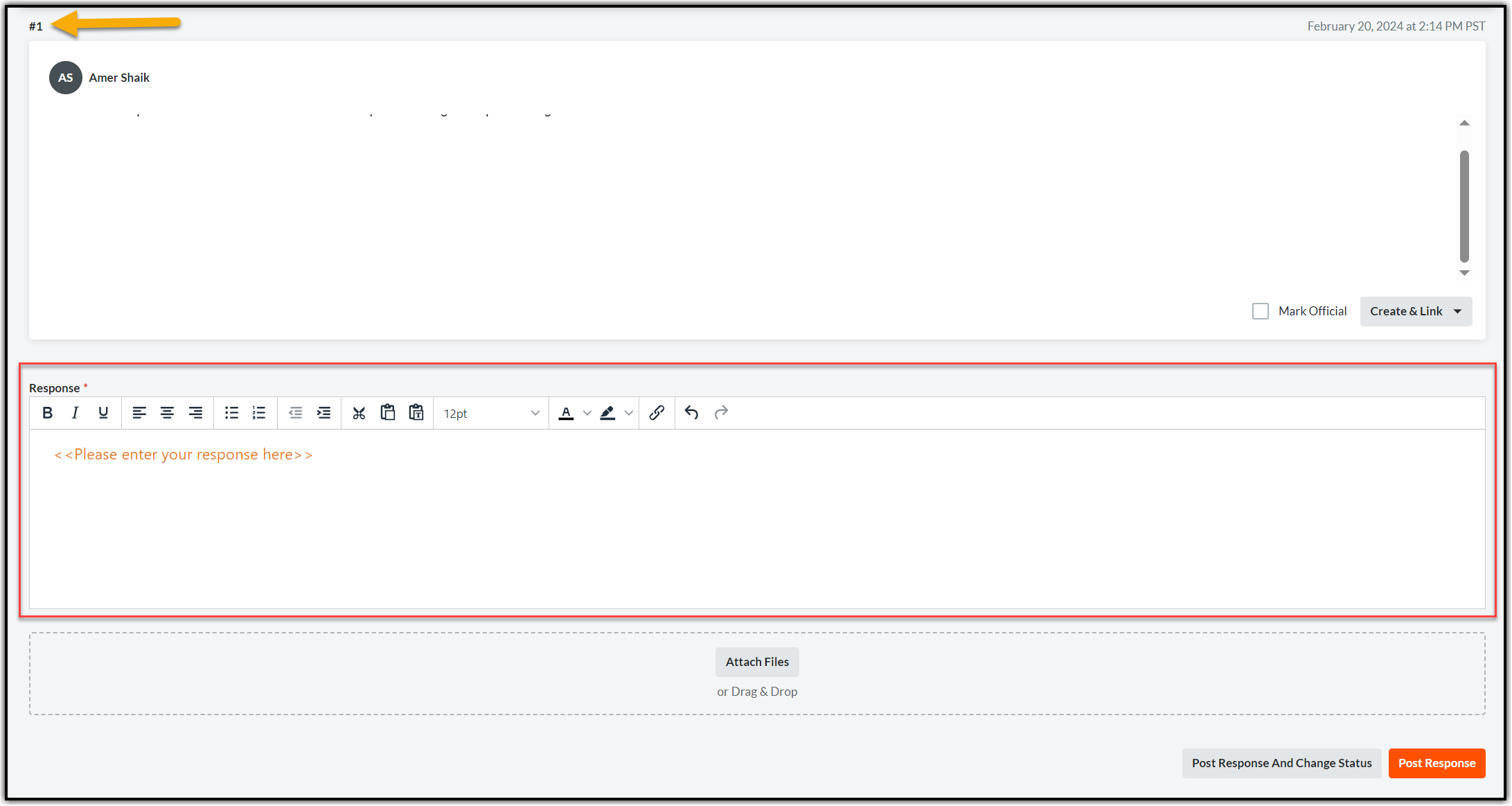
2.3. Add response in Procore in Activity section, you can add your response and attach documents (if needed) using the Attach Files option.
2.4. Responses will be cataloged in a numbered order in same FCN if the status of the form is open. The below screenshot is captured after entering the first response (indicated with an arrow).
Note: All FEWAs will take place in Smartsheet and are not outlined in this manual.
3. CLOSING THE FIELD CHANGE NOTICE (FCN) CORRESPONDENCE
After all the responses have been provided, as applicable, it is time to close the Field Change Notice correspondence.
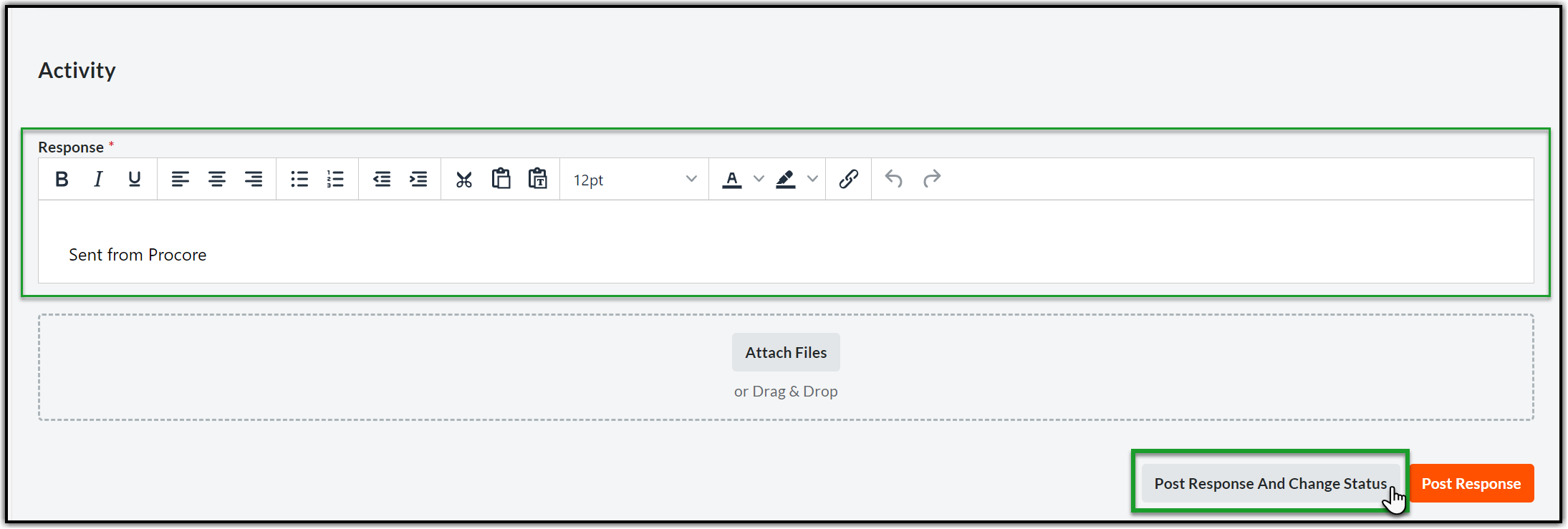
3.1. Open the Correspondence and scroll down to the Activity section. Enter the closing response in the Response section and click Post Response and Change Status at the bottom right corner of the page.
3.2. Click the Status dropdown and select Closed.
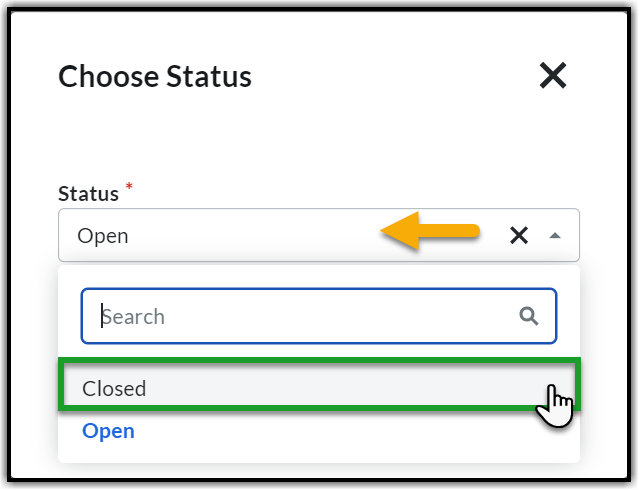
3.3. Click Save and Change Status to post the response and close the Field Change Notice(FCN) Correspondence.
