

CVM Manual for MLP
1. THE CVM MANUAL FOR MLP
1.1. Purpose
The CVM (Construction Vegetation Management) Standardization refers to the changes made to align the CVM Processes and establish a standard. The focus of this alignment is to review and redefine processes that are specifically used in Procore during Stage 5-Construction, and Stage 6- Closeout. This user guide will help SDG&E employees with detailed instructions on utilizing Procore while implementing the end-to-end CVM Standardization Process for their projects. Each project type follows a specific process with designated project roles, in this guide, you will learn what the overall Procore process is for a project, with more detailed user guides available to review specific Project submittal processes (e.g., Fuse, Hotline/Clamps).
1.2. Definitions and Acronyms
The CVM Standardisation process involves the following terms/acronyms as defined below:
List of Abbreviations and Technical Terminology
- SDG&E: San Diego Gas & Electric
- Instance: Group within Procore based on job and project type (e.g. Gas or FiRM)
- CMS: Construction Management Specialist
- MLP: Materials Logistics Planner
- FCA: Field Construction Advisor
- CSPM: Construction Services Project Manager
- CM: Construction Manager
- SPL: Strategic Project Lead
- FUS: Field Utility Specialist
- NTP: Notice to Proceed
- FEWA: Field Extra Work Authorization
- FACT: Field Audit Collection Tool
- CPD: Construction Planning and Design module in SAP
- WO: Work Order
- DBL: Design By Location
- JTO: Joint Trench Offer
- (Step #): If located next to a Section/Sub-section heading, represents Step in the Submittal/Review Process.
1.3. Roles And Responsibilities
- MLP (Materials Logistics Planner) Verify job package for construction readiness using the Documents tool.
2. BEFORE YOU BEGIN
2.1. Before beginning, all users must have an account in Procore. If you are a new user an invitation will arrive in email prompting you to set up the password.

2.2. Please follow the link in the Welcome to Procore email. This will take you to Create a Password page. Please follow the requirements while entering the password and click Set Password.

Note: If Welcome to Procore email is not received, then please check the spam folder. If the email cannot be found, then please reach out to SDG&E Procore Support at ProcoreAdmin@sdge.com to request a new account.
2.3. After setting up the password, you can access your Portfolio by going to www.procore.com and clicking on Login located in the upper right corner of the landing page. Projects assigned to you can be found here – if you have not been added to a project, please reach out to the Procore System Administrator for your instance.
Note: It is Procore’s recommendation to use Chrome, however, you can use any Chromium/Modern browser.

2.4. Enter your email address and Procore password. Check the box Remember Me then hit the Log In orange button. This will take you to the Home Page.
Note: if you are assigned to multiple Instances in Procore, then it asks you to select the Instance after logging in, otherwise it will take you to the Portfolio.

3. COMPLETE THE CVM DATA - CONSTRUCTION READINESS
There are multiple stakeholders involved in completing the Construction Readiness tool. Each stakeholder will have to proceed through the following steps.
3.1. Navigate to the CVM Data – Construction Readiness tool. If there are multiple job levels click Edit to open the correct one.
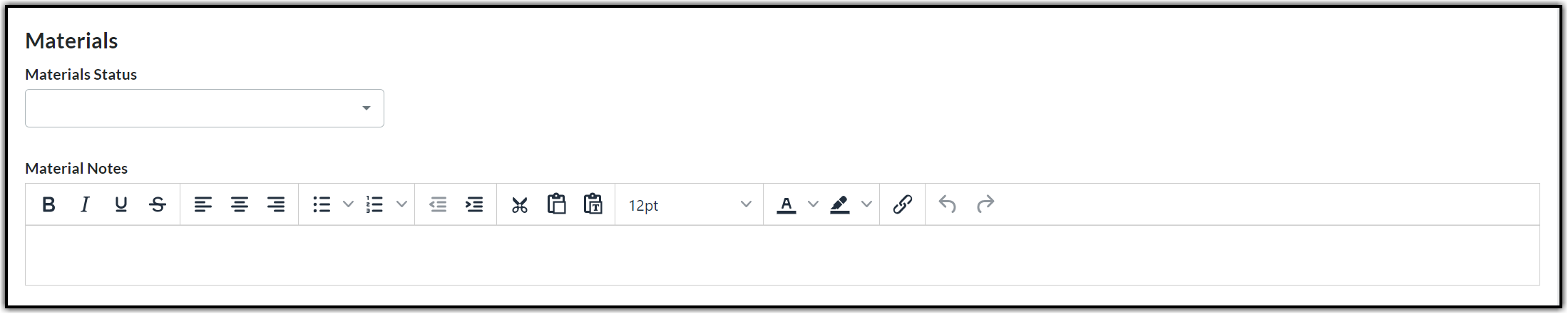
3.2. The MLP should fill out Materials section.
4. MATERIAL MANAGEMENT - DELIVERY CONFIRMATION
Once a Job is awarded and issued the Construction Contractor will need to process any materials delivered to them via this form as per Schedule H in the Master Service Agreement (MSA). This includes physical receipt, sign-off of materials and a verified acknowledgement that nothing is missing or damaged. This form is due to be completed within three days of taking delivery as per the MSA.
Note: The Materials Delivery Form is not required for any project that has less than five locations.
5. RESPONDING TO THE MATERIAL DELIVERY
Receive and Review the Correspondence for Materials Delivery.
5.1. Option 1: Click on View online the email notification to open Procore - you will be in the Correspondence area for the project.

Note: Attachments can be viewed directly in the form, or by navigating to the Documents Tool, then to the correct job level (Job Notification – 1 or 2 or 3) to review the Job package in the “Stage Five – Construction” and “Materials Management” folder.
5.2. Option 2: Navigate to the corresponding (Global) SDGE – Materials Delivery Form in the Correspondence tool under Project Tools (refer Section 2).
5.3. Click the Number or Subject to open the respective form (as given in the email).

5.4. After reviewing the attached documentation, if you wish to add any response then click Post Response.
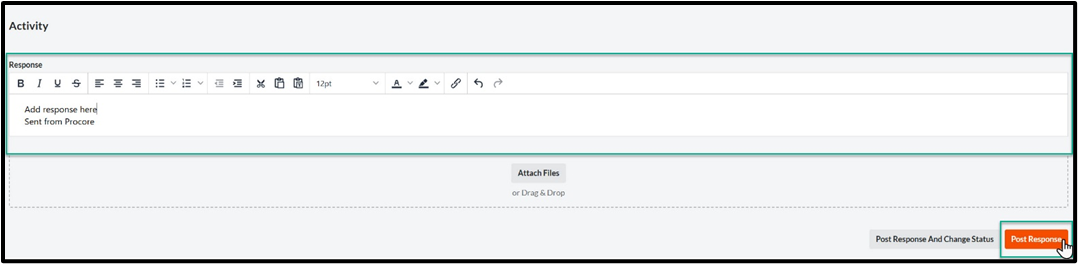
Note: Each time you require new material (either due to a field change or for other reasons) the Contractor should officially request using the Response section of this form to reach out to the MLP. This is the established way to communicate any needs to the MLP and procure the material.
Note: Materials Delivery form is due by the Contractor within three business days of taking receipt of materials (Materials Release Date) as outlined in MSA. Please make sure all deliveries for the project are listed here and, in the materials workbook, if applicable.
5.5. All communication regarding the resolution of damaged materials will occur in the Activity section of the form and assignee and sender will receive an email from Procore when updates are provided. The Material Logistic Planner will always be the one to change the status to Closed once the project is completed.
Note: This form will stay open throughout the construction phase of the project. Please update each time a new PO is added, or a new delivery takes place due to any field changes.
6. MATERIALS MANAGEMENT - RECONCILIATION
There are two primary use cases where you are required to submit the Material Returns Form:
6.1. When there are damaged materials and a replacement needs to be requested this form will be filled out for that specific PO, once the replacement has been received, there will also need to be confirmation that the damaged item has been returned.
6.2. Once construction is completed and as a part of the Construction Redlines process, Contractor will need to reconcile any leftover/Unused materials as per Schedule H in the Master Service Agreement (MSA). For this use case, this form is due to be completed within three business days of the completion of work, and the packaging of any unused materials for return is due within seven days of work completion.
7. RESPONDING TO THE MATERIALS RETURN FORM
Receive And Review the Correspondence for Material Returns.
7.1. Option 1: Click View online the email notification to open Procore - you will be in the Correspondence area for the project.

Note: Attachments can be viewed directly in the form, or by navigating to the Documents Tool, then to the correct job level (Job Notification – 1 or 2 or 3) to review the Job package in the “Stage Five – Construction” and “Materials Management” folder.
7.2. Option 2: Navigate to the corresponding (Global) SDGE – Material Returns Form in the Correspondence tool under Project Tools (refer section 2.1.).
7.2.1. Click the Number or Subject to open the respective form (as given in the email).

7.3. Scroll down to the Activity section and add comments for the MLP under Response and click Post Response.
7.4. All communication regarding the resolution of damaged materials will occur in the Activity section of the form and assignee and sender will receive an email from Procore when updates are provided.
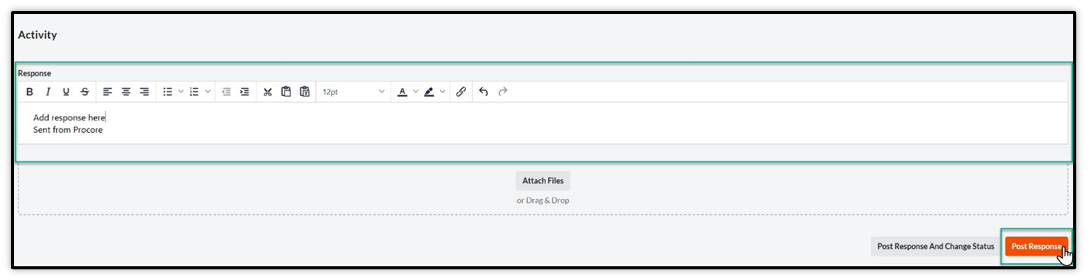
Note: The Contractor is required to complete the “Material Returns Form” with updated “Material Workbook” within three days of the Actual Construction Completion date and the completion of packaging of all materials for relocation or return must be done within seven business days per their MSA.
7.5. All communication regarding the resolution of returned materials will occur in the Activity section of the form and assignee and sender will receive an email from Procore when updates are provided. The Material Logistic Planner will always be the one to change the status to Closed.
6. CLOSING THE MATERIALS DELIVERY / MATERIAL RETURNS FORMS
The Material Logistic Planner will always be the one to change the status to Closed at the end of the project.
6.1. Open the corresponding form and scroll down to the Activity section. Add closing comments under the Response text area and click Post Response And Change Status.
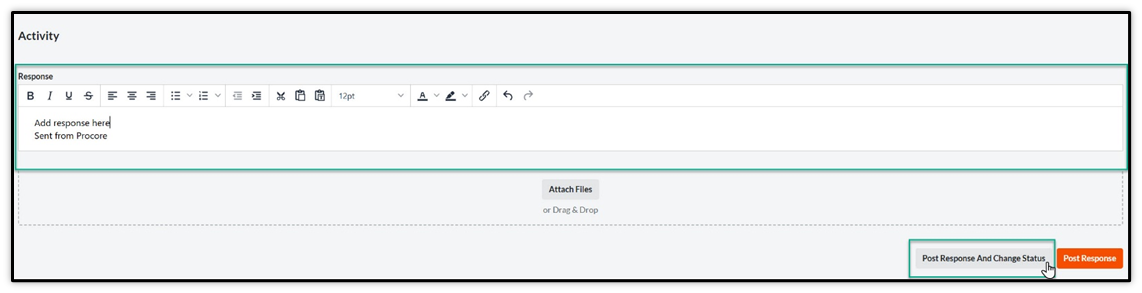
5.2. Click the Status dropdown and select Closed.

5.3. Click Save and Change Status to post the response and close the Materials Delivery Correspondence.
