Assign Default Cost Types To ERP Standard Cost Codes
Objective
To assign default 'cost types' to standard ERP cost codes.
Background
In the construction industry, cost types are often assigned to cost codes to identify the specific work being performed on a construction project. To help project teams better account for their costs (especially their internal costs), it is a common practice to assign multiple cost types to a single cost code.
To understand the relationship between these two objects, keep in mind:
-
A Cost Code is a code that defines the specific type of work being completed on a construction project. When using an integrated ERP system with Procore, cost codes are synced to individual segment items (a.k.a., 'cost codes' on Procore's 'Cost Code' segment, which is a tiered segment. To learn more, see What are Procore's default cost codes?
- A Cost Type is a set of costs identified by a unique abbreviation or label. In Procore's WBS, 'Cost Type' is a flat segment with these default options: (E) Equipment, (L) Labor, (M) Materials, (O) Other, (OC) Owner Cost, (S) Commitments, and (SVC) Professional Services. See What are Procore's default cost types?
You must first add Cost Codes to the ERP standard cost codes list in the company Admin tool before assigning default cost types in the ERP Integrations tool.
Things to Consider
- Required User Permissions:
- 'Standard' or 'Admin' level permissions on the company's ERP Integrations tool.
- Additional Information:
- You can assign one or more cost type(s) to each standard cost code. For example, both L=Labor and E=Equipment.
- Not all integrations support the cost type concept. For details about how your ERP system handles cost codes and types, see Things to Know about your ERP Integration.
Steps
- Navigate to the company's ERP Integrations tool.
- Click the Std. Cost Codes & Cost Types tab.
- For each ERP standard cost code in your company's list, mark one (1) or more checkboxes to assign the code to one (1) or more cost type.
notes
- To apply a specific cost type to all of the cost codes in the list, double-click the desired cost type column.
- You can hover your mouse cursor over the column headings, to reveal a tooltip that shows the full name for the cost type.
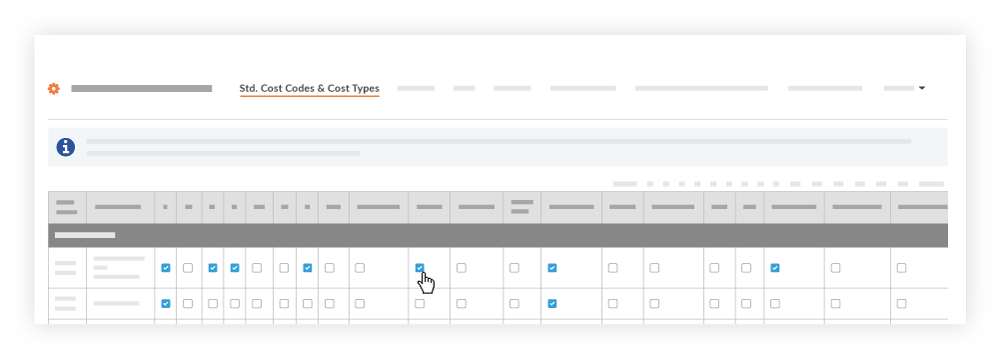
- The cost type assignments are automatically saved.