Managing Views
As part of the enhanced experience, the new View Builder empowers Company Administrators to design highly tailored financial views. This improvement provides granular control over data transparency, allowing you to selectively show or hide columns to align precisely with your specific reporting goals, project milestones, or stakeholder requirements.
This update also provides clearer visibility into Procore standard versus custom columns and introduces the ability to create aliases (nicknames) for column titles, ensuring project teams see the most relevant labels for their specific workflows.
Assign Columns to a Budget or Forecast View
In the Budget Views tab, locate the Budget or Forecast View you wish to add columns to and click Edit.
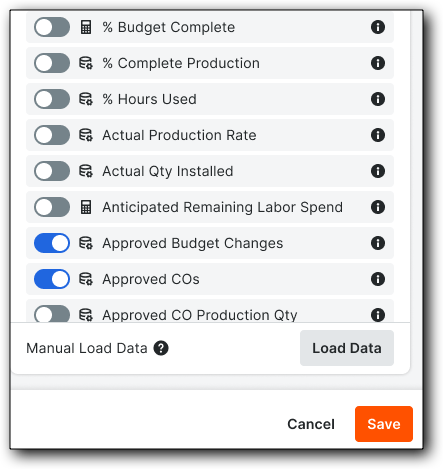
In the list of available columns, toggle ON or OFF any as desired.
(Optional) Click the pencil icon next to a column header to edit the display name for this view.
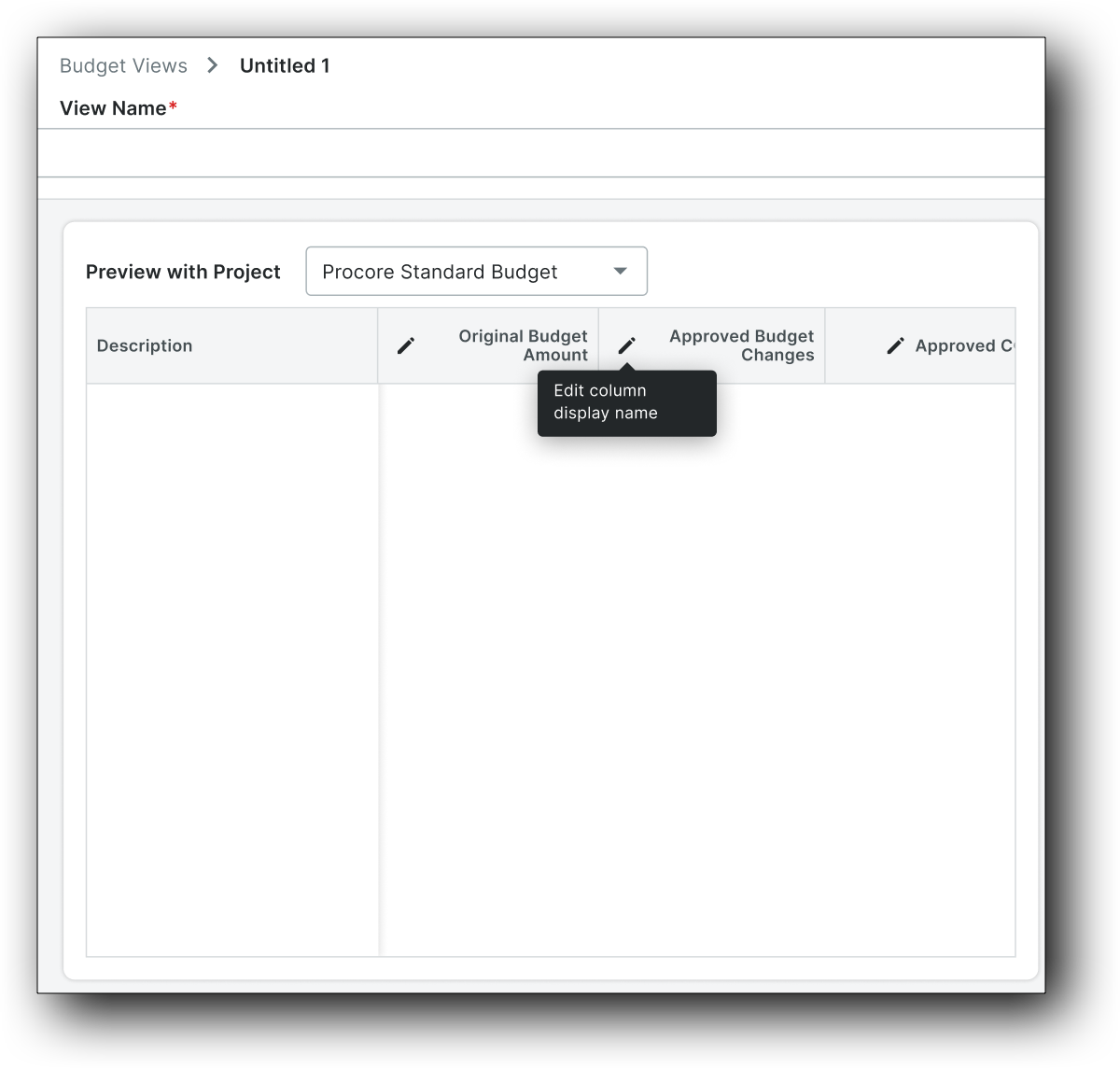
This opens the Edit Column Display Name window.
In the Column Display Name field, enter up to 50 characters and click Update.
In the view builder, both the actual and display name are shown for a column.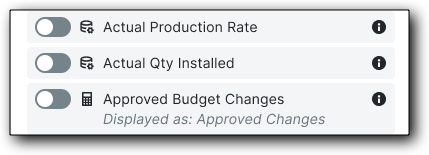
Click Save.
Assign a Budget View to Projects
Once your budget view is configured, you can assign it to specific projects from two locations:
The Budget Views List: From the main list of all available budget views.
The View Builder Edit Page: While actively editing or configuring a specific view.
 |  |
|---|
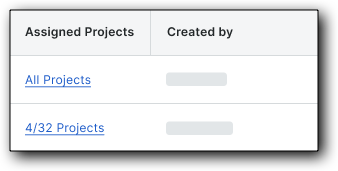
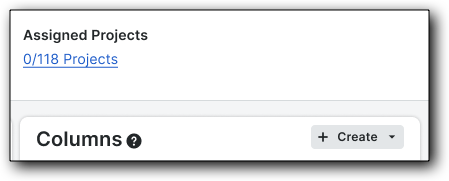
In both locations, you must click the Assigned Projects hyperlink (e.g., 0/111 projects) to open the Assign View to Projects screen. This window allows you to select the specific projects where you want the view to be available.
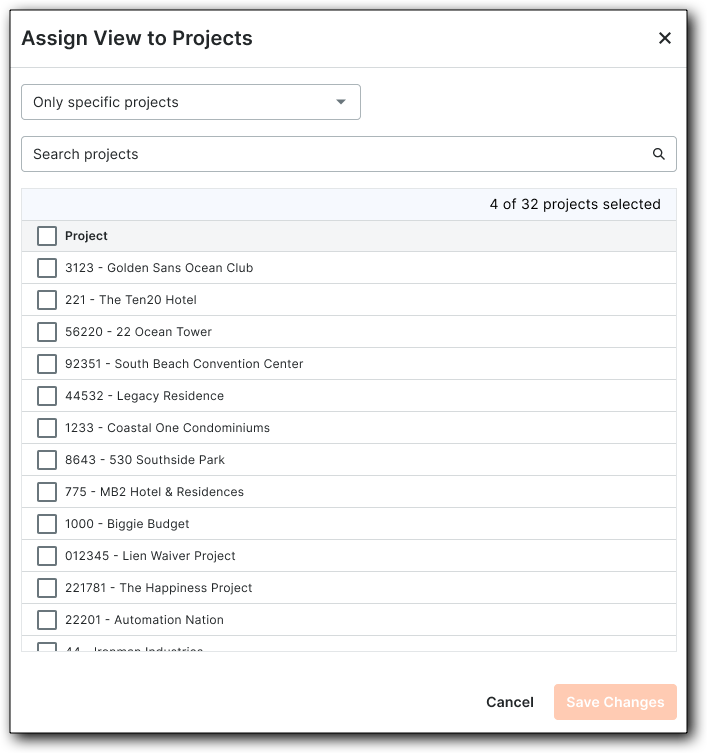
Once all projects are selected, click Save Changes.