MFA: Procore Standard (Users) - Enroll in MFA with SMS Verification
With SMS Verification, the login process requires a combination of:
- Something you know: Your standard Procore Email and Password.
- Something you have: A unique verification code sent by SMS text message to your registered mobile device.
Steps
First-Time Enrollment
To register your mobile number for MFA with SMS Verification, complete these steps:
- Go to the Procore web application at: https://login.procore.com.
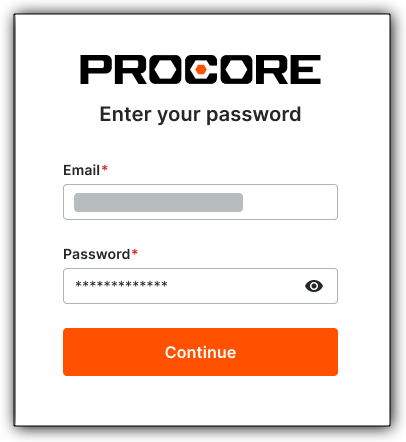
- Enter your Procore Email and Password. Then click Continue.
-
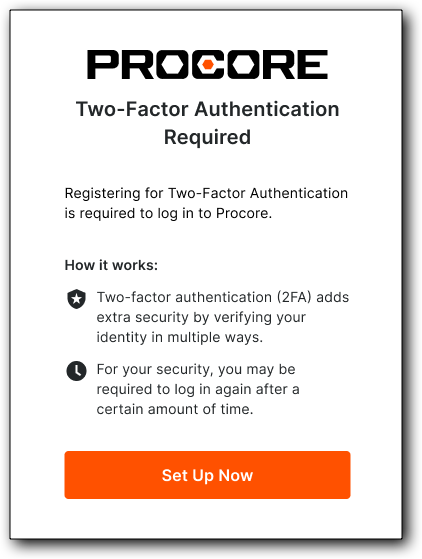
At the Two-Factor Authentication Required page, click Set Up Now.
-
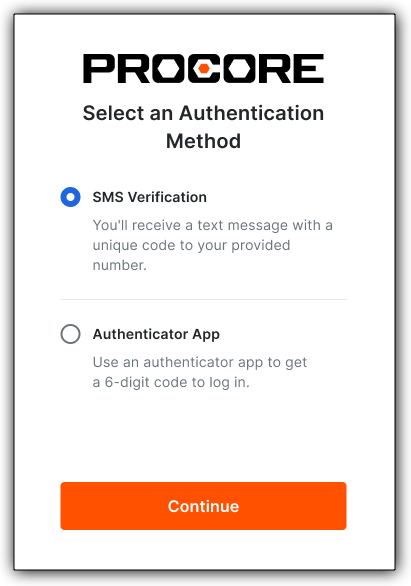
At the Select an Authentication Method page, choose SMS Verification, and click Continue.
-
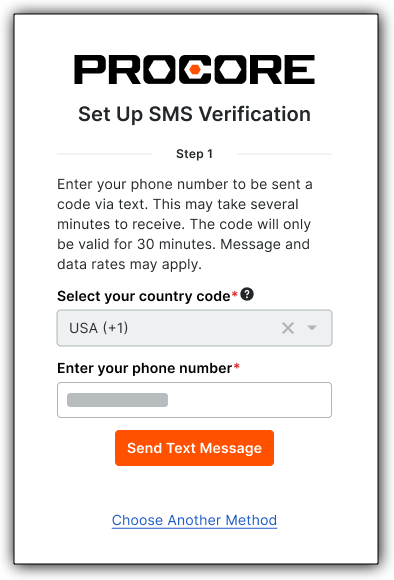
At the Set Up SMS Verification page, complete the Select Your Country Code and Enter Your Phone Number fields. Then click Send Text Message.
-
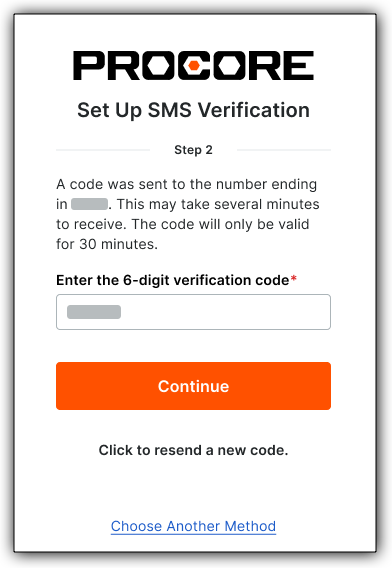
Check your mobile device for your 6-digit verification code. Then type it in the Enter the 6-Digit Verification Code box, and click Continue.
-
At the Save Your Recovery Code page, copy or download your recovery code and secure it in a safe place.
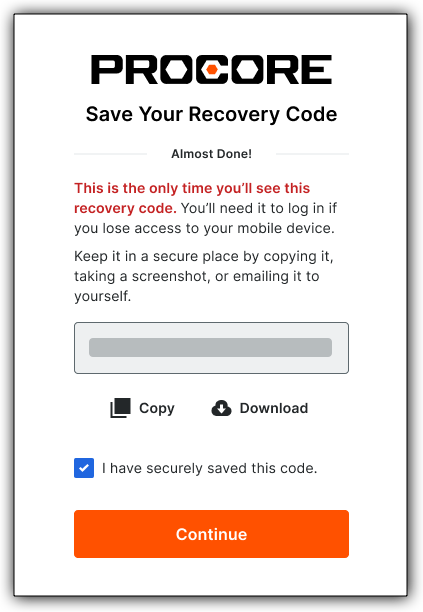
- Mark the I Have Securely Saved This Code check box.
- Click Continue to log in with SMS verification for the first time.