MFA: Standard Procore (Users) - Enroll in MFA with an Authenticator App
With an Authenticator app, the login process requires a combination of:
-
Something You Know: Your standard Procore Email and Password.
-
Something You Have: A unique code generated by an Authenticator app on your mobile device.
Important
Keep your verification code private. Procore generates a unique code just for you. Never share it with anyone. Procore employees will never ask for it.
Prerequisites
-
Pick a Verification Method before you enroll. If you choose an Authenticator app, first install a third-party TOTP Authenticator app. Procore does not recommend or endorse specific applications, but is compatible with most standard TOTP Authenticator apps. Contact your Procore Administrator or refer to your preferred software vendor for installation instructions.
-
If your specific facility or job site prohibits mobile devices on-premises, the Procore MFA solution also supports desktop- or web-based authenticators. To learn more, see How can I log in with Multi-Factor Authentication if I cannot use a mobile device at work?
Install an Authenticator App
If you choose an Authenticator app, first install a third-party TOTP Authenticator app. Procore does not recommend or endorse specific applications, but is compatible with most standard TOTP Authenticator apps. Contact your Procore Administrator or refer to your preferred software vendor for installation instructions.
Secure Your Account with the Authenticator App
First-Time Enrollment
To set up your mobile device for Procore MFA with an Authenticator app, complete these steps:
-
Go to the Procore web application at: https://login.procore.com.
-
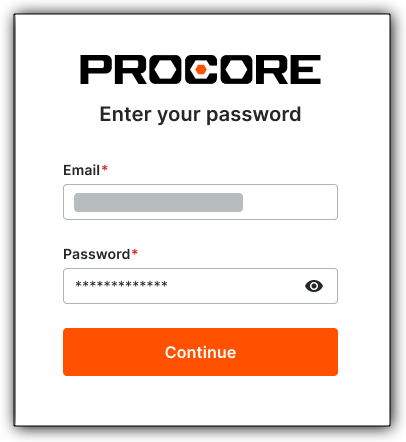
Enter your Procore Email and Password. Then click Continue.

sso users: if applicable
If your company currently uses or is implementing Single Sign-On (SSO), please note the following requirements for Procore Pay:
-
Separate SSO Implementation: Companies must implement a separate SSO specifically for Procore Pay users within their organization.
-
Submit a Request: To begin this process, you must submit a request to your Procore Customer Success team or Procore Point of Contact.
-
Login Process: Once configured, SSO users will sign in through their specific Identity Provider's login prompts rather than the standard Procore login. Once the SSO login is complete, users are prompted by Procore to complete the MFA challenge.
To learn more, see What is SSO?
3. At the Two-Factor Authentication Required page, click Set Up Now.

4. At the Select an Authentication Method page, choose Authenticator App, and click Continue.

5. At the Secure your Account page, open the Authenticator app on your mobile device.
6. Use the Authenticator app's camera to scan the QR code on the Secure your Account page.
Tips
-
Why isn't my phone's camera scanning the QR code? The QR code must be scanned from within the Authenticator app, not with your phone's camera. Open the Authenticator app and use its built-in scanner to capture the code.
-
Setting up MFA on your phone without a computer? Since you can't scan a QR code on the same screen, you must enter the code manually. Tap Trouble Scanning and enter the provided code into your authenticator app.
7. Enter the 6-digit code from your Authenticator app. Then click Continue.

8. At the Save Your Recovery Code page, copy or download your recovery code and secure it in a safe place.
Warning
Be sure to save your recovery code in a location that is securely accessible from another device. If your MFA device is lost or damaged, you will need your recovery code to set up MFA on a new device. Each recovery code can be used only once. After a recovery code is used, you will have the option to save a new recovery code.
9. Mark the I Have Securely Saved This Code check box.
10. Click Continue to log in to Procore with an Authenticator app for the first time.